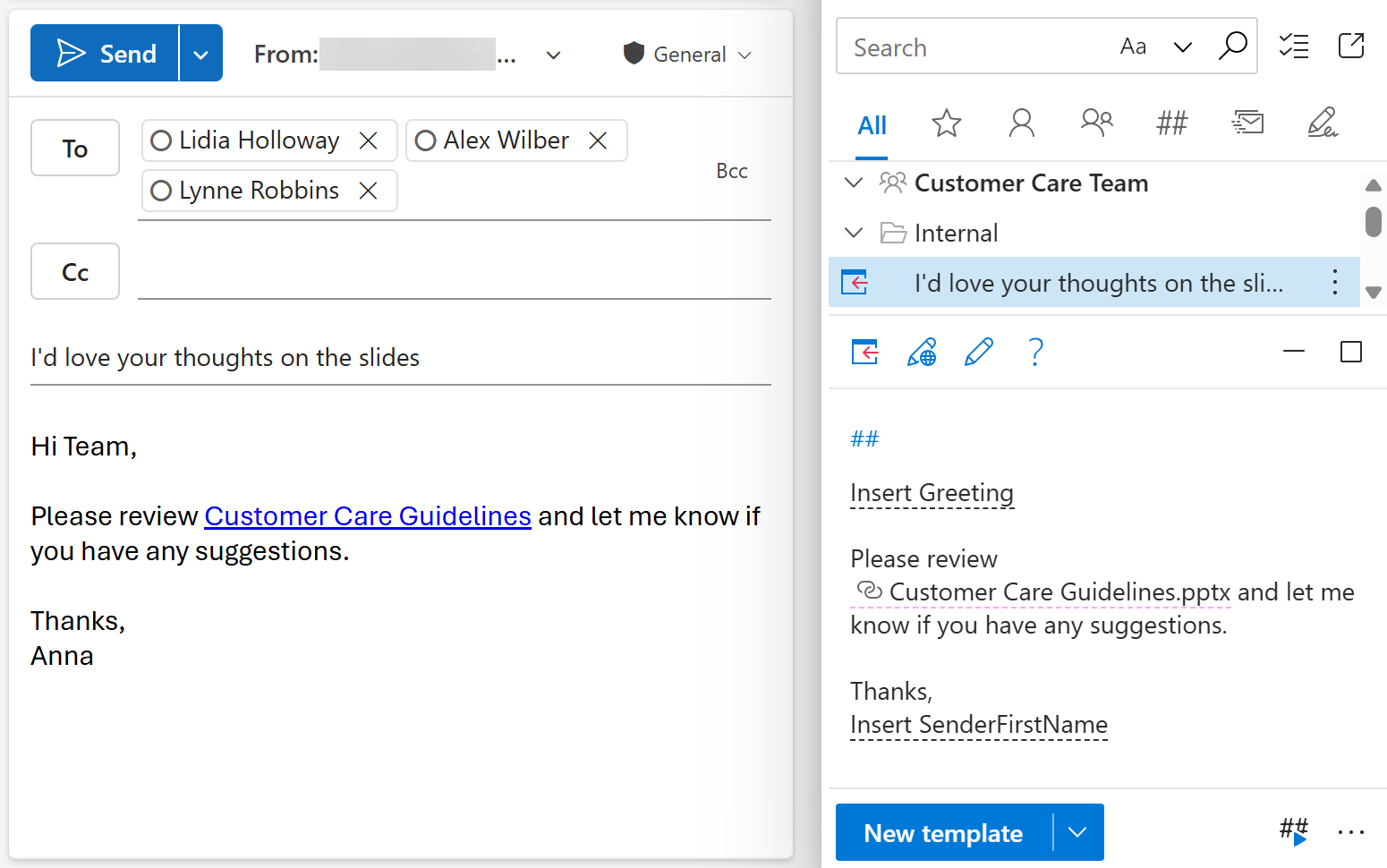
Outlook email templates with clickable links
In this article
You can add clickable links to your shared email templates for Outlook in two ways:
- with the Insert/edit hyperlink button on the template editor toolbar
- with the Insert macro
Add a link with the Insert/edit hyperlink button #
Start creating or editing your email template.
In the template, select the text you want to use as a hyperlink.
On the template editor toolbar, select the Insert/edit hyperlink button.
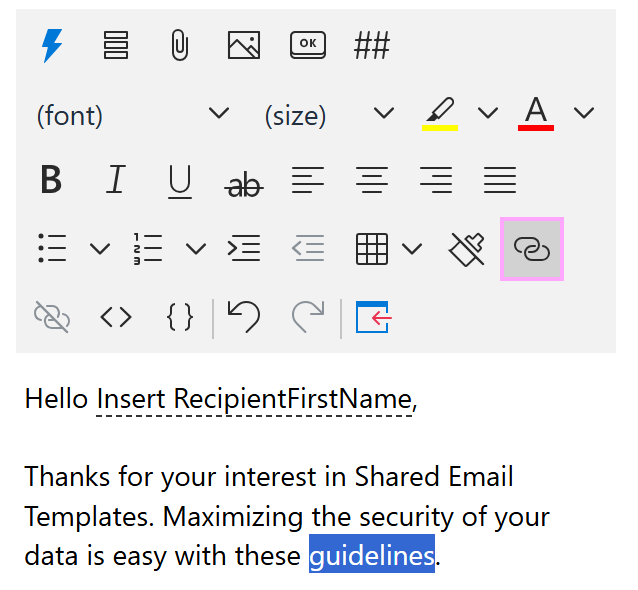
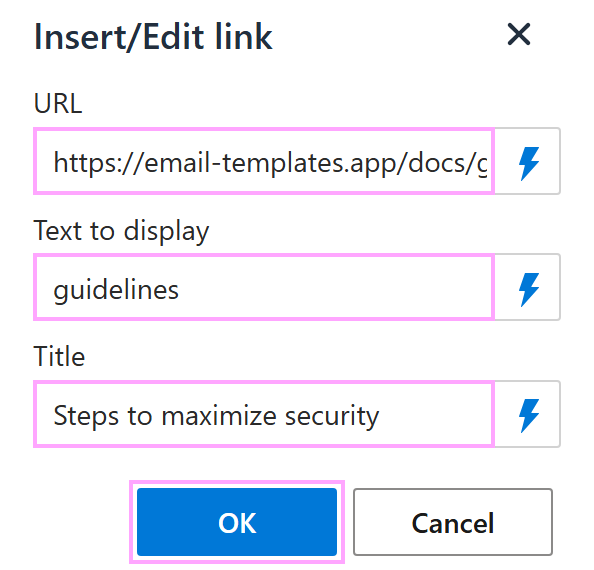
In the Insert/Edit link dialog, fill in the fields:
- URL
- Text to display (this field is automatically prefilled with the text you’ve selected in the template. You can change that text if needed)
- Title (the title will appear when you hover over the hyperlink)
Select OK.
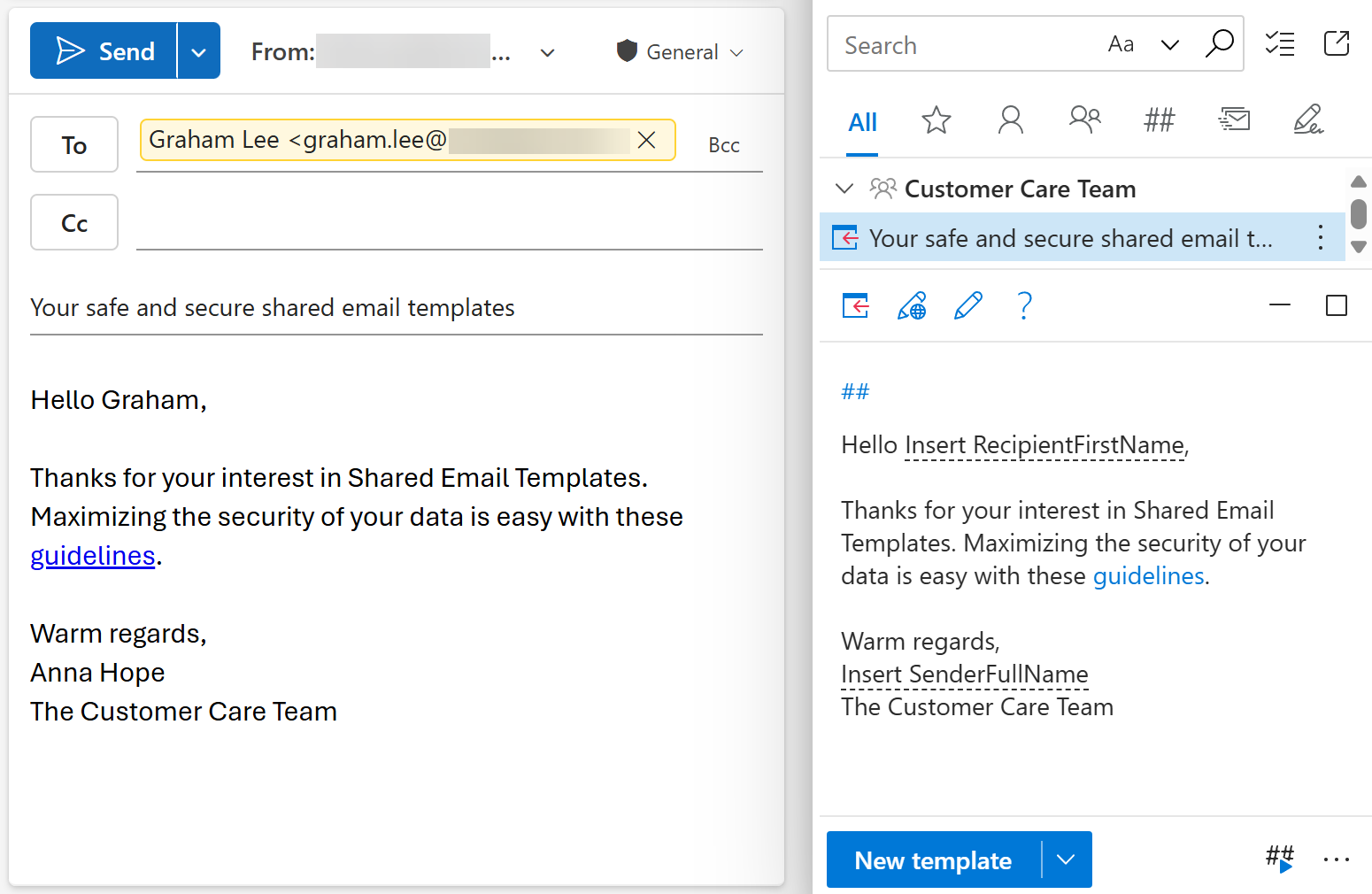
Save the email template.
When you use the template, the add-in will insert the clickable link into the Outlook email message.
Add a link with the Insert macro #
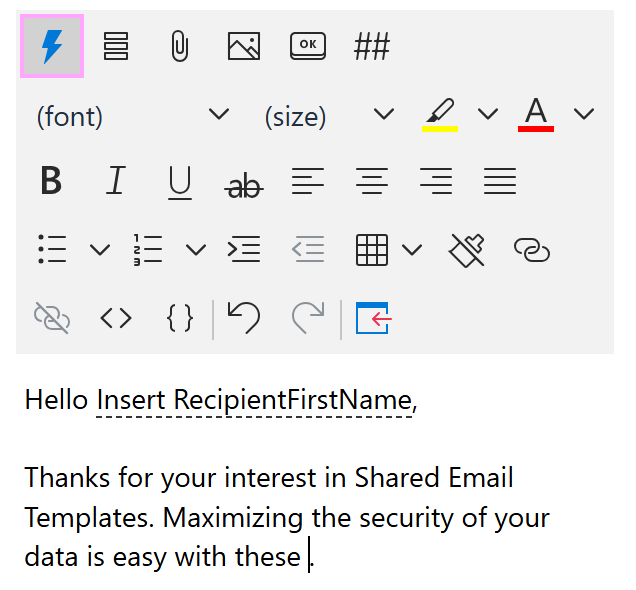
In the Outlook email template you’re creating or editing, place the cursor where you want to have a link.
On the template editor toolbar, select the Insert macro button.
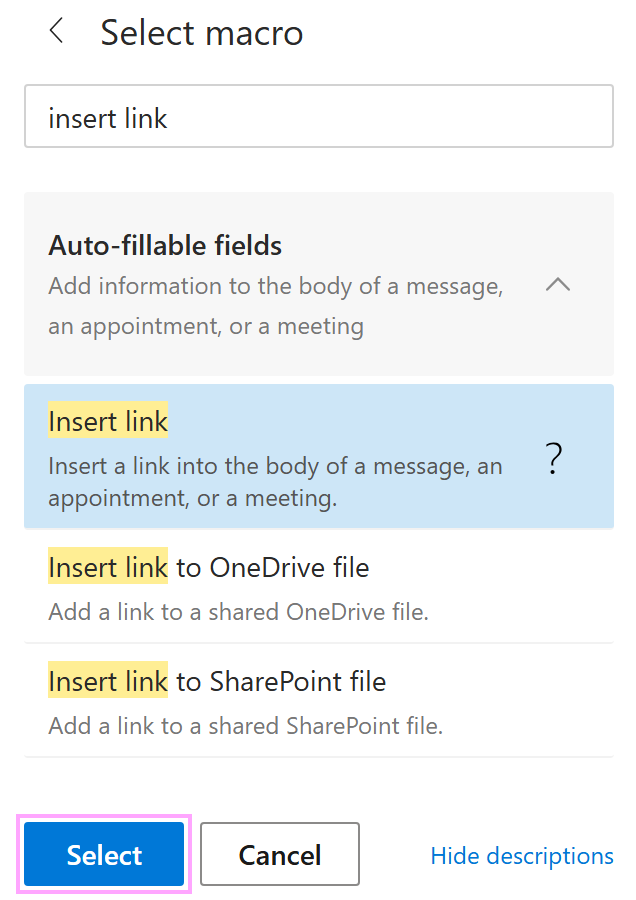
Select Insert link.
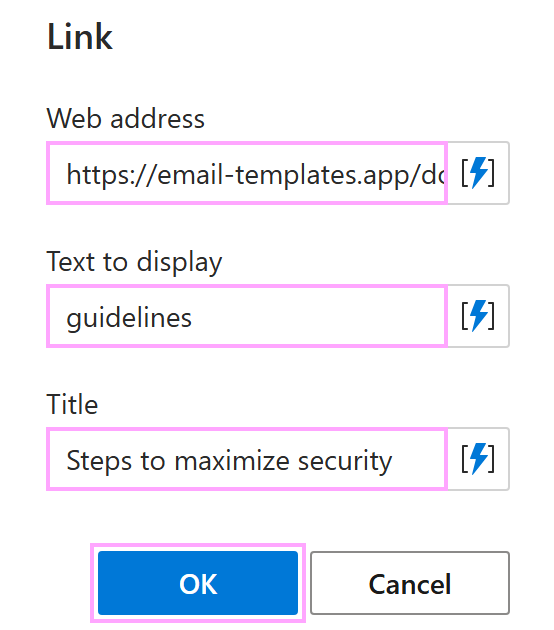
Fill in the fields in the Link dialog:
- Web address
- Text to display
- Title (it appears when hovering over the link in Outlook)
Select OK.
The macro placeholder appears in the template. Save the template.
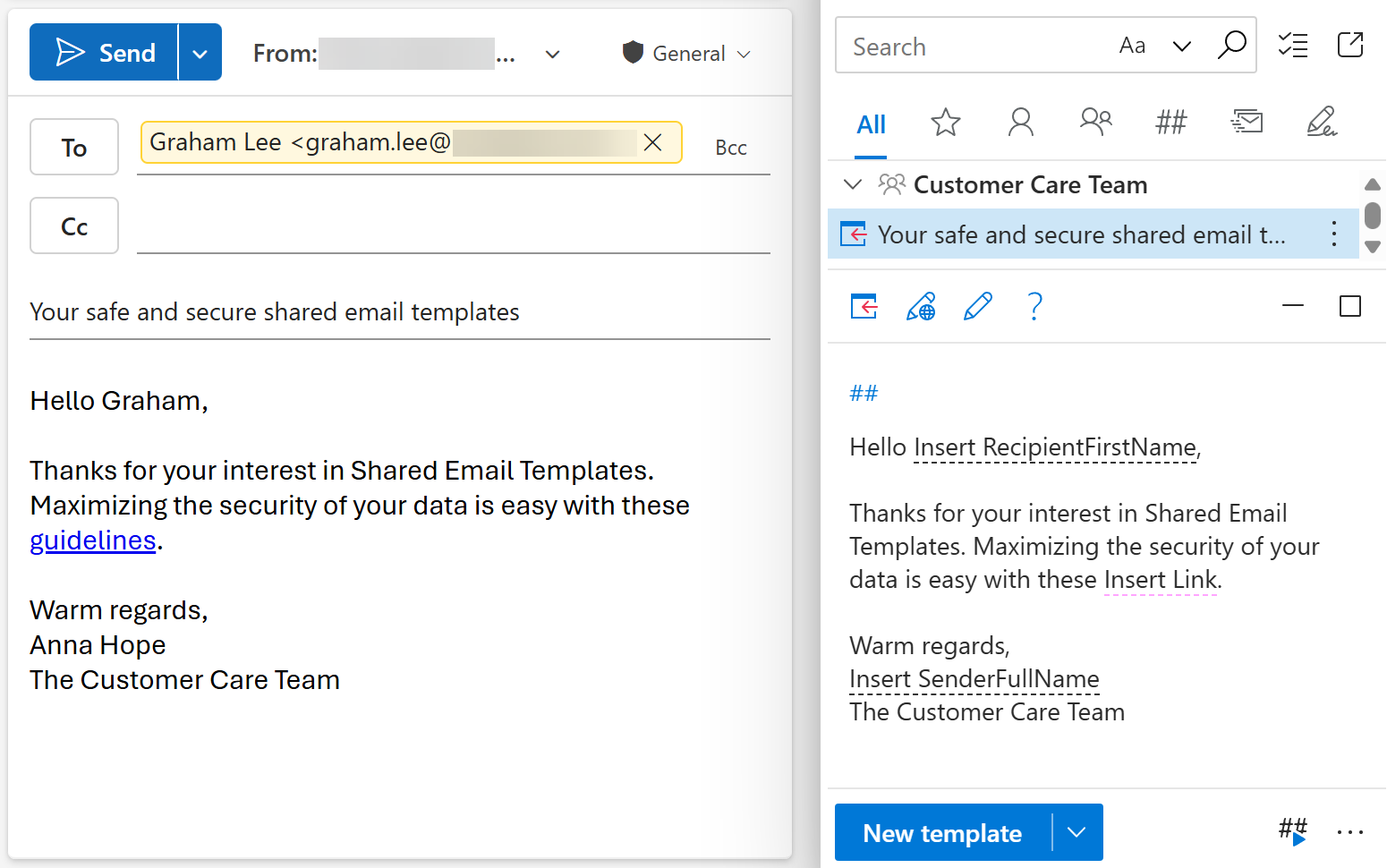
When you insert the template into an Outlook email, the macro placeholder will be automatically replaced with the clickable link.
Add a link to a OneDrive or SharePoint file #
While creating or editing your message template, place the cursor where a link to a OneDrive or SharePoint file is needed.
On the template editor toolbar, select the Insert macro button.
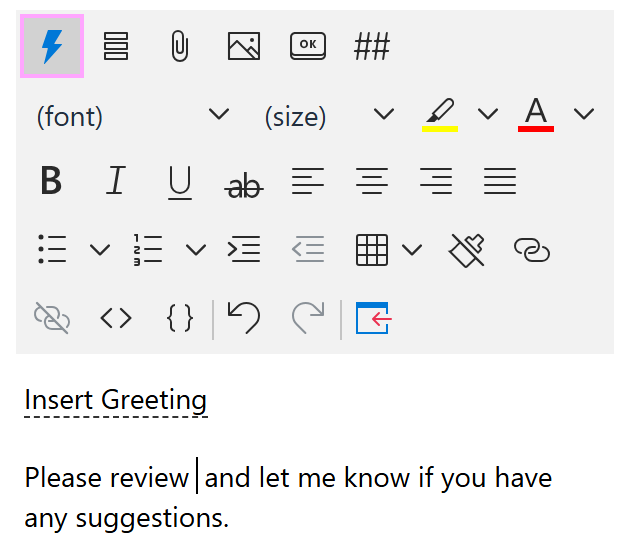
Depending on where your file is stored, select Insert link to OneDrive file or Insert link to SharePoint file.
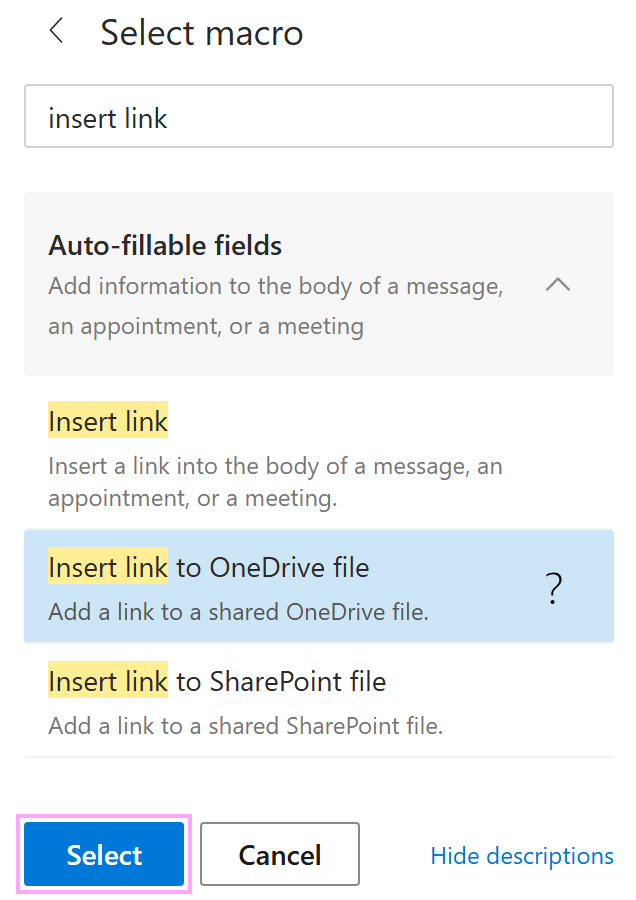
Select the desired file.
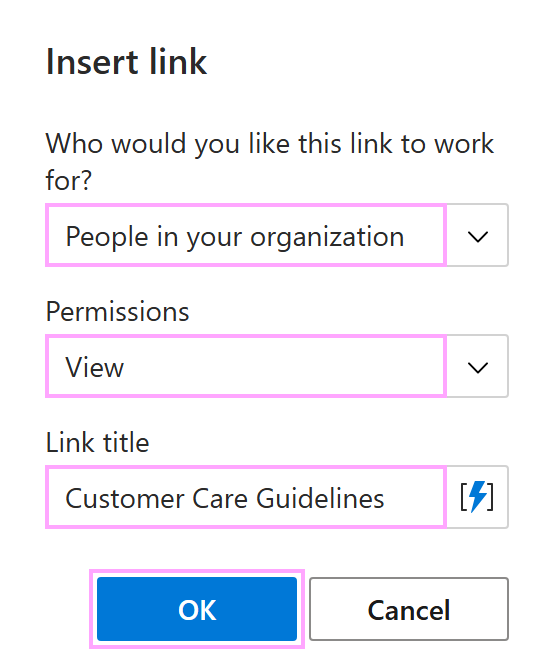
In the Insert link dialog, specify:
- Who you want the link to work for: Everyone or People in your organization
- Permissions: View or Edit
- The link title
When finished, select OK.
Save your template.
When you use this template for your Outlook emails, a link to the file you selected will be added to the message automatically.