
Outlook email templates with built-in macros
In this article
Using Shared Email Templates macros, you can make your templates dynamic to easily customize and personalize your Outlook emails.
Read less!Grab cheat sheet instead
With Shared Email Templates macros you can:
- Create fillable text fields.
- Add pop-up calendars, time pickers, and dropdown lists.
- Pre-fill To, Cc, Bcc, and Subject.
- Attach files and insert pictures.
- Create auto-fillable fields.
- Use regular expressions to find matching data.
- Create mail merge fields.
- Disable inserting Outlook email templates.
- Add internal notes.
- Clear the fields and body of Outlook email messages.
Add macros to your Outlook email templates #
To insert a macro into your email template, follow the steps below.
Start creating a new template or editing an existing one.
In the text of the template, place the cursor where you want the macro placeholder to appear.
On the template editor toolbar, select the
 Insert macro button.
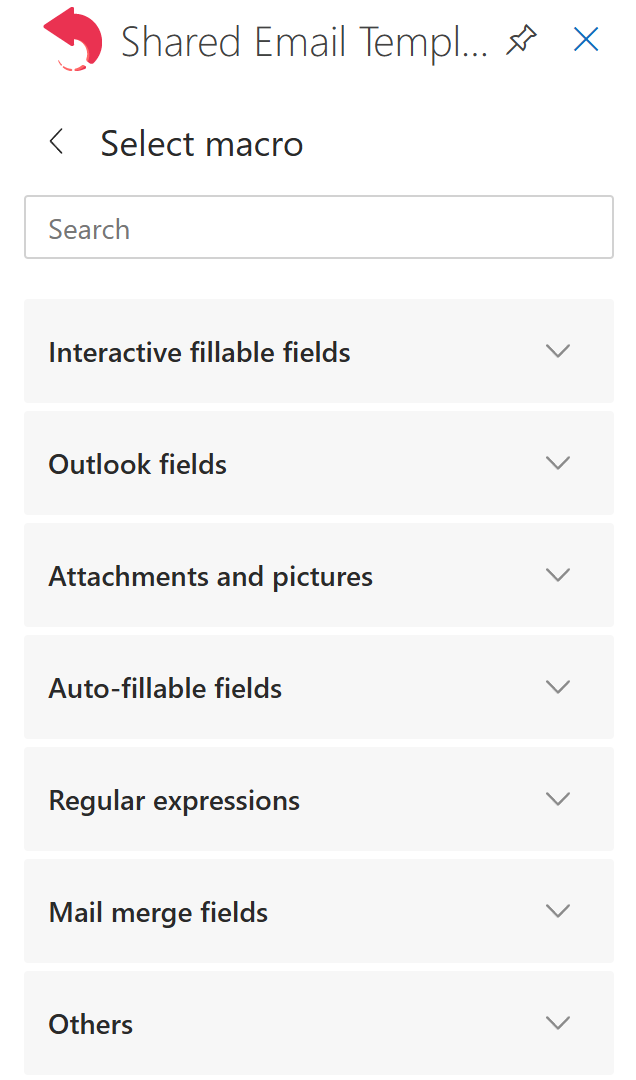
Select a macro.
When the macro placeholder is added to the text of your template, select Save.
Choose a style for macro placeholders #
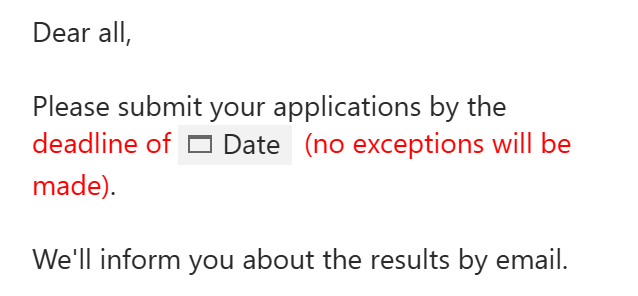
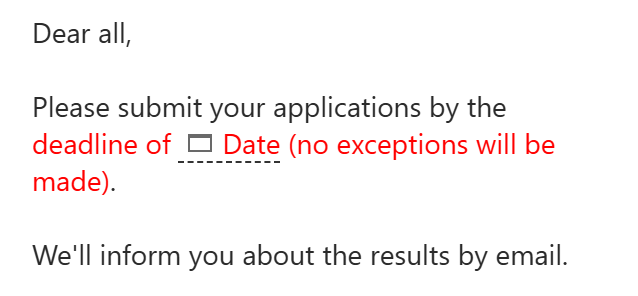
You can choose between two styles for macro placeholders: Default and Dashed. With the Dashed style, the formatting applied to macro placeholders in your Outlook email templates is visible.
| Default style | Dashed style |
|---|---|
 |  |
You can change the Default style to the Dashed one, and vice versa, in Settings.
Paste macro text from the clipboard #
After copying the macro text to the clipboard, you can paste it into your Outlook email template either as a placeholder or as plain text.
On Windows
- To paste the copied macro text as a placeholder, press Ctrl+V or Shift+Insert.
- To paste the copied macro text as plain text, press Ctrl+Shift+V.
On Mac
- To paste the copied macro text as a placeholder, press Command-V.
- To paste the copied macro text as plain text, press Option-Shift-Command-V.
More in this section #
Complete list of built-in macros
See the full list of available macros and find out what each one can do.Combine built-in macros for your tasks
Learn how to nest macros for advanced automation in your email templates.