Nested macros in your Outlook email templates
To make two Shared Email Templates macros work together, nest one macro inside the other.
Suppose you want to automatically fill in the subject line in your Outlook emails when you use a template, but still be able to change the text if needed. In this case, nest the WhatToEnter macro inside the Fill macro.
In the Outlook email template you’re creating or editing, select the
 Insert macro button on the template editor toolbar.
Select Fill Subject.
In the Fill Subject line dialog, select the Insert nested macro button.
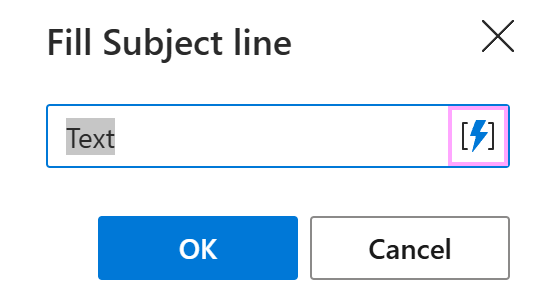
Select What to Enter (WTE).
Fill in the fields in the What to enter dialog.
For example, to create an input field with “Important reminder” as the default text, do the following:
- Under Type, select Text field.
- Under Field name, type Enter subject.
- Under Default value, type Important reminder.
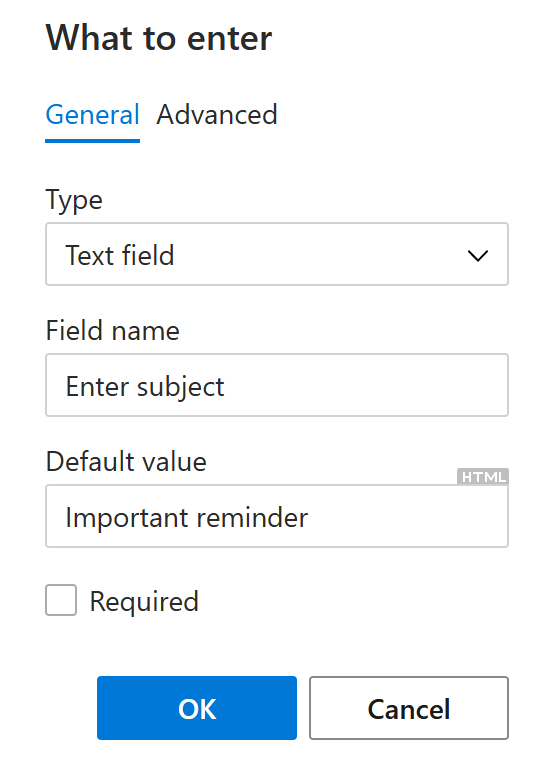
When you’re finished, select OK.
In the Fill Subject line dialog, select OK.
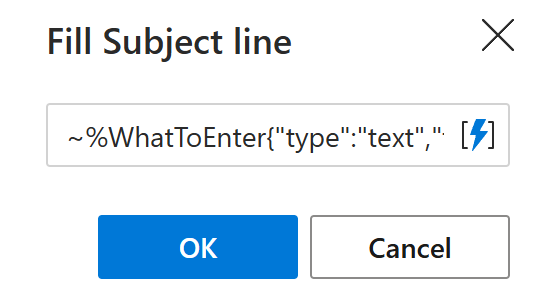
Save your template.
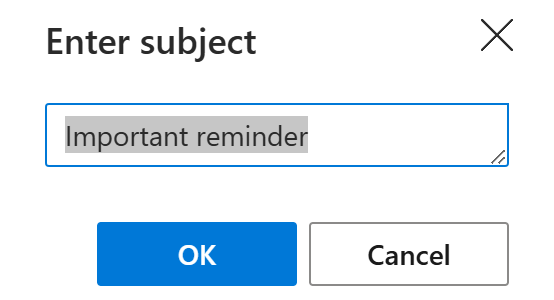
When you insert this message template into an Outlook email, you’ll see a dialog showing the default text for the subject line. You can change this text or keep it as is. When you’re done, select OK.