
How to edit mail merge templates
In this article
Before you start #
- A mail merge template is a built-in HTML-based template for Outlook email messages in mail merge campaigns.
- All mail merge templates are structured as nested tables. The number of columns depends on the layout type. You can add or remove rows and columns as needed.
- All built-in mail merge template layouts have been tested on multiple devices and in various Outlook versions to make sure emails will be displayed correctly. You can change text and add images and hyperlinks without affecting the layout.
- Since mail merge templates consist of nested tables, changing borders or colors, or adding or removing rows or columns might affect the layout. If you make such changes, we can’t guarantee that the email messages will look good for all recipients. We strongly recommend testing modified layouts on multiple devices and in various Outlook versions before starting a mail merge campaign.
Layouts of mail merge templates #
You can choose from eight available layouts.
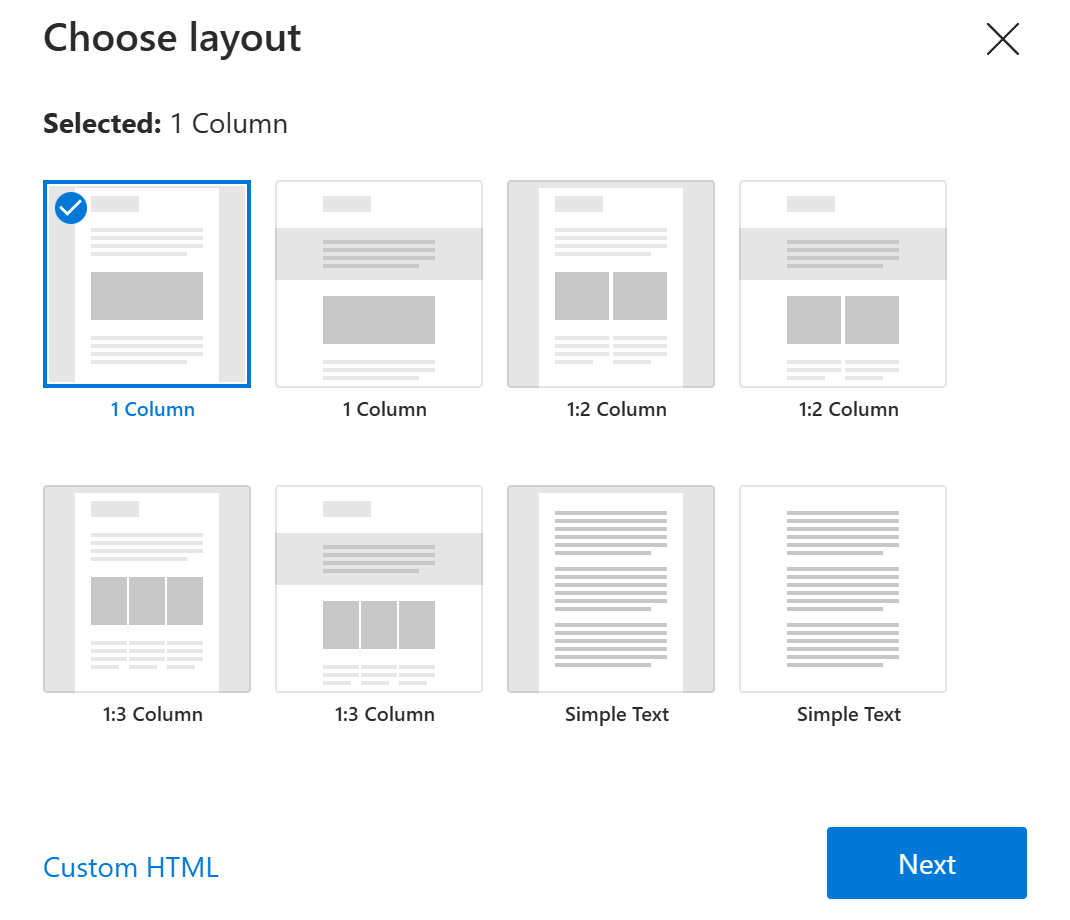
1 Column
Four content blocks plus a header and footer. Designed as a one-column table. Left and right border backgrounds can be colored fully or partially. Includes two sample images.1:2 Column
Six content blocks plus a header and footer. Four of the content blocks are located in two columns and two rows. Left and right border backgrounds can be colored fully or partially. Includes four sample images.1:3 Column
Eight content blocks plus a header and footer. Six of the content blocks are located in three columns and two rows. Left and right border backgrounds can be colored fully or partially. Includes six sample images.Simple Text
One column, one content block. Left and right border backgrounds can be colored fully or partially. Does not include any sample images.
Elements of mail merge templates #
All layouts consist of different content blocks, some of which include additional elements.
Header block and sample logo #
Each layout has a header block with three rows. The second row contains a sample logo. When you click any of the rows, a pop-up menu appears.
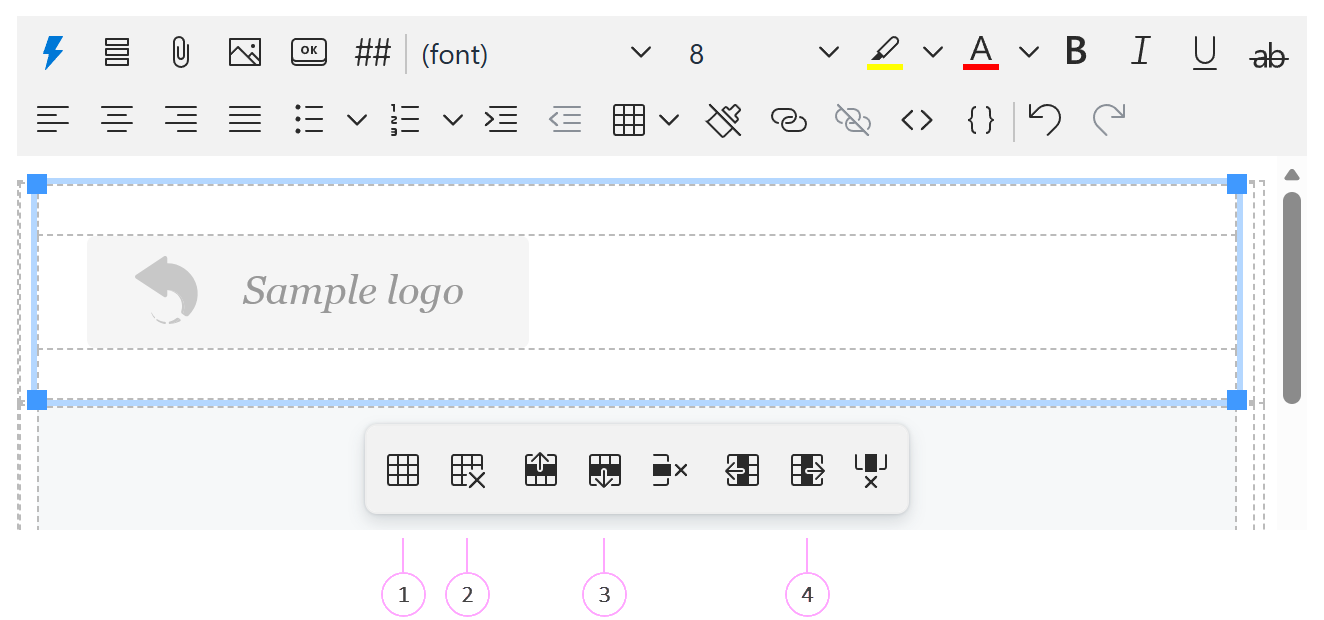
- Using Table properties, you can adjust the table width and height, cell spacing and padding, and border width. You can also show or hide the caption and choose the alignment, border style, border color, and background color.
- Select Delete table to remove the entire header block.
- Within the header block, you can Insert row before, Insert row after, or Delete row.
- You can also Insert column before, Insert column after, or Delete column.
How to replace the sample logo #
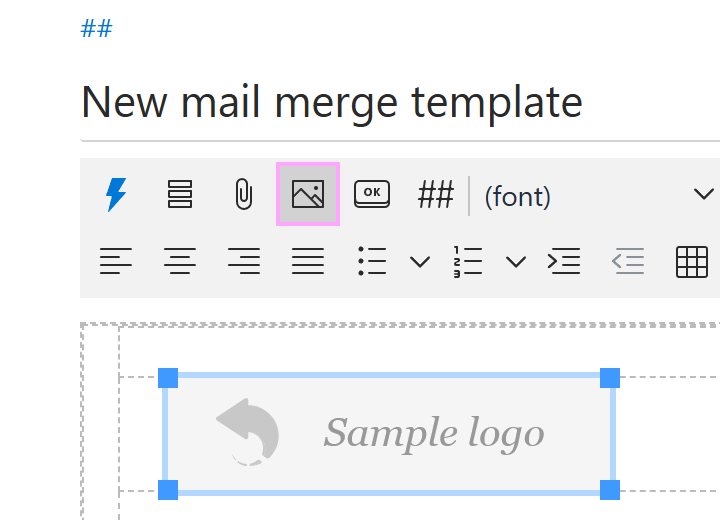
When editing a mail merge template, select the sample logo.
On the template editor toolbar, select the Insert picture button.
A sidebar appears automatically showing the available options:
- Insert picture from OneDrive
- Insert picture from SharePoint
- Insert picture from dataset
- Insert picture from property
- Insert picture from URL
- Insert photo from Azure AD
Select an option to proceed.
Sample image #
All layouts, except for Simple Text, include sample images. The number and size of the images vary.
How to replace the sample image #
To replace a sample image in the mail merge template you’re editing, first select the image. Then follow the steps described in How to replace the sample logo starting from Step 2.
Content blocks #
When you select a content block, a pop-up menu appears.
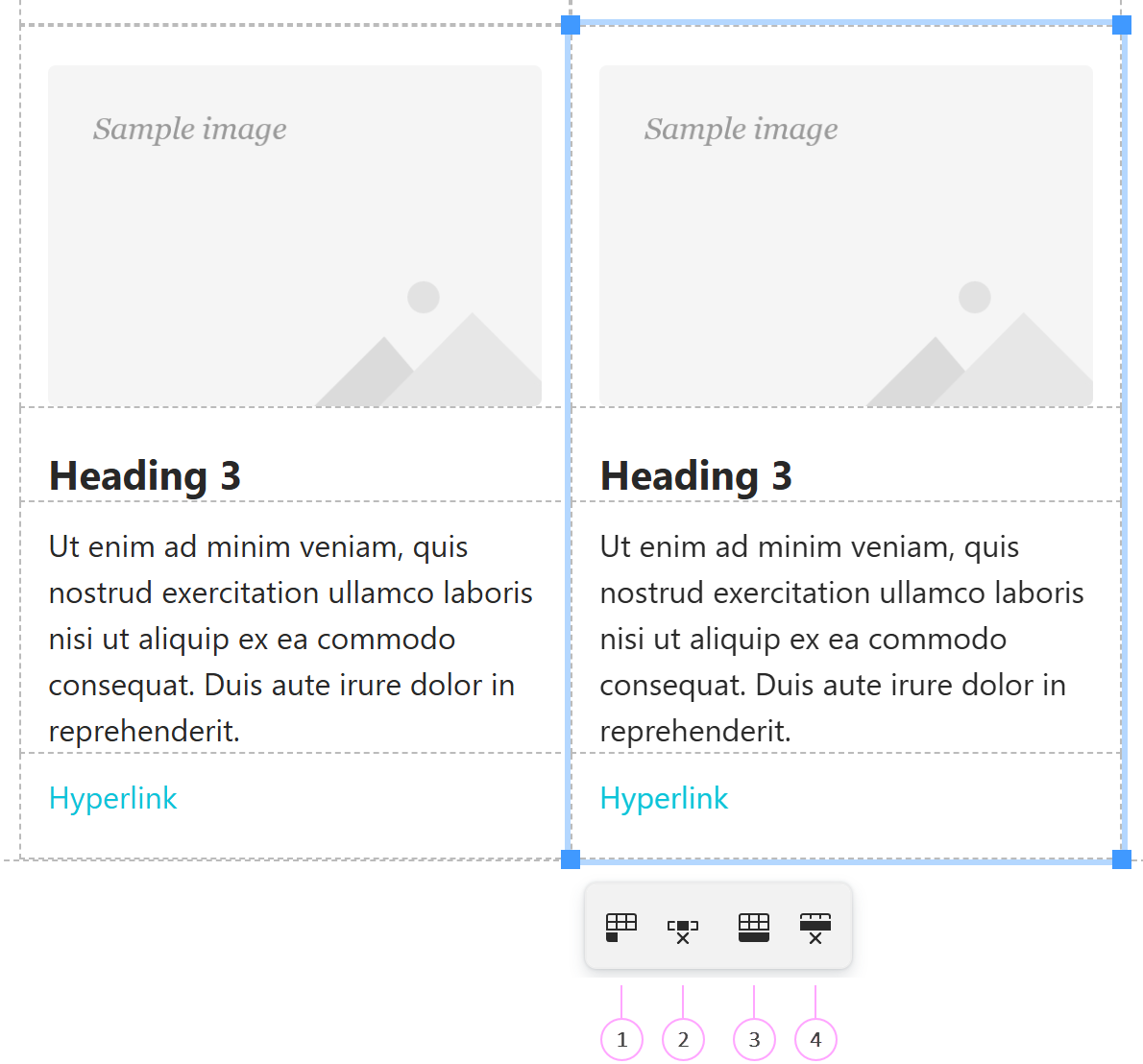
Duplicate block. Duplicate the selected block.
Delete block. Remove the selected block.
Duplicate row. Duplicate the entire row (with all blocks in it).
Delete row. Delete the entire row (with all blocks in it).
Action buttons #
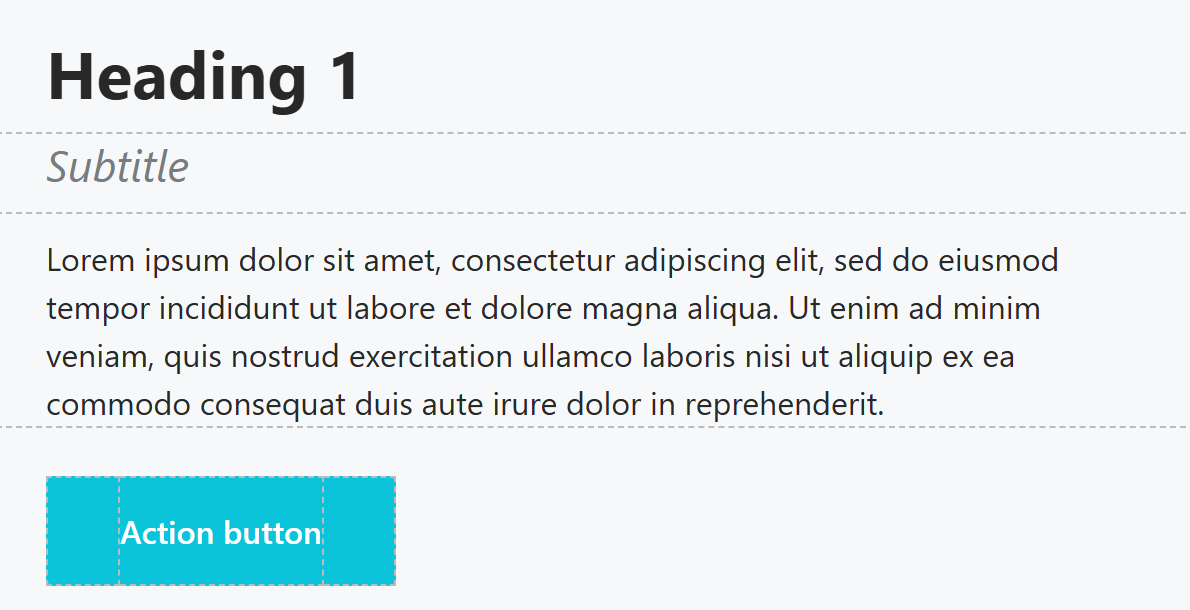
Each layout includes three action buttons built as nested tables with three columns. The button text is located in the second column.
How to replace the sample hyperlink for an action button #
In the mail merge template you’re editing, right-click the button text, and then select Link.
In the Insert/Edit link dialog, replace the sample URL and text to display. You can also enter a title, which will be shown in some browsers upon a mouse hover.
Select OK.
How to change the color of an action button #
When editing a mail merge template, right-click an action button, and then select Table properties.
In the Table properties dialog, go to Advanced > Background color, and then select the color that you want to use.
Select OK.
Footer block #
In the footer block, as well as in the header, you can edit table properties and add or remove rows and columns.
The footer also includes hyperlinks and social media icons. To delete an icon, select it and press the Backspace or Delete key. If you don’t need any icons, right-click the row and select Row > Delete row.
To change a hyperlink, right-click the linked text and select Link.
Unsupported macros #
Due to technical limitations, the following macros are not supported in templates for mail merge campaigns:
- Fill
- Insert (except for mailbox, profile, team, and AAD properties)
- RegexMatch
- RegexExtract
- DisableIf
- Clear