
Create and start mail merge campaigns in Outlook
In this article

Before you start #
- In order to protect your security, the add-in will ask you to sign in to your Microsoft account every time you finish creating a campaign and click the Schedule or Send button. This is done this way, so our mail merge service has access to your inbox only from the moment you finish creating a campaign to the second when the campaign messages have been sent.
- The campaign email messages are sent from the Microsoft account you sign in to when finishing creating a campaign.
- To create a mail merge campaign, you need to prepare text for the email message and a mailing list. For the email message, you have three options: a simple template, a mail merge template, and your own HTML text.
- Most probably, your message for the campaign will include merge fields: specific parts of email messages that are set up as variables with the help of the MergeField macro.
- A mailing list is an Excel table or range that contains email addresses for the campaign and data for the merge fields.
- In a mail merge campaign, the maximum size limit for an email attachment is 3 MB.
- Some macros are not supported in templates for mail merge campaigns. Here is the list of unsupported macros.
Mailing process and campaign statuses #
Your campaigns may have the following statuses: Sending, Pending, Scheduled, Cancelled, and Finished.
When you create a campaign, you can schedule it or send it immediately. If a campaign is being sent, it has the Sending status. Campaigns are sent one by one in the order in which you create or schedule them. For example, if you create two campaigns and choose to send both immediately, the second campaign will start mailing only after all emails in the first campaign have been sent. Until then, it will have the Pending status.
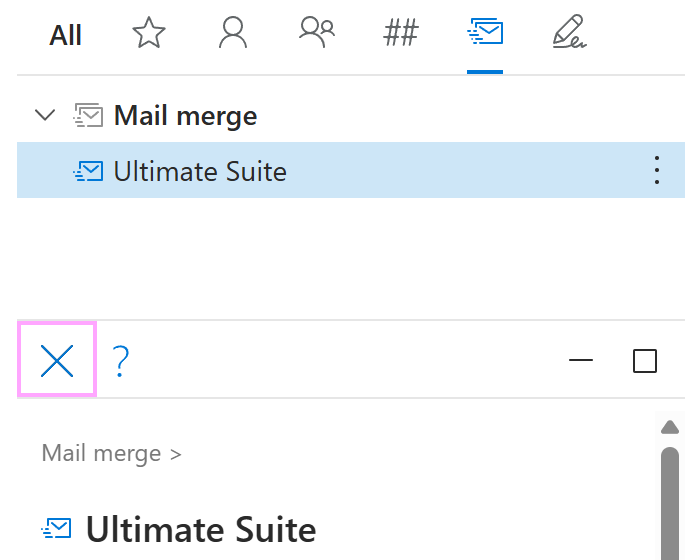
Sending and Pending campaigns can be canceled, but if some messages have already been sent, they can’t be unsent.
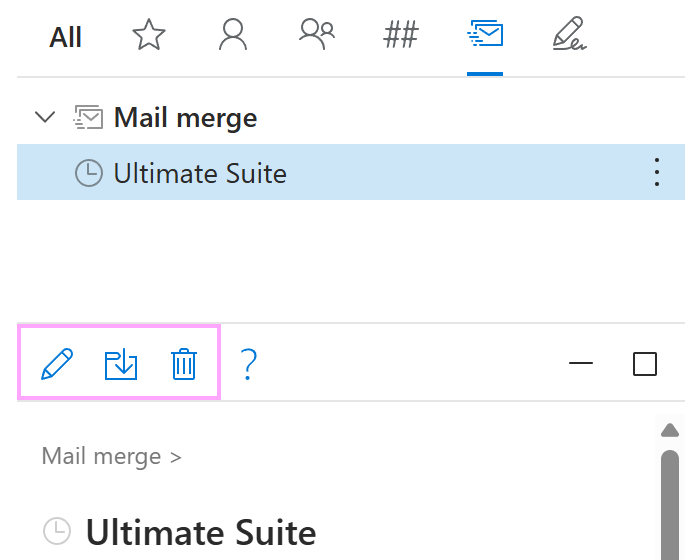
Campaigns scheduled for specific date and time have the Scheduled status. Scheduled campaigns can be edited or deleted.
When all messages in a campaign have been sent, the campaign gets the Finished status.
Mail merge template #
For a mail merge campaign, you can use either a simple template or a mail merge template. Mail merge templates have a ready-made HTML layout and a color theme. You can also import your own HTML-based layout into the message body.
Mailing list #
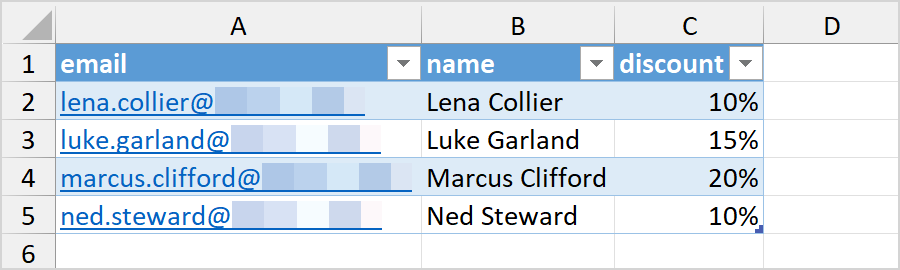
A mailing list is an Excel table or range that contains email addresses of recipients and the information needed to personalize email messages.
Here is an example of a mailing list:
Merge fields #
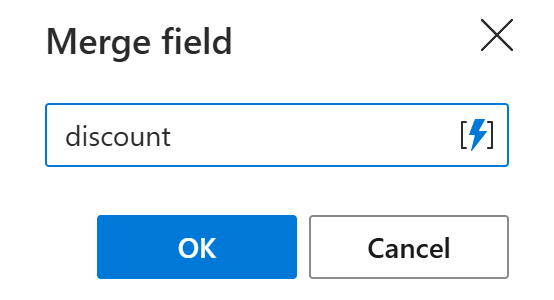
Merge fields are variable parts of your template. Their values change depending on the recipient. You create merge fields using the MergeField macro, which retrieves the recipient-specific data directly from the mailing list. You just need to enter the name of the corresponding column in the dialog box that appears when you insert the MergeField macro into your template.
For example, with the mailing list shown in the screenshot above, you would need to enter discount to retrieve the recipient-specific value from the discount column and insert it into the message.
How to send personalized attachments #
In your mailing list, add a column for the names of the files to be attached. The column header must be Attachments.
In the Attachments column, enter the file names, including extensions.
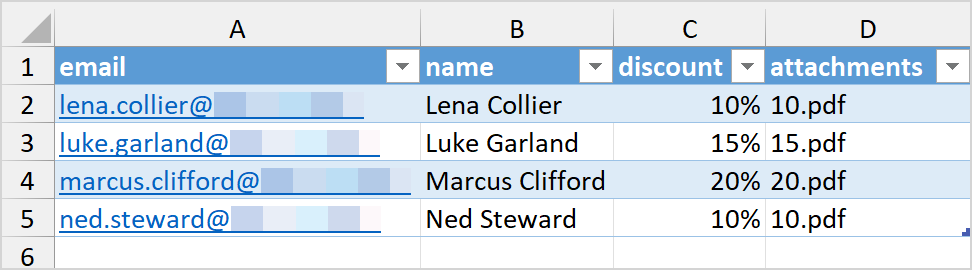
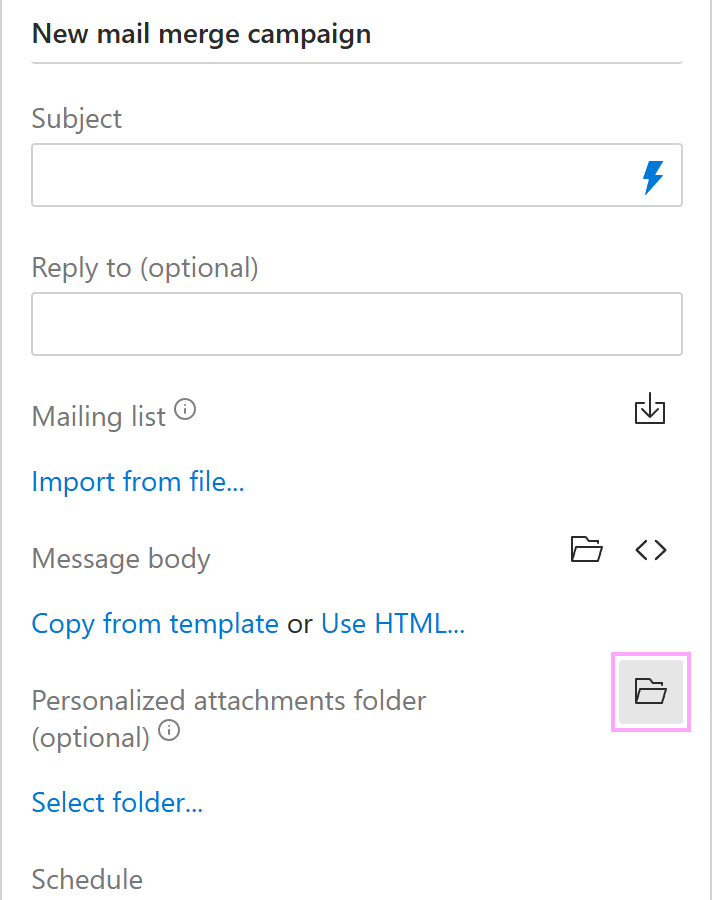
While creating your mail merge campaign, select a OneDrive folder that contains the files to be attached.
How to add multiple To, Cc, and Bcc recipients #
In your mailing list, add columns for additional email addresses, for example To, Cc, or Bcc.

In the template for your mail merge campaign, use the corresponding option of the Add macro: Add to To, Add to Cc, or Add to Bcc combined with the nested MergeField macro.
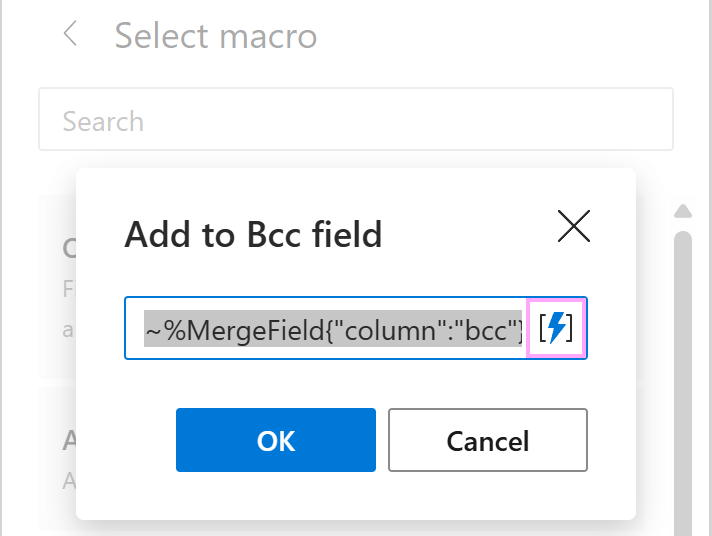
To learn more about nested macros, visit this help page.
Create mail merge templates #
In the Shared Email Templates pane in Outlook, right-click My templates, a team, or a subfolder, and then select New mail merge template from the menu.
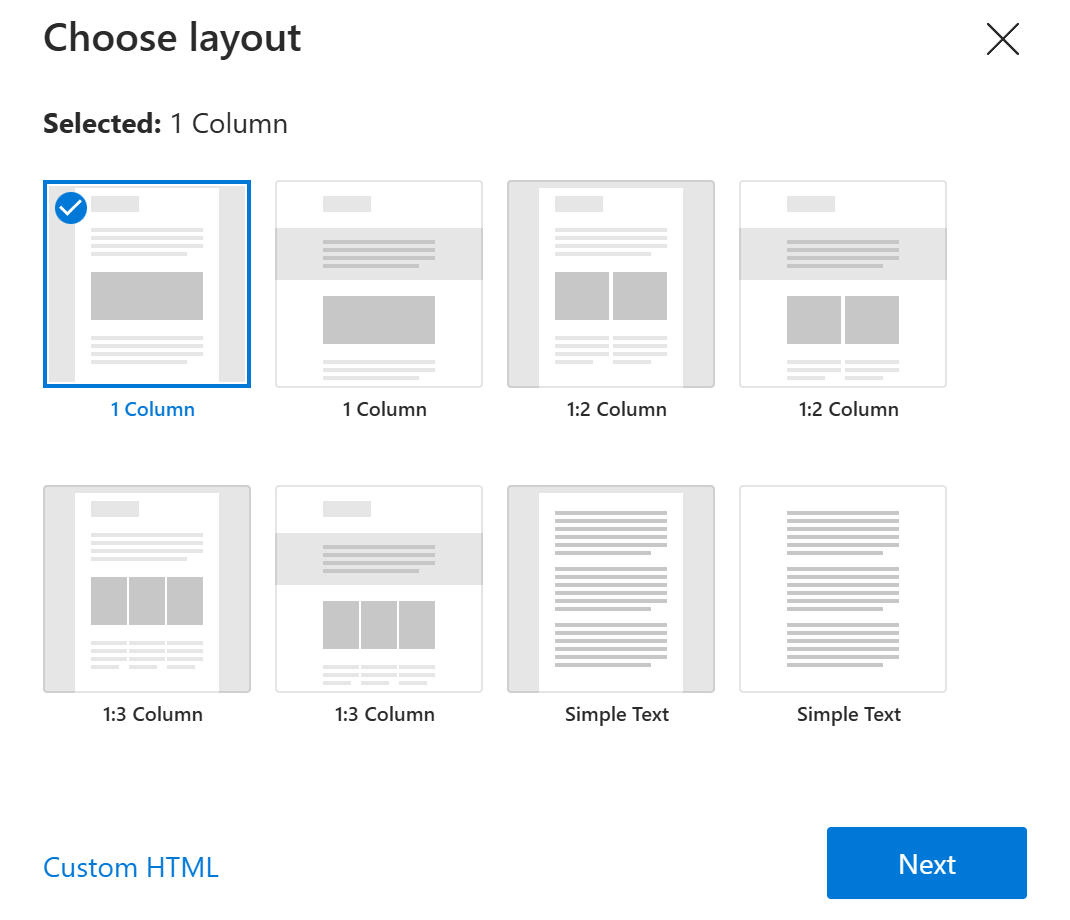
In your default browser, a new tab with the Shared Email Templates app will open. Choose a layout and select Next.
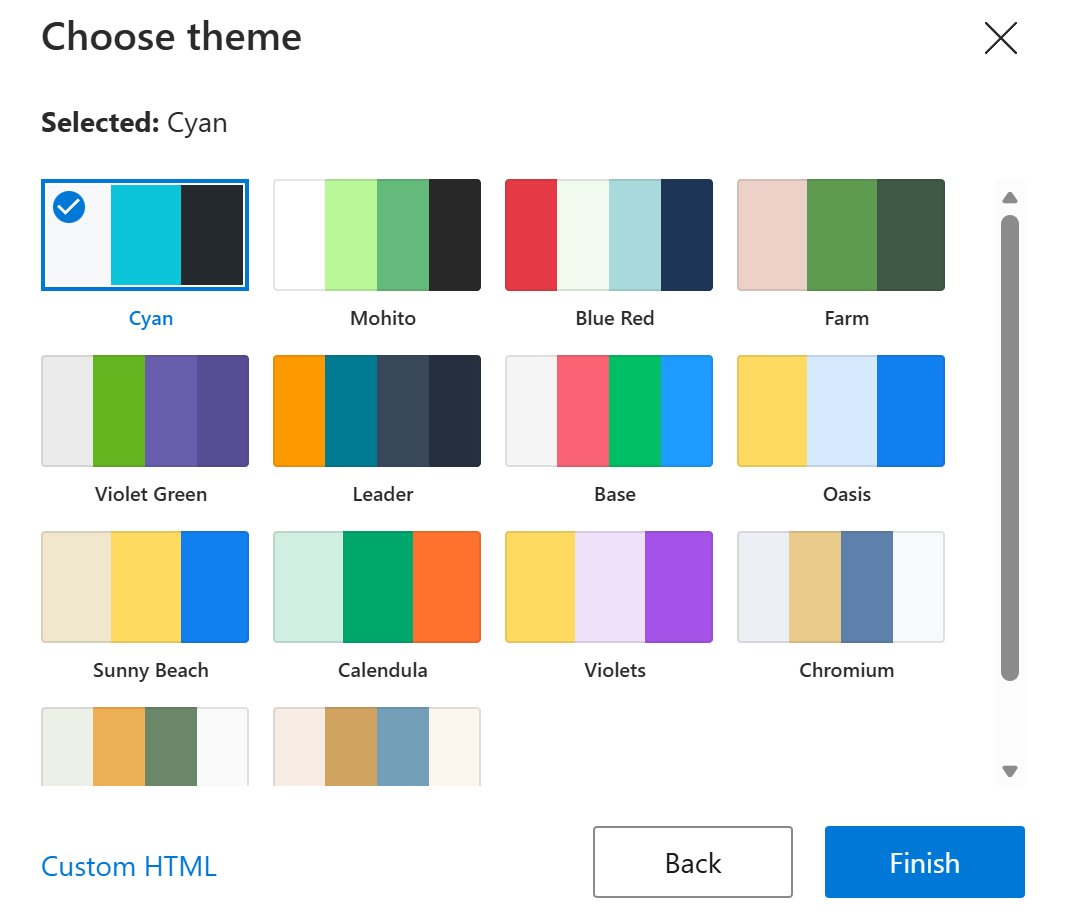
Choose a color theme and select Finish.
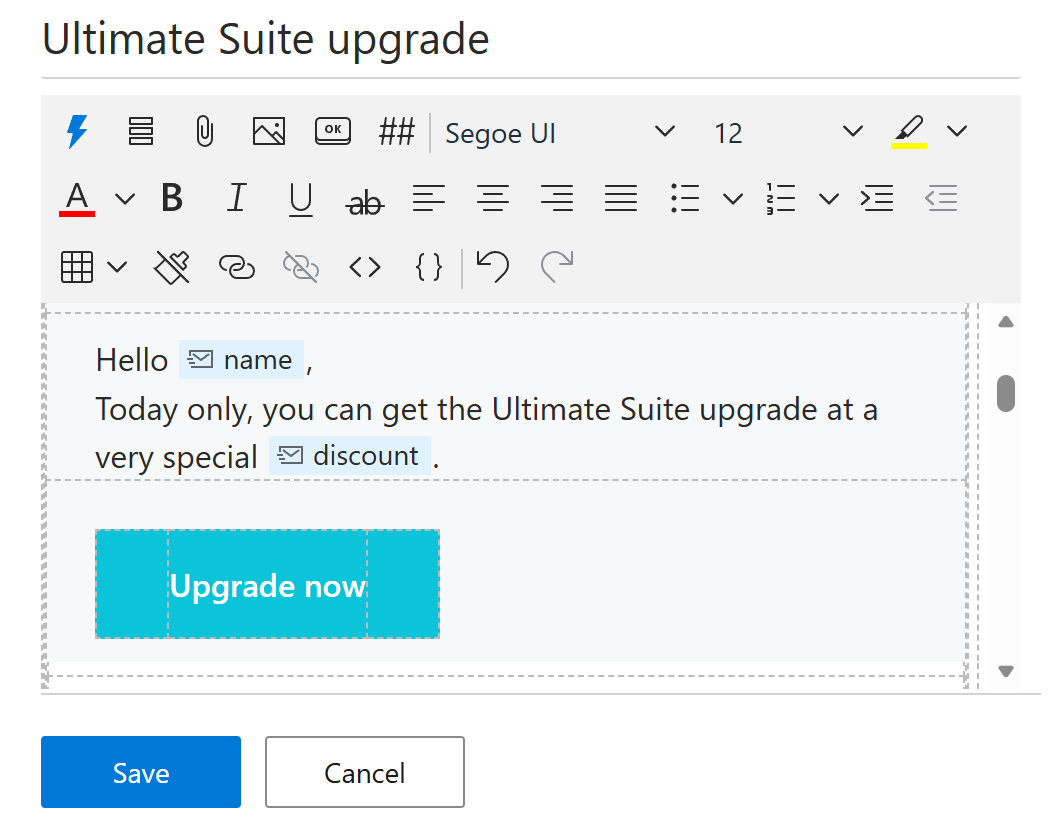
Enter your text, insert images, and add hyperlinks.
When you’re finished, select Save.
Edit mail merge templates #
A detailed guide to editing mail merge templates is available here.
Add merge fields #
In your template, insert the MergeField macro into the places where you want personalized information from the mailing list to appear:
Put the cursor where information from the mailing list is needed, and then select the
 Insert macro button on the template editor toolbar.
Select Insert merge field.
In the Merge field dialog, enter the header of the mailing list column that contains the values to be returned, and then select OK.
After adding merge fields, select Save.
Create a mail merge campaign #
In the Shared Email Templates pane in Outlook, go to the Mail merge tab, right-click Mail merge, and select New mail merge campaign.
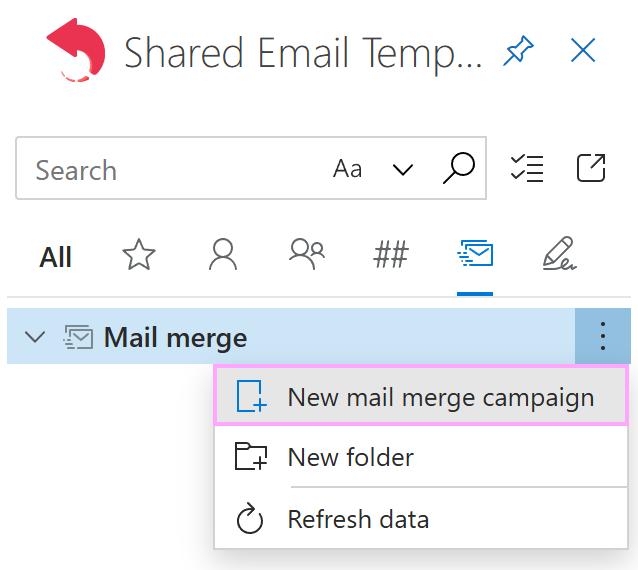
Fill in the form that will appear:
- Enter a name for your campaign. It will be displayed only in the Shared Email Templates UI.
- Enter text for the Subject line.
- Enter an email address for reply messages (it’s optional).
- Import your mailing list.
- Define the message body of the emails. You can either select an existing template or use your own HTML. Learn more.
- If you want the emails to contain personalized attachments, select a OneDrive folder where the files to attach are stored.
- Set a date and time for the campaign to schedule it. Or select Immediately to start mailing right after clicking Send.
- Note the maximum number of emails that can be sent per day.
- Confirm that you’ve read and understand outbound email limits by selecting the corresponding checkbox.
- If you want to save sent messages in your Sent Items folder in Outlook, keep the Save copies to Sent Items checkbox selected.
Select Schedule or Send.
Select the account from which the mailing will be performed and confirm that you accept the required permissions.
As soon as the campaign is finished, you’ll see a short report showing when the campaign ended and how many email messages were sent.
Import the mailing list #
When creating a mail merge campaign, under Mailing list, select Import from file.
Select the Excel file that contains your mailing list, and then click Open.
Choose a table or worksheet, and then click Select.
Define the message body #
If you want to use one of your shared email templates for a mail merge campaign, under Message body, select Copy from template, and then select the template. To use your own HTML, under Message body, select Use HTML.
Required permissions #
To create a mail merge campaign for the first time, the add-in will request permissions.
Mail merge campaigns statuses #
| Scheduled |  | A scheduled campaign will start on the specified date and time. It can be edited, moved to another folder or team, or deleted. |
| Sending |  | A sending campaign is currently being sent. It can be canceled but the messages that have already been sent cannot be unsent. |
| Pending |  | A pending campaign will start mailing as soon as the current Sending campaign is finished. |
| Finished |  | A finished campaign can be moved to another folder or team, or deleted. |
| Cancelled |  | A cancelled campaign can be deleted or reactivated. To reactivate the campaign, select it, click Edit, make changes if necessary, and then select Schedule or Send. |
Edit and cancel mail merge campaigns #
Scheduled #
If the campaign is scheduled, you can edit it, move it to another folder or team, or delete it.
Sending or pending #
If the campaign is being sent or is pending, you can cancel it.
Unsupported macros #
Due to technical limitations, the following macros are not supported in templates for mail merge campaigns:
- Fill
- Insert (except for mailbox, profile, team, and AAD properties)
- RegexMatch
- RegexExtract
- DisableIf
- Clear