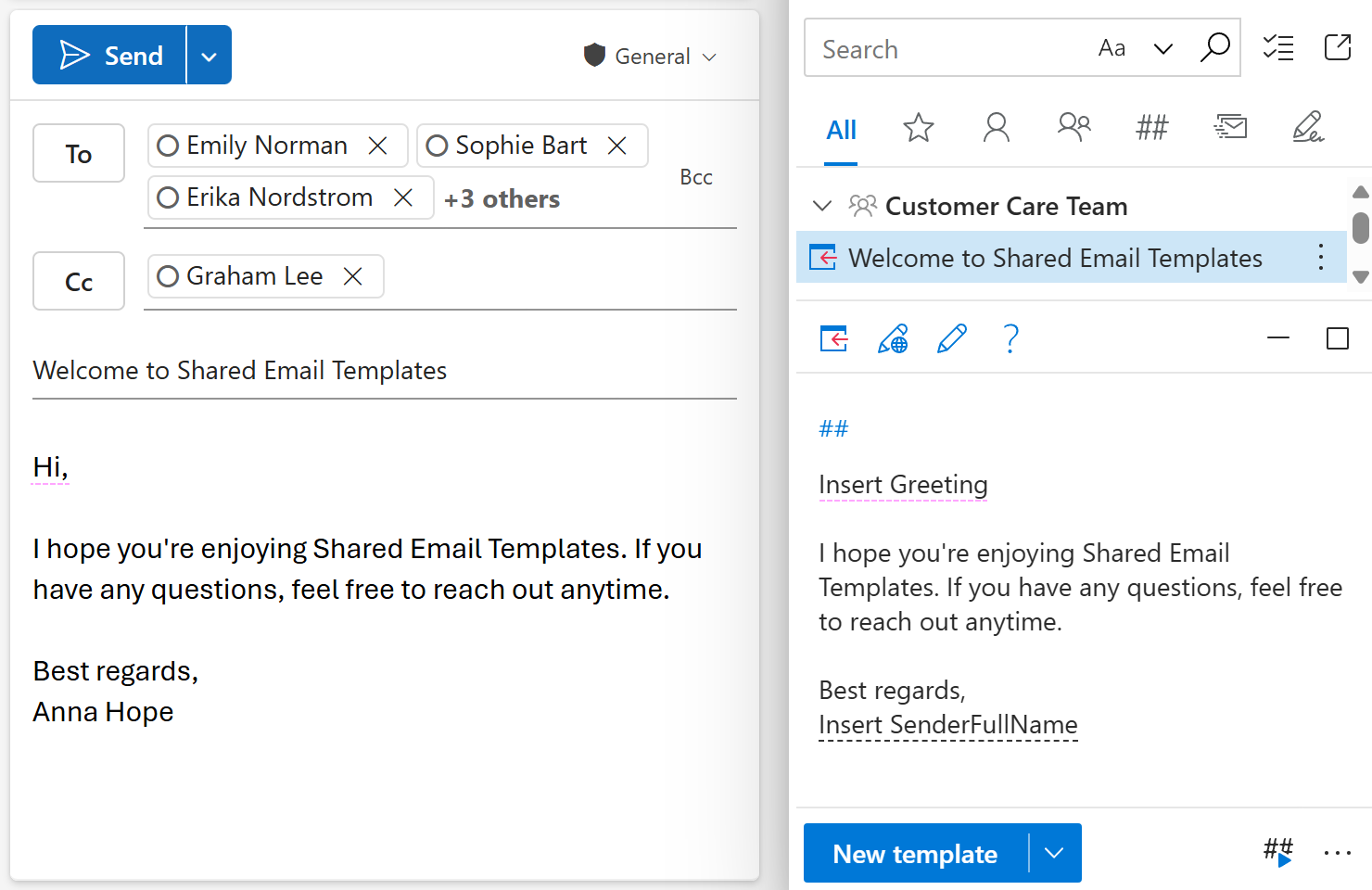
Personalize greetings in Outlook emails
In this article
Automatically address recipients by name #

If you want to automatically pull the recipient’s name from the To field into the email greeting, follow these steps:
In your Outlook email template, place the cursor where you want the recipient’s name to appear.
On the template editor toolbar, select the
 Insert macro button.
Choose whether you want to insert the recipient’s first name, full name, or last name, and then select the corresponding option.
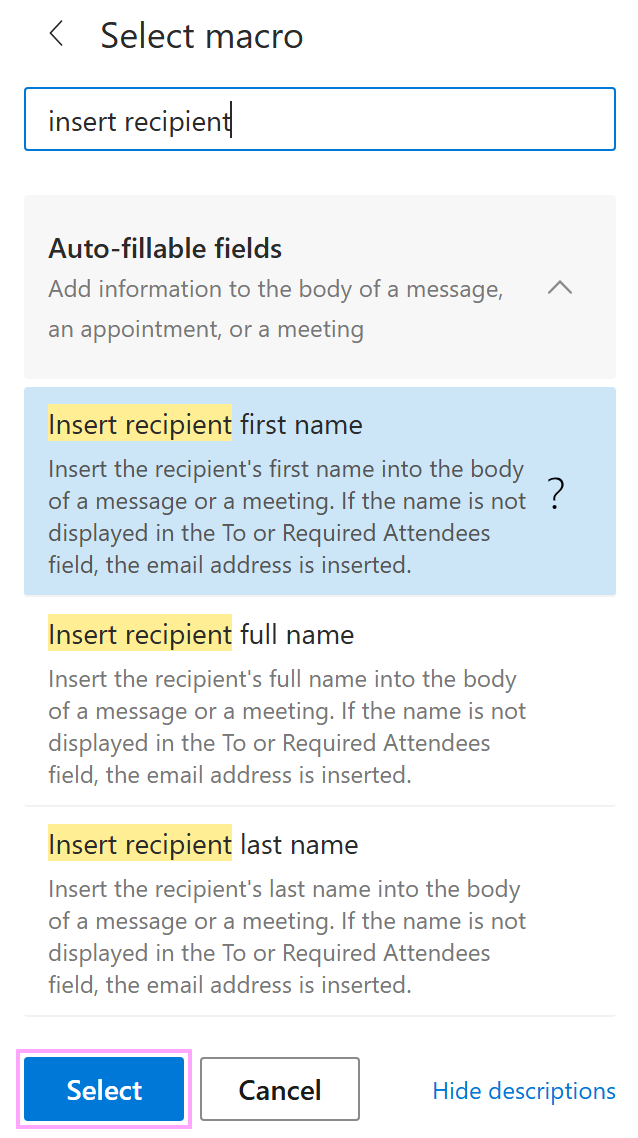
The macro placeholder will appear in your template. Save the template.
When you insert the template into an email, the add-in will automatically pull the recipient’s name from the To field and insert it into the message body replacing the macro placeholder.
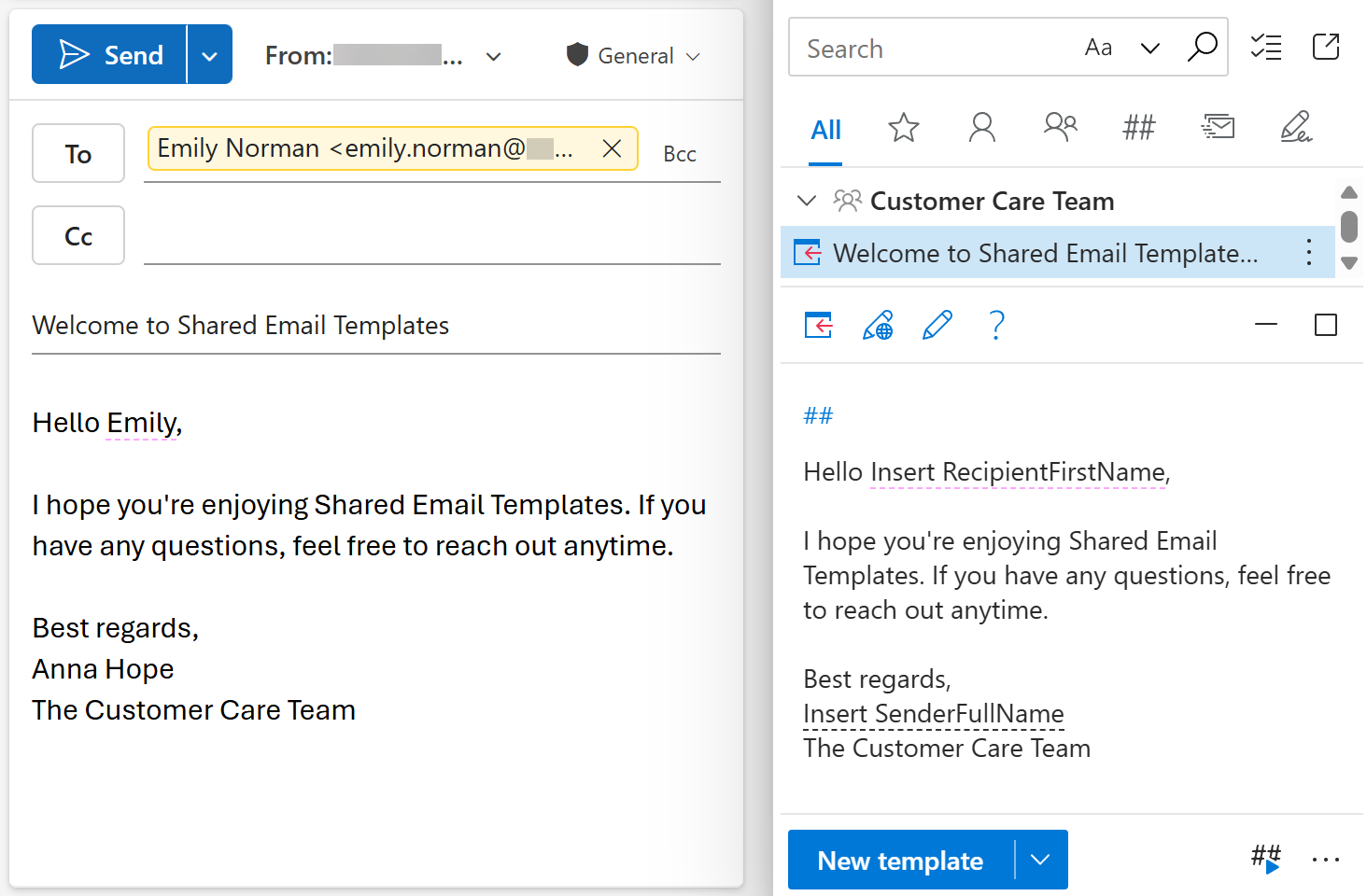
Auto-adjust a greeting for single and multiple recipients #
If you’d like the greeting line to change automatically depending on how many recipients your Outlook email has, do the following:
In the message template you’re creating or editing, place the cursor where the greeting line is to appear.
On the template editor toolbar, select the
Insert macro button.Select Insert greeting.
The Greeting dialog appears. Here you can enter two versions of the greeting line.
- Select how many email recipients the first version of the greeting line is intended for. It can be either a single recipient or up to five recipients, depending on when you want the greeting to change.
- Enter the greeting line itself.
- Specify a delimiter you want to use when separating recipients’ names in the greeting, for example a comma.
- Specify how to separate the last recipient’s name, for example by using a comma followed by “and”.
- Enter the second version of the greeting line that is intended for multiple recipients.
- If you want to include Cc recipients, keep the Include Cc recipients checkbox selected. If you want to exclude Cc recipients, clear the checkbox.
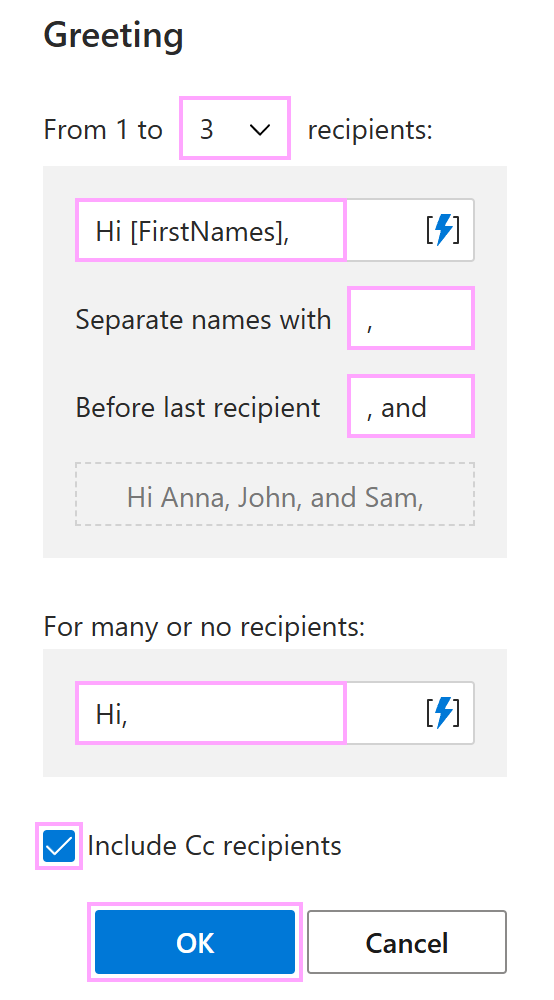
Select OK.
The macro placeholder will be added to your template. Select Save.
When you use the template, the add-in will automatically insert the appropriate greeting line, based on the number of email recipients. Compare:
Three recipients
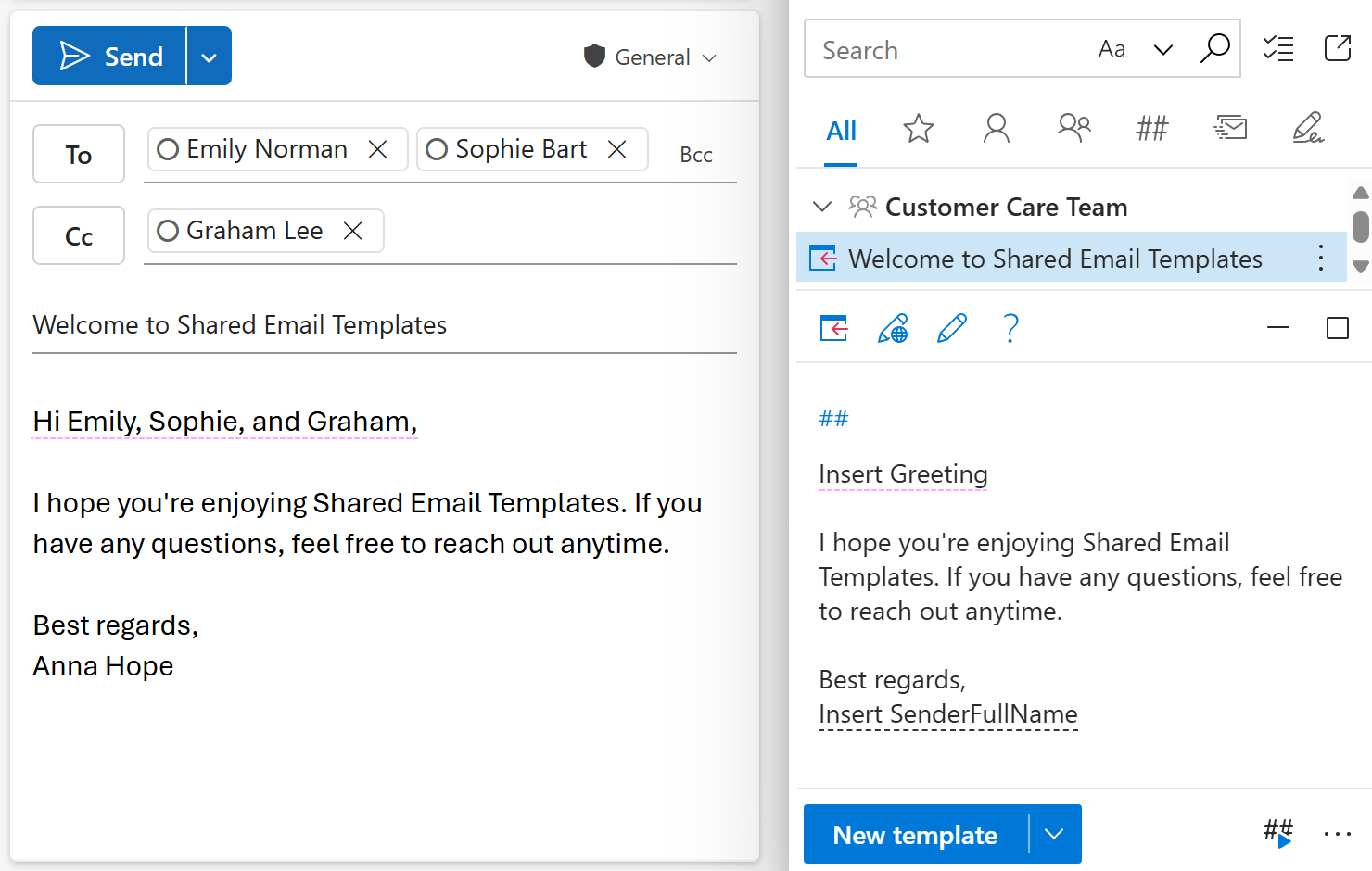
Multiple recipients