
Fill the subject line automatically in Outlook
You can prefill the email subject line in Outlook by either adding text to the existing subject or replacing it with new text.
- To automatically replace the subject, use the Fill macro in your Outlook email template.
- To automatically add text to the subject, use the Add macro.
Follow these steps to add or replace text in the subject line:
In the email template you’re creating or editing, place the cursor where you want to have the macro placeholder.
On the template editor toolbar, select the
 Insert macro button.
Depending on what you want to do, select either Fill Subject or Add to Subject.
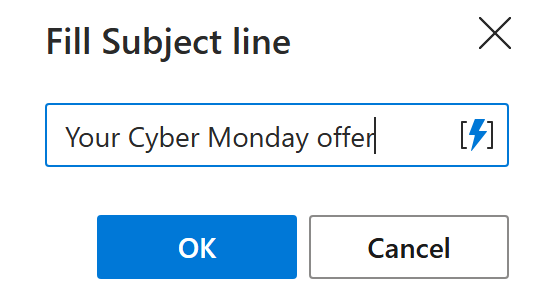
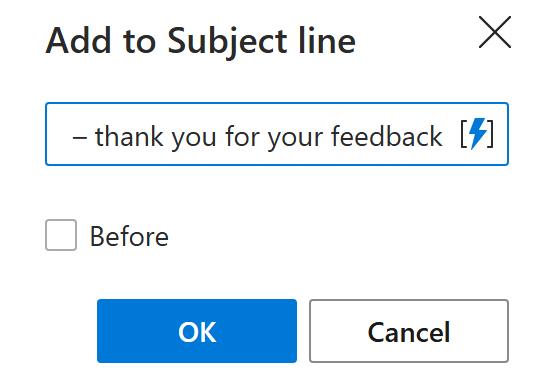
In the dialog that appears, enter the text you want to automatically appear in the subject line.
Fill Subject line
Add to Subject line
Select OK.
The macro placeholder will be added to your message template. Select Save.
When you use the template for your Outlook email message, the subject line will update automatically:
- With the Fill macro, the existing subject is replaced with the new text you entered.
- With the Add macro, your new text is added to the existing subject line.