
Shared Email Templates
Insert a random closing phrase automatically in Outlook
To automatically use random closings in your Outlook emails, follow these steps.
Start editing or creating an Outlook email template.
Place the cursor where you want the closing phrase to appear.
On the template editor toolbar, select the
 Insert macro button.
Select Insert random phrase.
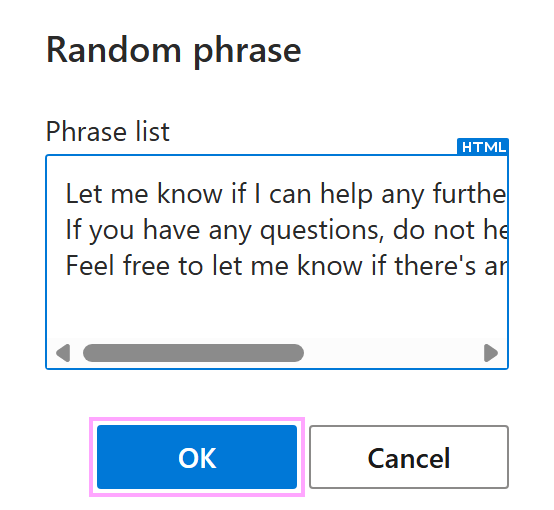
In the Random phrase dialog, enter the email closings you want the add-in to choose from (one closing per line to create your list).
Save your template.
Each time you use this message template, the add-in randomly picks one closing line from your list and inserts it into your Outlook email.