Copy and paste images directly into Shared Email Templates

To insert a picture copied to the clipboard into the Outlook email template you’re creating or editing, place the cursor where you want the picture to appear, then right-click and select Paste. You can also press Ctrl+V (Windows) or Command-V (Mac) on your keyboard.
If a dialog shows up asking you to select a OneDrive or SharePoint folder where all in-place images for your email templates will be stored, proceed with choosing a folder by clicking Select.
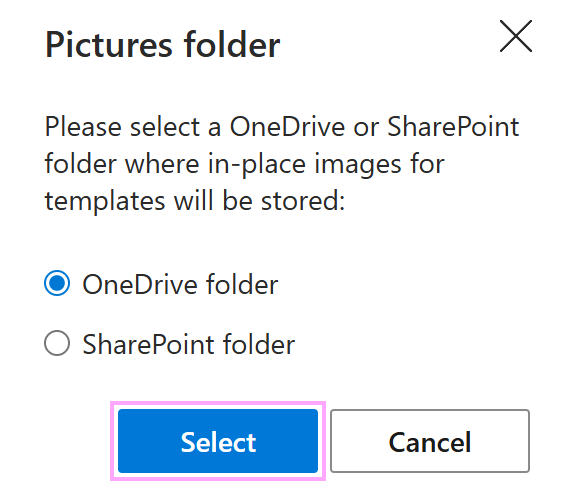
If you’re an admin of your company account or have Editor permissions for your team, you can find the pictures folder path in custom properties of the corresponding team. To see custom properties, right-click a team and select Team properties. You can change the folder path or delete the property if you want to.
To see the path of the pictures folder for personal templates, right-click My templates and select Edit properties.
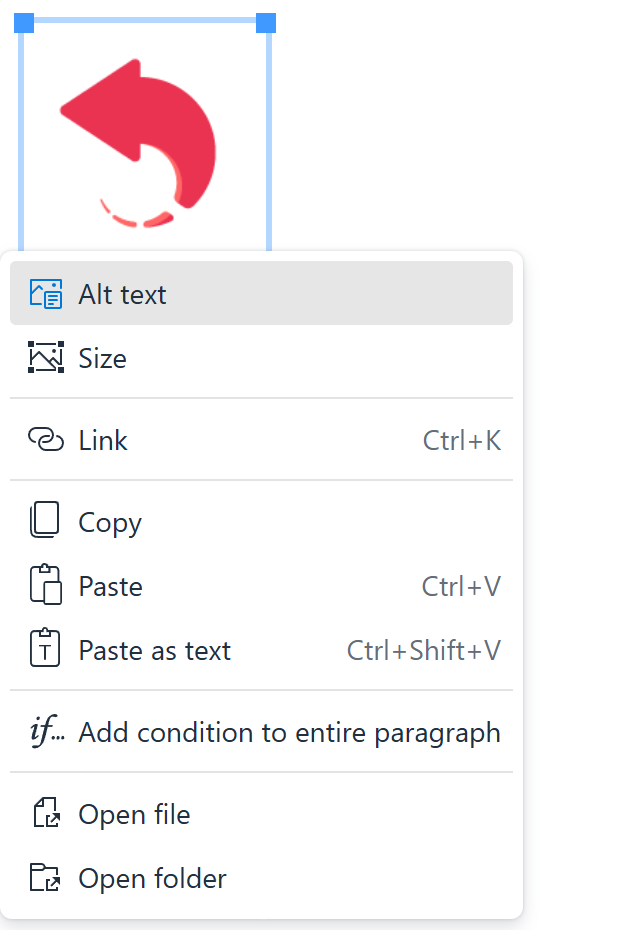
As soon as you insert a picture from the clipboard into your message template, you can:
- Add alt text.
- Set the picture size.
- Add a link.
- Specify a condition.
- Open the picture file.
- Open the folder where the picture is stored.
To choose from the list of available options, right-click the picture.