Embedded images in Outlook email templates
In this article
When creating a shared email template for Outlook, you can use images stored in OneDrive or SharePoint without embedding them in the template. The files stay in your cloud storage. You just link them to the template.
If you want to include an image from OneDrive or SharePoint in a team template, you need to make sure that your teammates have access to the file. Otherwise, the image won’t appear for them. Since sharing a file requires extra effort, it might be easier to embed small graphics like icons, compact logos, and small photos directly in the template.
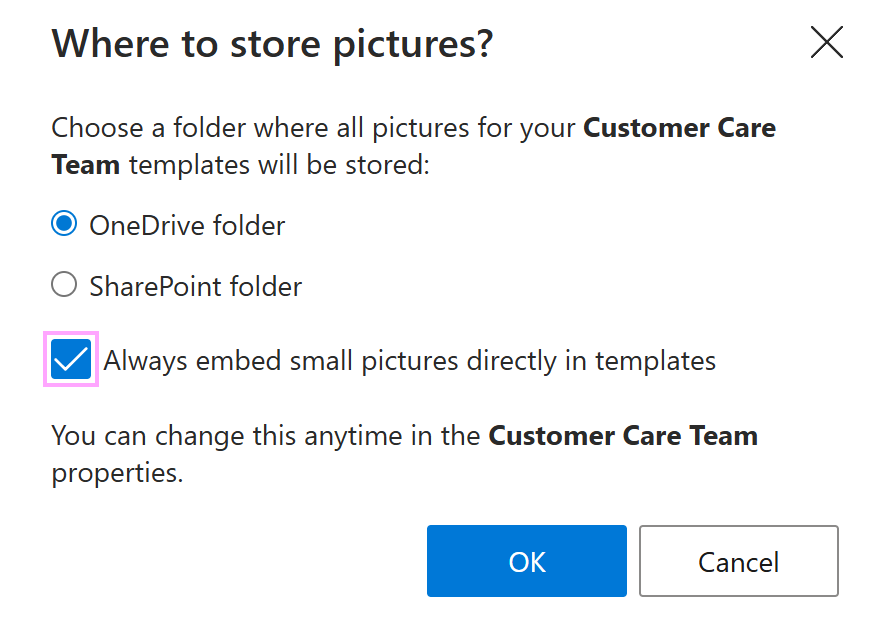
When you paste a small image into a template, you might see a dialog (like the one in the screenshot below) offering you an option to always embed small pictures directly in templates. Select this option if you want all small pictures to be embedded automatically.
Pros and cons #
Embedded pictures are limited to 20 KB. This solution is suitable for small graphics, such as icons, compact logos, or small photos, and is not intended for large images.
Pros
- Embedded pictures are stored directly in templates.
- There’s no need to share access to them in OneDrive or SharePoint.
- Embedded pictures are protected by a team password if the team is encrypted.
Cons
- Embedded pictures cannot be reused as easily as those stored in OneDrive or SharePoint.
How to change the settings #
You can change the settings for embedded pictures at any time.
Right-click My templates or a team.
Select Edit properties (for My templates) or Team properties (for a team).
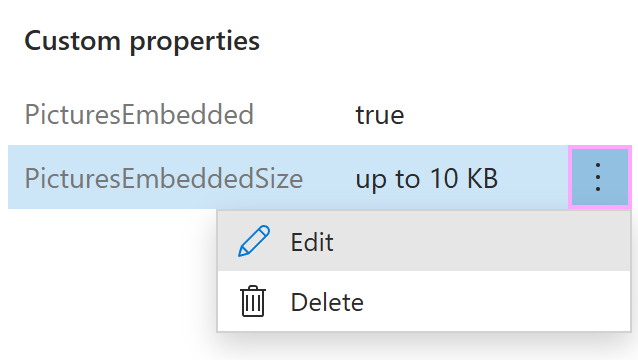
Under Custom properties, select the property you want to edit or delete:
- PicturesEmbedded
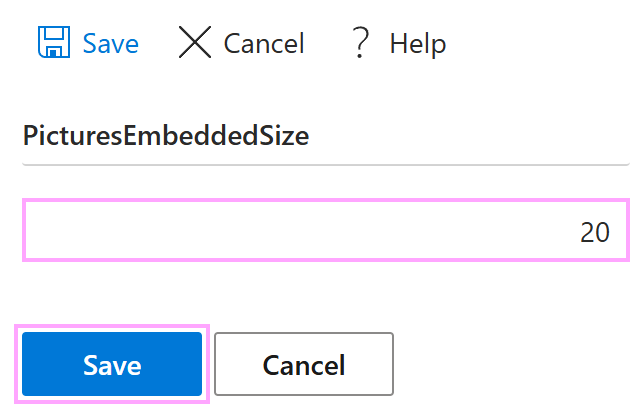
- PicturesEmbeddedSize
Open the More menu and select Edit or Delete.
If you edit a property, save your changes.