Add an image in the HTML code of your shared email template
Here’s how to add an image directly to the HTML code of your Outlook email template:
When creating or editing a template, select the
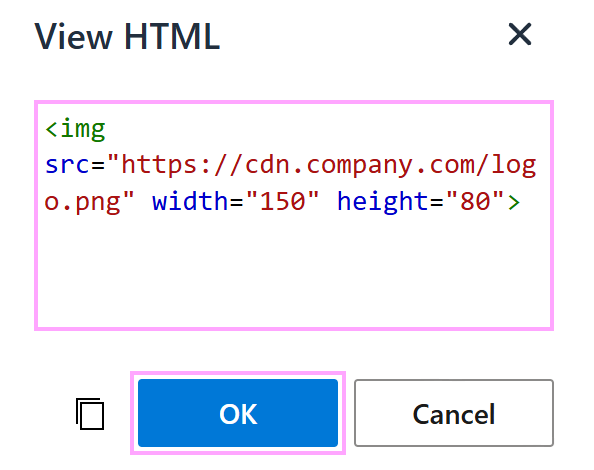
 View HTML button on the template editor toolbar.
Enter the
<img>tag along with the URL and the size of an image. For example, if the image, say, logo.png, is athttps://cdn.company.com/and you want it to be 150px wide and 80px high, the HTML code will be as follows:<img src="https://cdn.company.com/logo.png" width="150" height="80">If you want to keep the original dimensions of the image, you can leave out the width and the height, and the HTML code will look like this:
<img src="https://cdn.company.com/logo.png">You can also enter the desired size of the image in percentage:
<img src="https://cdn.company.com/logo.png" width="80%" height="80%">When you’re ready, select OK.