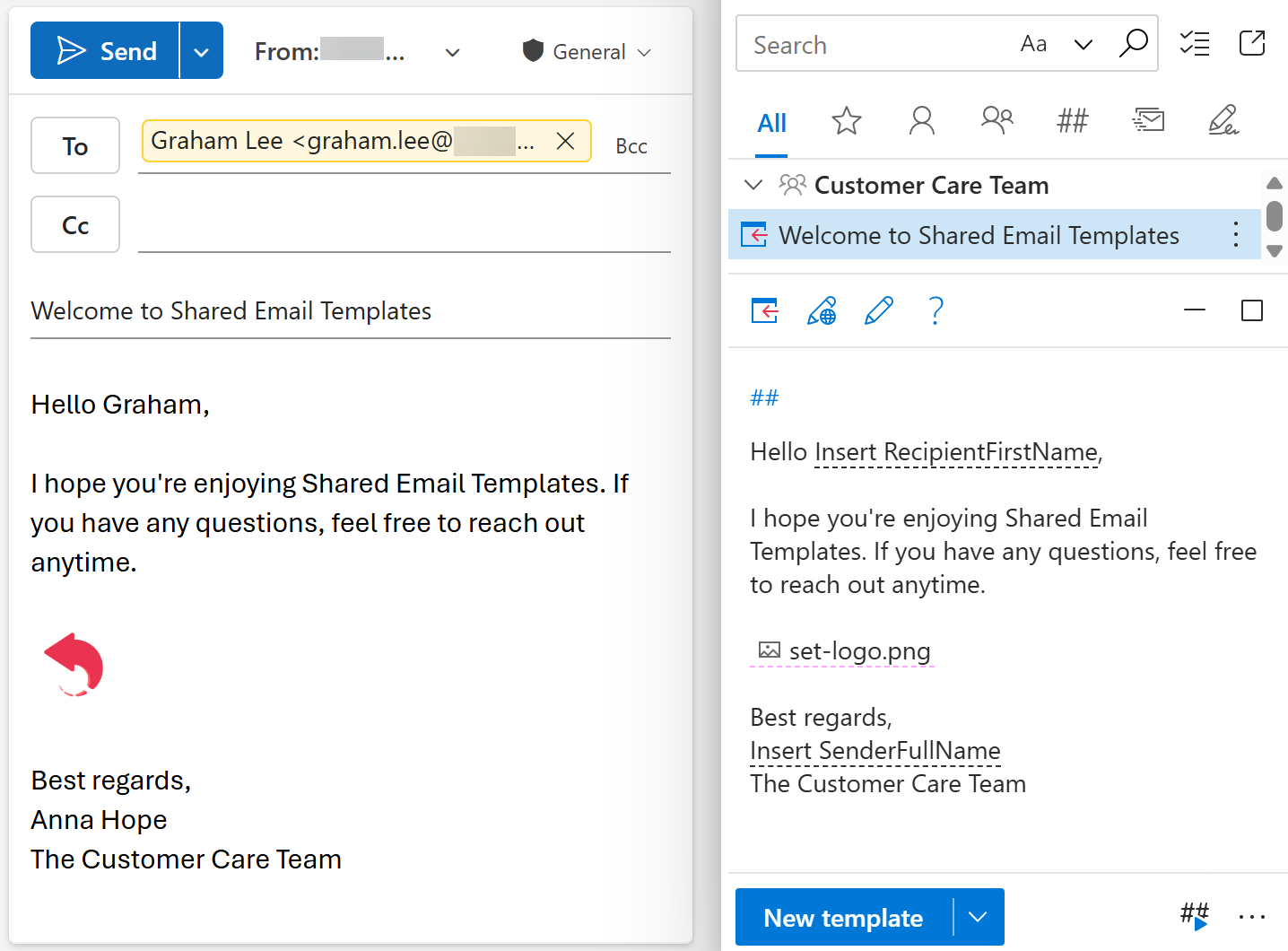
Insert pictures from OneDrive or SharePoint into Outlook emails automatically
If you want to automate adding a picture from OneDrive or SharePoint to your Outlook email messages, follow the steps below.

When creating or editing your email template, select the
 Insert picture button on the template editor toolbar.
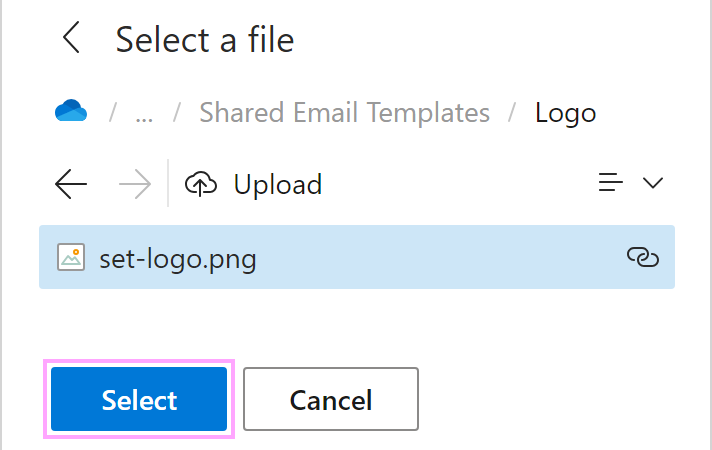
Select Insert picture from OneDrive or Insert picture from SharePoint.
Select a picture you want to insert.
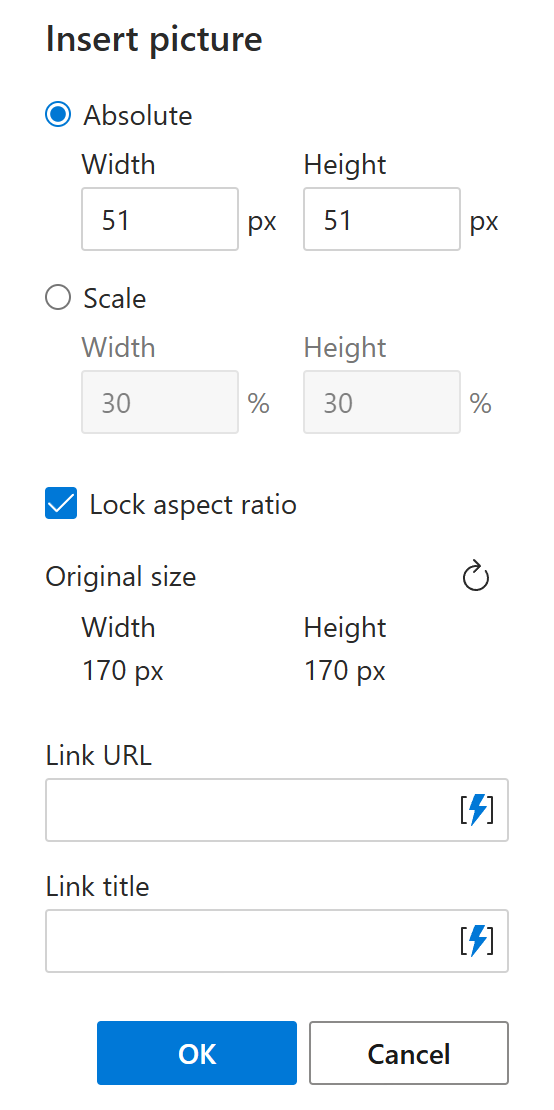
In the Insert picture dialog, set the size of the picture. If you don’t specify it, the original dimensions will be kept.
You can also add the link URL and the link title, or you can leave those fields empty.
When you’re finished, select OK.
The macro placeholder will be added to your message template. Select the Save button.
When the template is inserted into an Outlook email, the selected picture is automatically added to the message body.