
Insert a picture from a user profile, team, or company account property
With Shared Email Templates, you can automatically insert pictures saved in user profile, team, or company account properties into your Outlook emails.

Start creating or editing your email template for Outlook.
On the template editor toolbar, select the
 Insert picture button.
Select Insert picture from property.
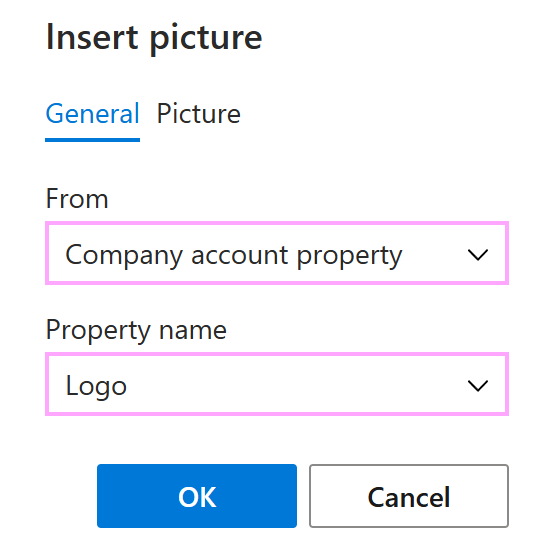
The Insert picture dialog appears.
On the General tab, select a property type (company account property, team property, or user property) and the property name.
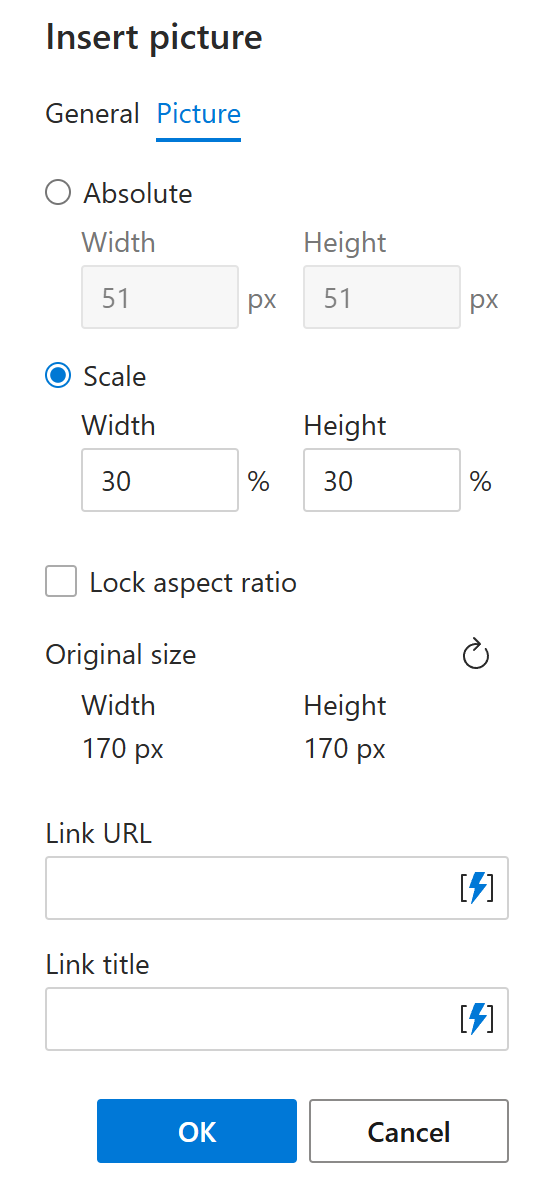
On the Picture tab, set the size of the picture. It’s optional. If you don’t specify the size, the original dimensions will be kept. You can also add the link URL and the link title.
When you’re finished, select OK.
The macro placeholder will be added to your Outlook email template. Select the Save button.