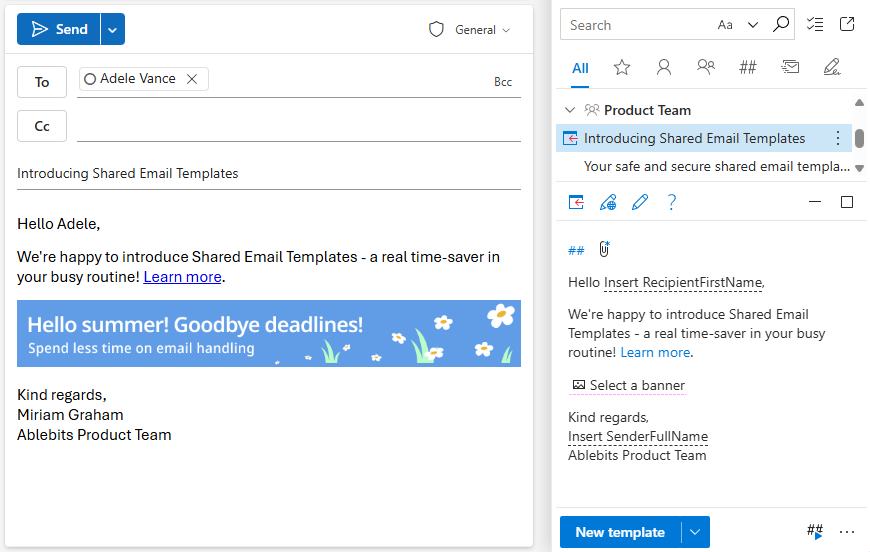
Create a reminder to add a picture to an Outlook email
If you want to make sure you don’t forget to add a picture when using an Outlook email template, you can set up a reminder with a built-in Shared Email Templates macro.
Start creating or editing an email template, choose a place for the picture, and put the cursor there.
Click the
 Insert macro button on the template editor toolbar.
Select What picture to insert.
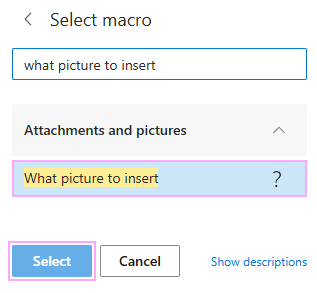
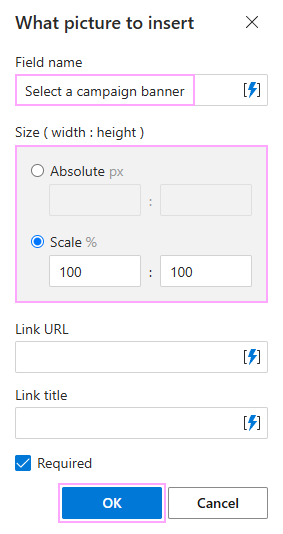
Configure a pop-up dialog that will prompt you to select a picture.
- Enter the field name. It will appear as a prompt each time you use the template.
- Set the picture size.
- Add a link URL and link title if you want to.
- When you’re finished, click OK.
Save your template.
When you use the template, a reminder dialog appears in the add-in pane, prompting you to select a picture. Click Browse.
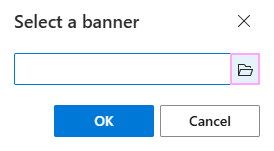
In the Open dialog, select the picture you want to use and click Open. When the file name appears in the reminder dialog, click OK.
The picture is inserted into the email along with the template.