
Shared Email Templates
Add images to your Outlook email templates by using URLs
If you want to automatically add images from URLs to your Outlook emails, follow these steps:
Start creating or editing an Outlook email template.
On the template editor toolbar, select the
 Insert picture button.
Select Insert picture from URL.
In the Insert picture dialog:
Enter the address of the picture you want to use.
Set the size of the picture. If you decide not to do that, the original dimensions will be kept.
Add the link URL and the link title if you want to.
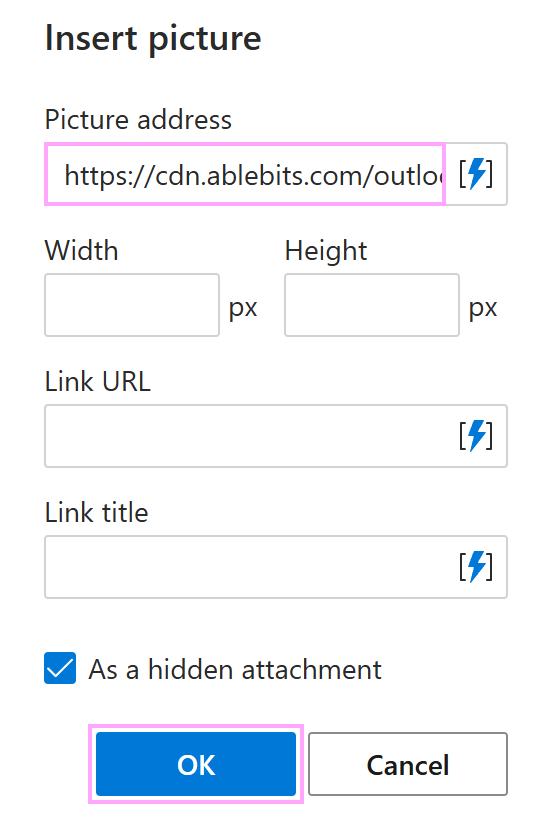
When you’re done, select OK.
The macro placeholder will appear in your message template. Select the Save button.
Each time you use the template, the InsertPicture macro placeholder is automatically replaced with the picture from the specified URL.