
Shared Email Templates
How to use properties in your templates
You can use the following properties in your shared email templates for Outlook:
- mailbox properties (for example, EmailAddress or TimeZone)
- user profile properties (for example, FirstName, LastName, or FullName)
- team properties (for example, DisplayName)
- company account properties (for example, Name, Address, or Website)
- Azure AD properties (for example, businessPhones or jobTitle)
These are the steps to follow:
Start creating a new template or editing an existing one.
Place the cursor where a property is needed, and then select the
 Insert macro button on the template editor toolbar.
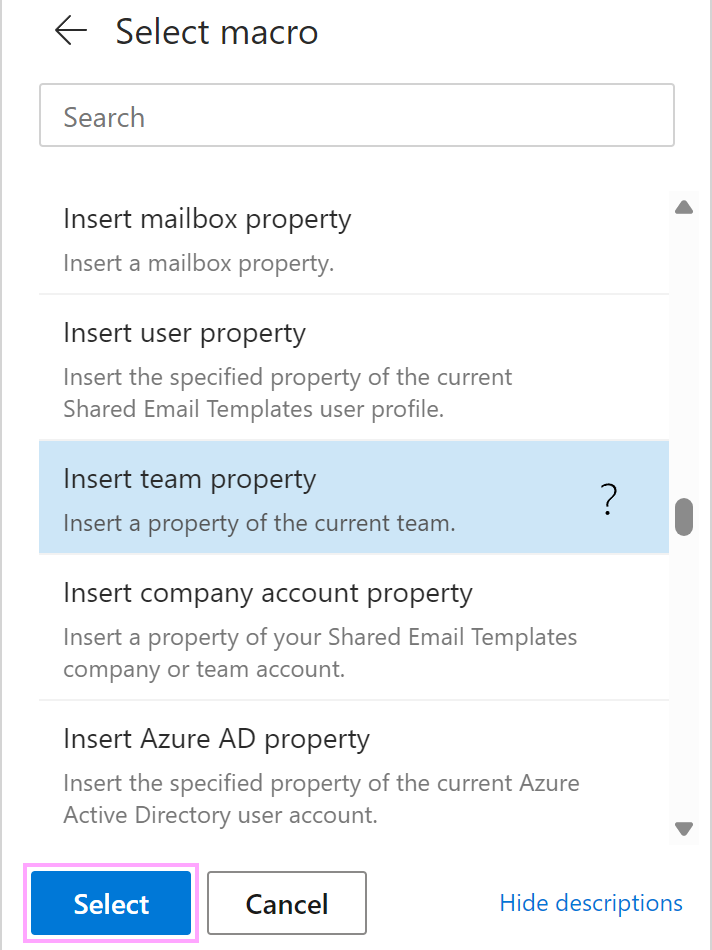
Select the necessary option: Insert mailbox property, Insert user property, Insert team property, Insert company account property, or Insert Azure AD property.
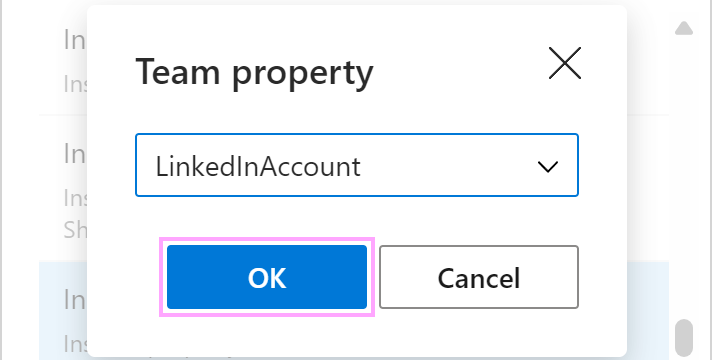
A dialog containing available properties will appear. Select the property you need, and then click OK.
Save your message template.