Extract data from datasets using regular expressions
In this article

You can add regular expressions, or regexes, to your simple or Excel-based dataset to find matching text in the Outlook email you’re replying to. When you insert a template into your reply and a match is found, the Shared Email Templates add-in automatically inserts values from the corresponding dataset row into your message.
Suppose you often receive emails with order IDs in the message body. Each order ID starts with a two-letter country code followed by five digits, for example, DE12345. When you reply to such an email with a template, you want the add-in to automatically check the message body for an order ID, find the matching row in your dataset, and insert the country name and delivery period into your reply.
To set this up, you’ll need:
- A simple or Excel-based dataset with country names and delivery periods.
- The Regex Field and Regex columns in the dataset.
- A regular expression for each order ID pattern.
- An Outlook email template with a macro that inserts values from the matching dataset row into your reply.
Step 1: Create a dataset with the values to include in your replies #
First, create either a simple dataset or an Excel-based dataset. Include the values you want to insert into your replies, such as country names and delivery periods. For detailed instructions, see:
Step 2: Add the Regex Field and Regex columns to your dataset #
After you create your dataset, add two columns to it:
- Regex Field, which tells the add-in where to search.
- Regex, which tells the add-in what to look for.
If you have a simple dataset #
Start editing your simple dataset.
To the right of the last column, click the down arrow next to the plus sign, and then select Regex Field.
Click the down arrow next to the plus sign again, and then select Regex.
In the Regex Field column, select the email field where the add-in should look for a match. For example, to search the message body, select
body.In the Regex column, enter a regular expression for each row. For example, to match order IDs that start with
DEfollowed by five digits, enter\bDE[0-9]{5}\b.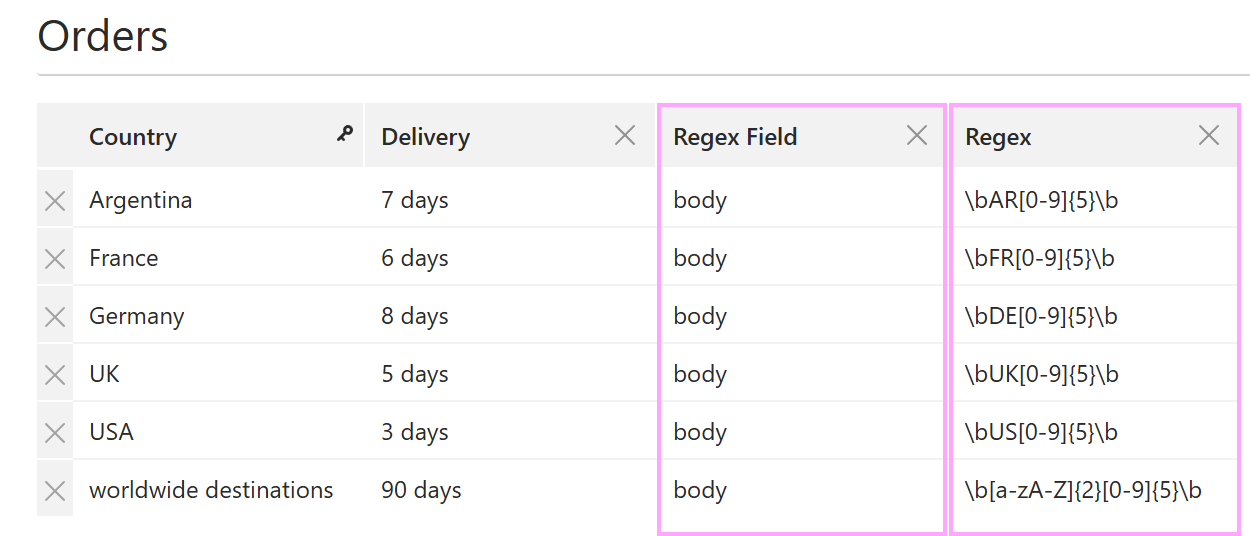
Select Save.
If you have an Excel-based dataset #
Select Open workbook.
Add a column named Regex Field to your table.
Add a column named Regex to your table.
In the Regex Field column, enter the email field where the add-in should look for a match. For example, to search the message body, enter
body.In the Regex column, enter a regular expression for each row. For example, to match order IDs that start with
DEfollowed by five digits, enter\bDE[0-9]{5}\b.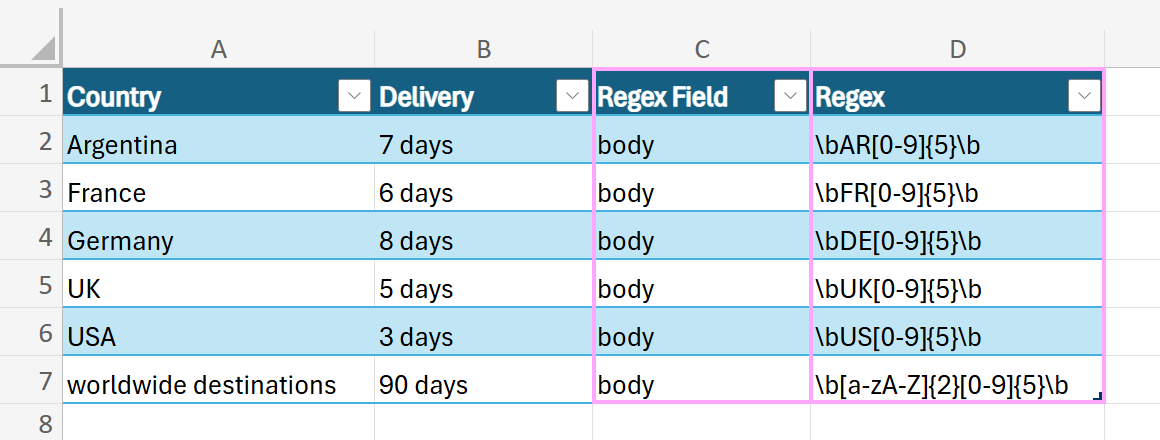
Close your Excel workbook.
Save your dataset in the Shared Email Templates web app.
Step 3: Use the Insert macro in your template #
To automatically insert values from the matching dataset row into your reply, add the Insert dataset value option of the Insert macro to your email template.
Start editing your template.
On the template editor toolbar, select the
 Insert macro button.
Select Insert dataset value.
In the Dataset value dialog, select the dataset that you created in Step 1, and then select the column that contains the values you want to insert into your replies.
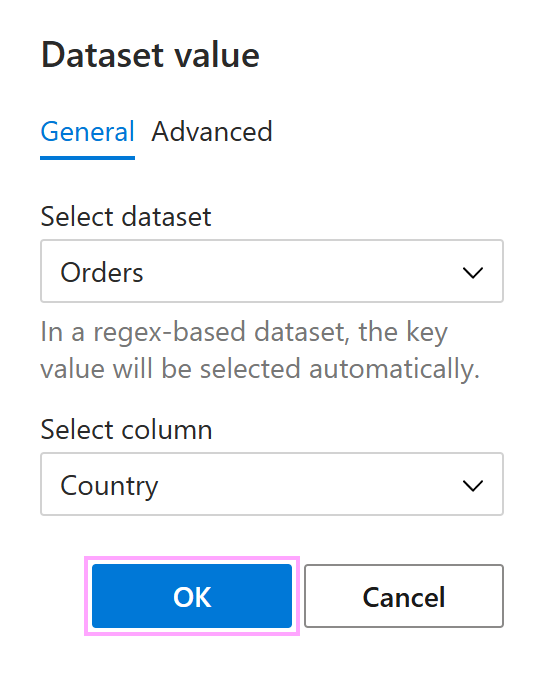
Repeat the previous step for each dataset column whose values you want to insert.
Save the template.
How the template works #
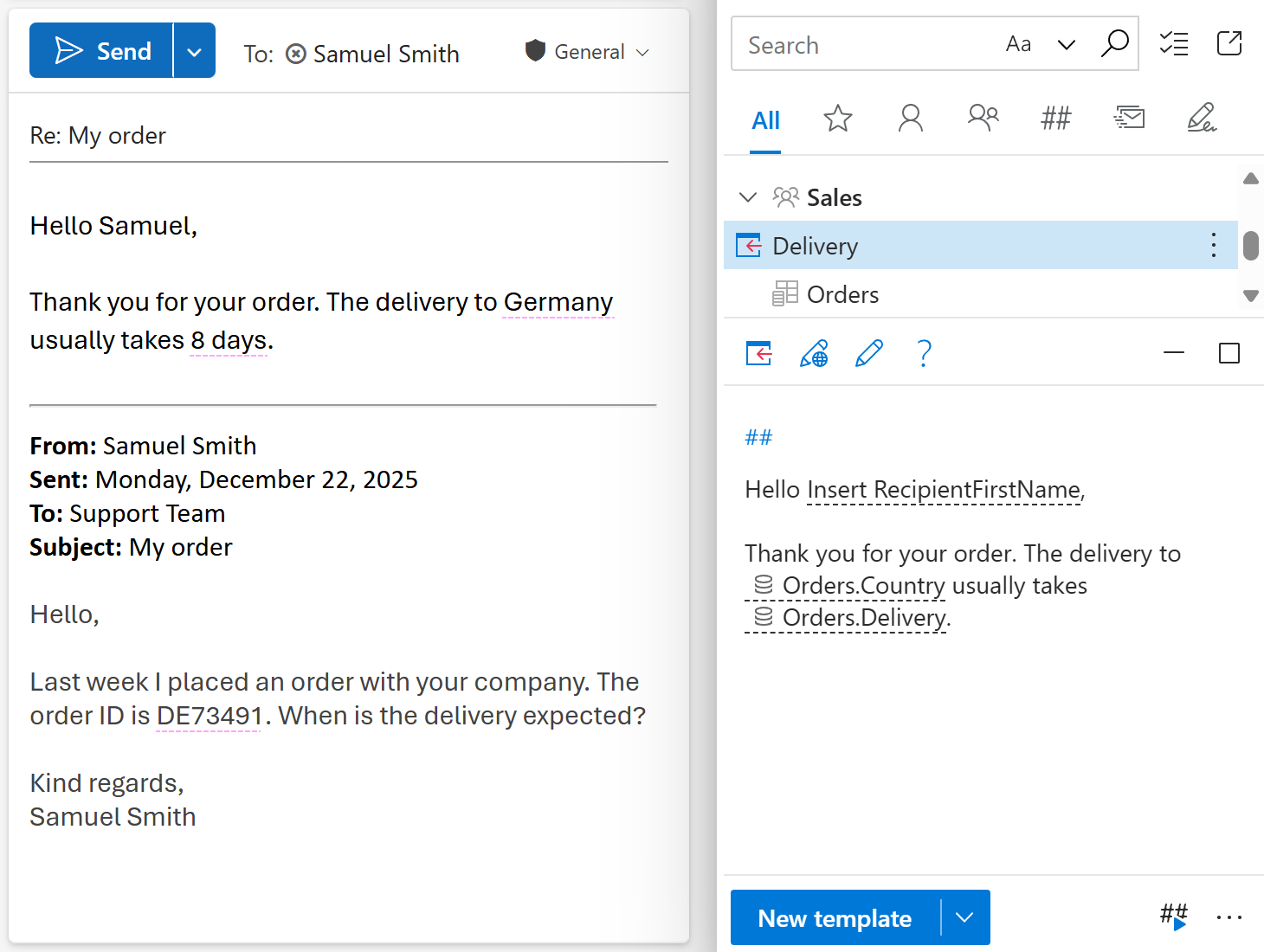
When your template is ready, it might look like this:
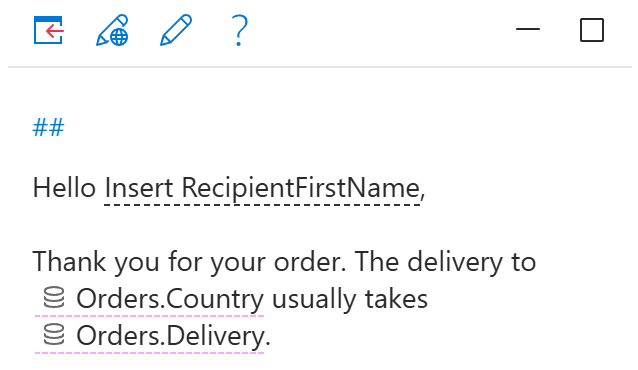
When you use this template to reply to an Outlook email that contains an order ID, the add-in finds the matching row in the dataset and automatically inserts the corresponding country name and delivery period into your reply.