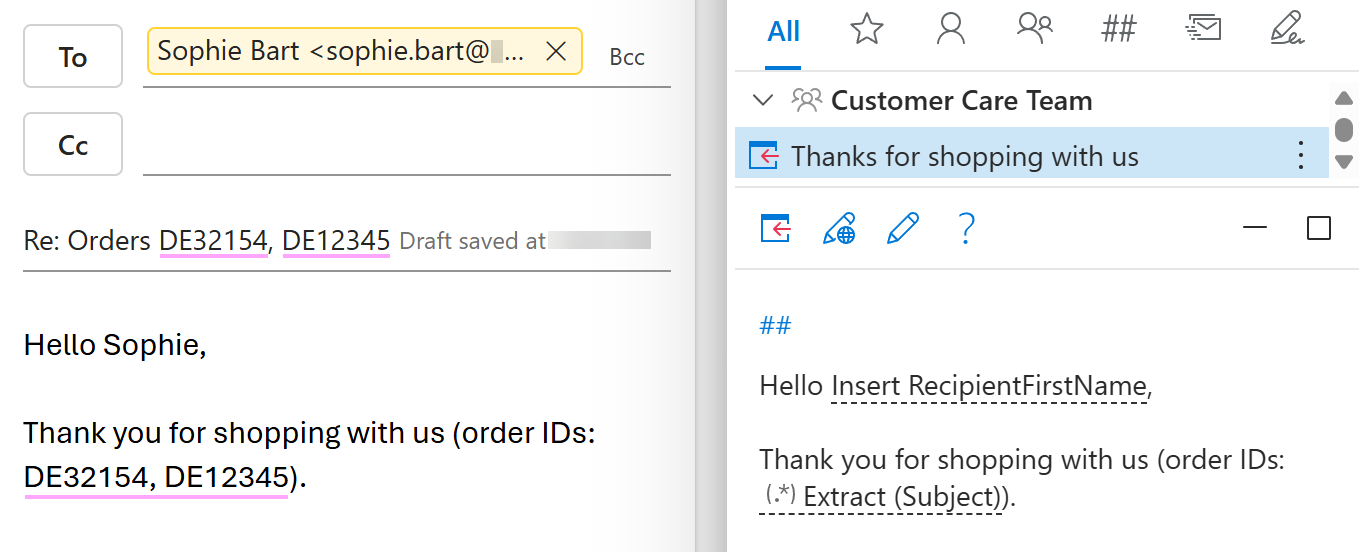
Extract data using a regular expression
With the RegexExtract macro in your Outlook email template, you can automatically search the email message you’re replying to for text that matches a regular expression, or regex. The macro extracts the matched text and inserts it into your reply. To add the macro to your template, follow these steps:
In the template you’re creating or editing, place the cursor where you want the extracted text to appear.
On the template editor toolbar, select the
 Insert macro button.
Select RegexExtract.
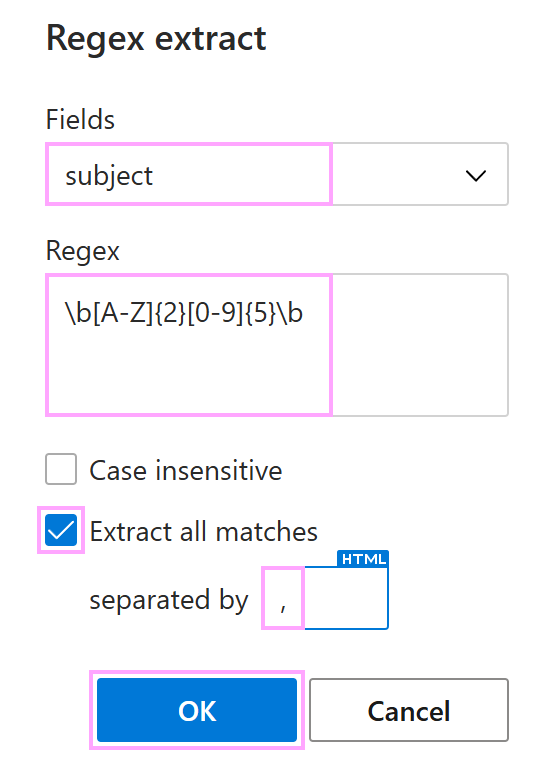
In the Regex extract dialog:
- Select the fields to be searched.
- Enter a regex that matches the text you want to extract.
- If you want to make the search case insensitive, select the corresponding checkbox.
- To return all matches, keep the Extract all matches checkbox selected. To return only the first match, clear the checkbox.
- If the Extract all matches checkbox is selected, enter a delimiter to separate multiple matches.
For example, to extract order IDs such as
DE12345from the email subject line, use these settings:- Under Fields, select
subject. - Under Regex, enter
\b[A-Z]{2}[0-9]{5}\b. - Select Extract all matches and enter
,as the delimiter.
When you’re finished, select OK.
Save your template.
When you insert the template into an Outlook reply, the macro searches the selected fields for text that matches your regular expression. Depending on your settings, it inserts either all matches or only the first match into the message.