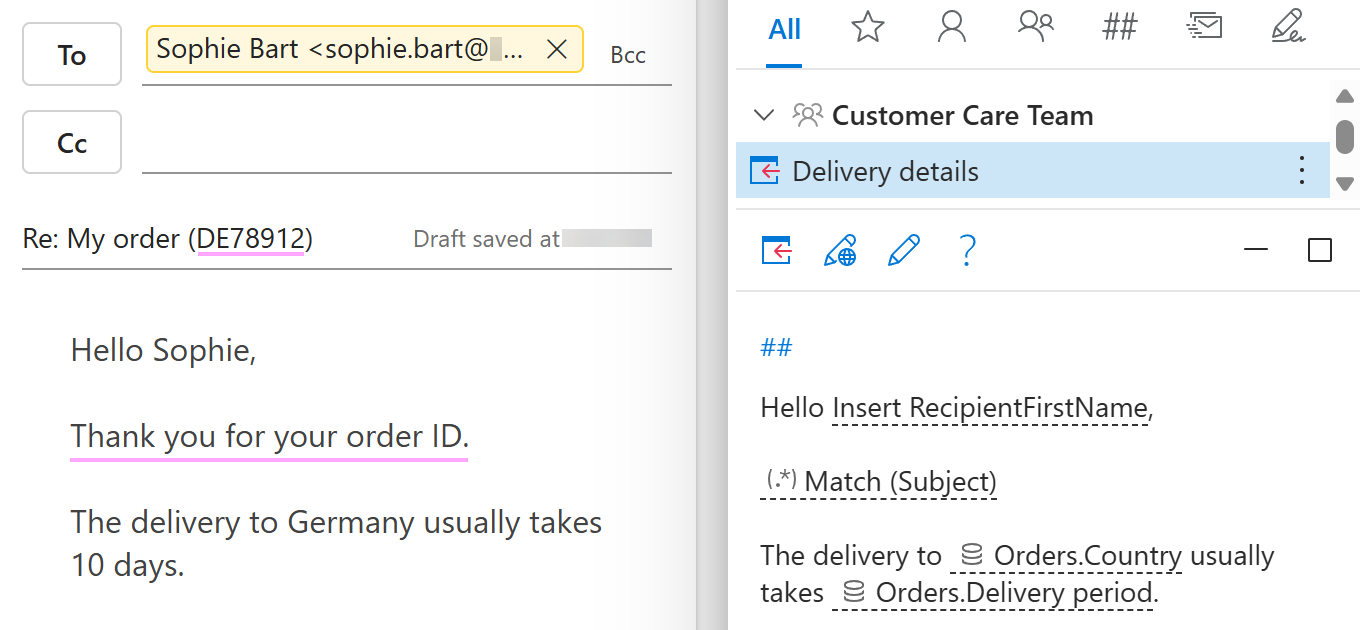
Insert text using a regular expression
The RegexMatch macro in Shared Email Templates searches an Outlook email for text that matches a regular expression, or regex. Depending on whether a match is found, the macro inserts one of two predefined text values. To add the macro to your email template, follow the steps below.
Start creating or editing a template.
Place the cursor where you want to insert the predefined text.
On the template editor toolbar, select the
 Insert macro button.
Select RegexMatch.
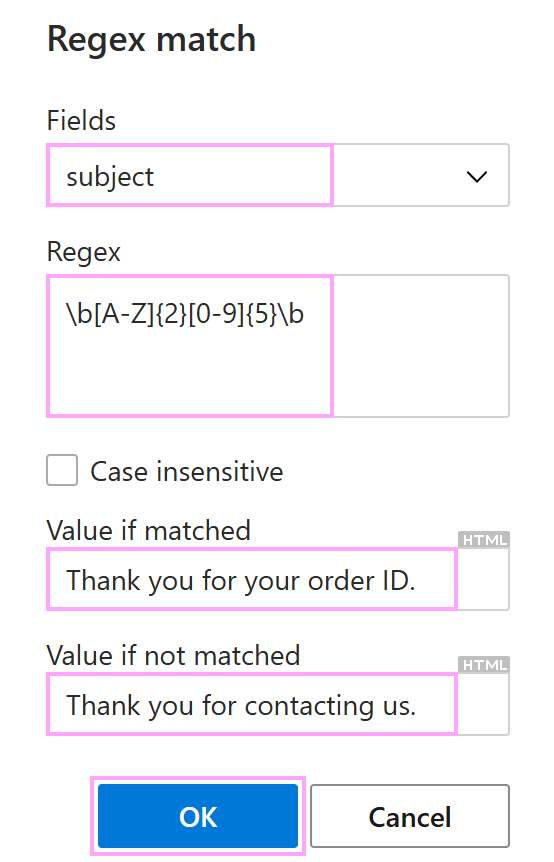
In the Regex match dialog:
- Select the fields where the macro should look for a match.
- Enter a regex.
- If you want to make the search case insensitive, select the corresponding checkbox.
- Enter the value if matched (the text that will appear in your email message if a regex match is found).
- Enter the value if not matched (the text that will appear in your email message if a regex match is not found).
For example, let’s say you want the add-in to insert
Thank you for your order ID.when the subject of the email you’re replying to contains an order ID. When the subject doesn’t contain an order ID, you want the add-in to insertThank you for contacting us.instead. Here’s what to do:- Under Fields, select
subject. - Under Regex, enter a regular expression that matches the order ID pattern. For example, use
\b[A-Z]{2}[0-9]{5}\bto match order IDs that start with two uppercase letters followed by five digits, such asDE12345. - Under Value if matched, enter
Thank you for your order ID. - Under Value if not matched, enter
Thank you for contacting us.
When you’re ready, select OK.
Save the template.
When you insert the template into an Outlook reply, the macro searches the selected fields for a regular expression match. If it finds a match, it inserts one predefined text value; if it doesn’t, it inserts the other.