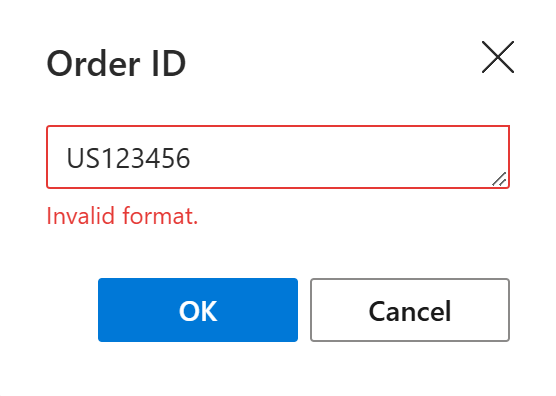
Allow only specific values in custom input fields for Outlook emails
If your Outlook email templates contain custom input fields, you can use regular expressions to make sure you and your teammates enter or select only values that match a required pattern.
When creating or editing a custom input field, switch to the Advanced tab.
Under Validate with regex, enter a regular expression to specify the pattern that the user input must match. For example, to allow only order IDs that start with
USfollowed by five digits, such asUS12345, enter^US[0-9]{5}$.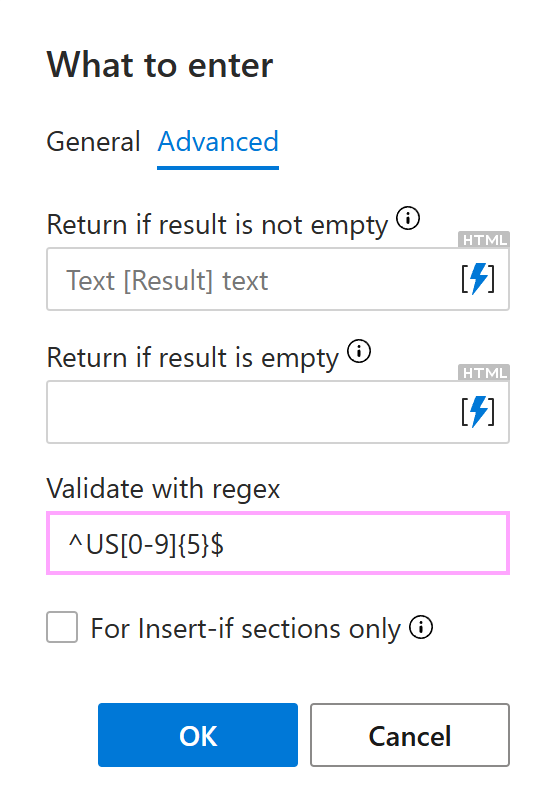
Select OK.
Save the template.
When you or your teammates insert the template into an Outlook email message, the add-in checks the value entered or selected in the pop-up dialog against the regular expression you specified. If the value doesn’t match, the add-in won’t insert it.