
Share email templates with your team
In this article
The add-in lets you quickly create and share Outlook email templates with no extra moves. Just set up a team, add users, craft your templates, and they’ll be instantly accessible to all team members. You can also share your personal templates with a team if needed. The below instructions detail the process.
How to share an existing email template #
To share a personal email template with your team, carry out these steps:
In the Shared Email Templates pane in Outlook, right-click the template.
From the context menu, choose Share.
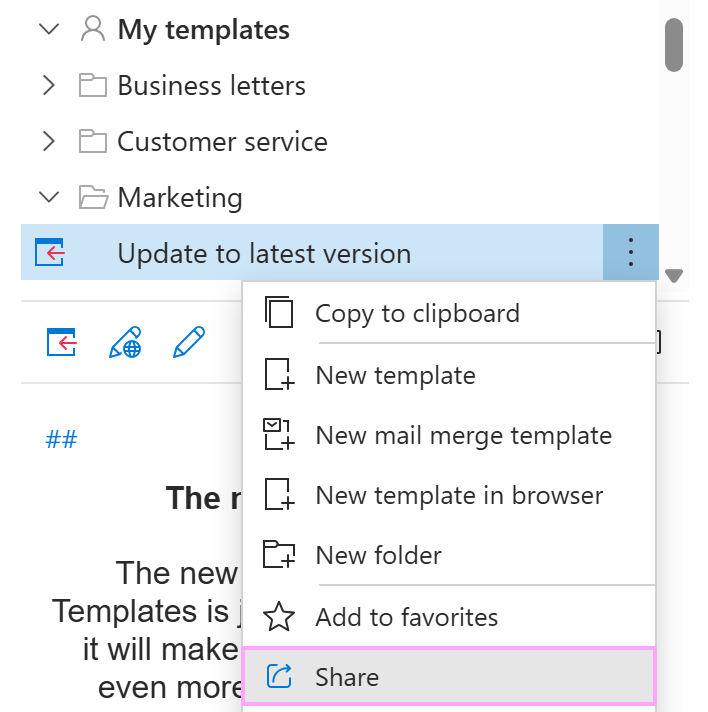
Select the team with which you wish to share the template and click Open. Alternatively, you can double-click the team name.
If you want the template to be available in both your personal and team folders, select the Share as copy checkbox.
Click Share.
That’s it! Your personal email template is now shared with your teammates. If you manage multiple teams, you can copy or move templates between them as needed for efficient collaboration.
How to create a new shared template for a team #
If you have Editor permissions, you can create templates for your team. Just follow the steps below.
Start creating a shared template. You can do that in two ways:
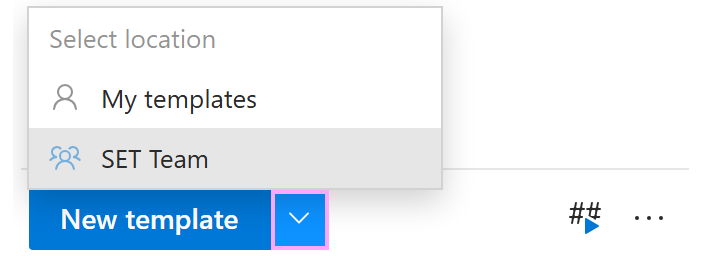
- At the bottom of the Shared Email Templates pane, click the down arrow on the New template button, and then select the team you want to share your new template with.
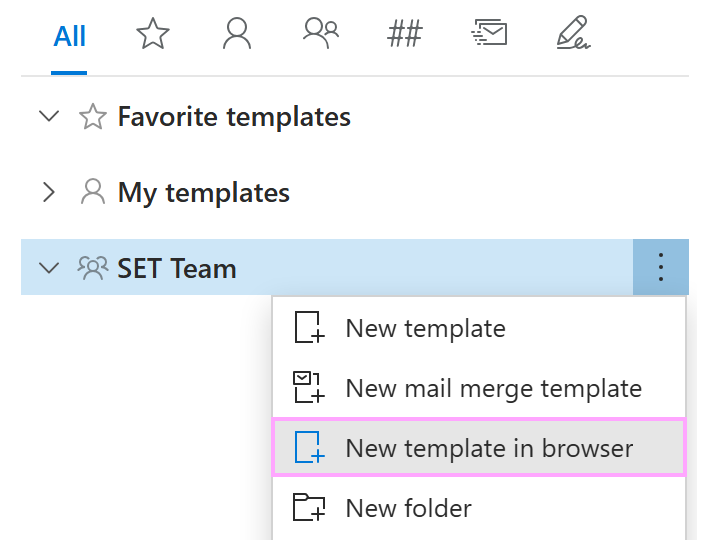
- In the Shared Email Templates pane, right-click the team you’re creating the new template for and select either New template or New template in browser, depending on your preference.
Compose the template. Enter a name for your template and compose its content. You can enhance it with rich text formatting, images, tables, buttons, and other design elements.
Save the template. When you’re finished, select Save.
Any templates created either in the browser or in Outlook are automatically shared across all team members, with no extra steps required for syncing.
How to share template assets with a team #
In addition to sharing message templates, you can also share assets such as your company logo, frequently used text snippets, URLs, buttons, and other HTML elements. These shared assets become easily accessible to every team editor, helping maintain consistent branding across the team’s communications.
Add a custom team property #
For sharing assets, you need to create a custom team property. Here’s how to do it:
In the Shared Email Templates web app or in Outlook, right-click the team name and select Team properties.
At the bottom of the pane, click the Add property button.
Name the property and choose its type, either Text/HTML value or Picture.
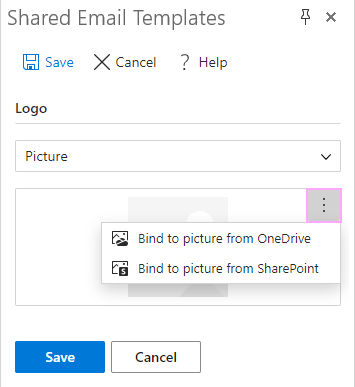
For a picture, click the three vertical dots (ellipsis) in the upper-right corner of the preview box and select the source: OneDrive or SharePoint. Then, browse for the image and click Save.
For a text or HTML property, enter the plain text or HTML code and click Save.
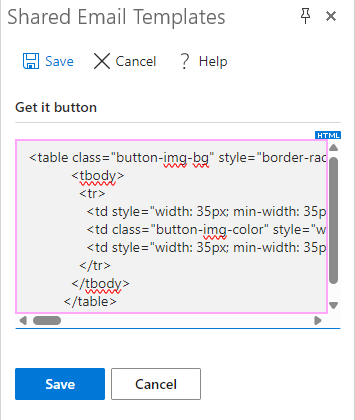
Once you’ve added all the necessary properties, click the left-pointing arrow next to Team properties to return to the templates tree.
Your shared assets are ready for use. Any team member with editing rights can now insert these assets into a new or existing email template.
Insert pictures from team properties into a shared template #
When creating or editing a shared email template, perform these steps to insert an image from team properties:
In the template editor, place the cursor where you want an image and click the Insert picture button on the toolbar.
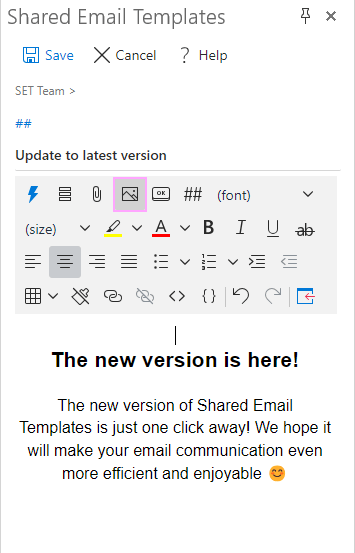
Select Insert picture from property.
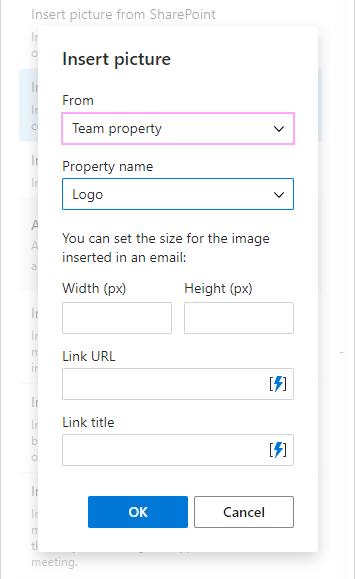
In the Insert picture dialog, select Team property, and then select the picture name. Optionally, you can set the image size and link the image to a certain webpage.
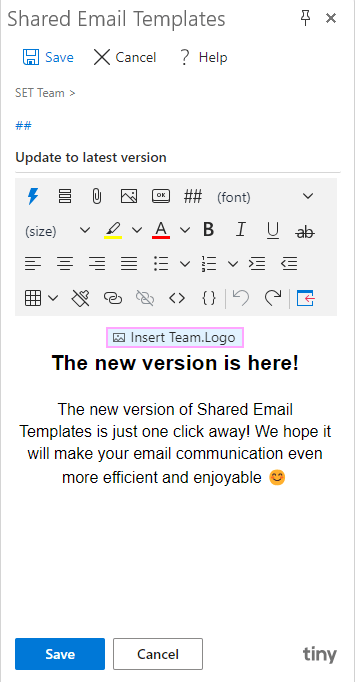
Once inserted, the picture’s file name in the template preview will be prefixed with “Team”, indicating it was sourced from the team properties.
Insert text or HTML code from team properties #
To insert a piece of text or an HTML element from team properties into a shared email template, follow these steps:
In the template editor, place the cursor where you want the text or HTML element to appear. Then, click the Insert macro button on the toolbar.
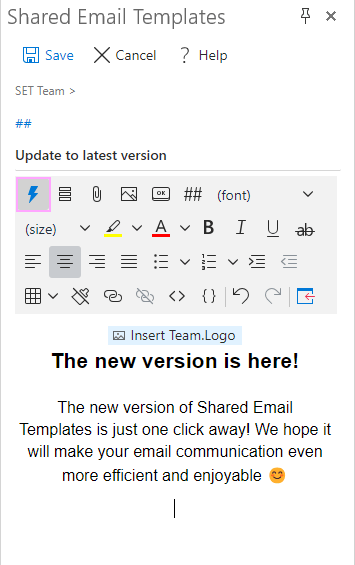
In the list of macros, select Insert team property.
In the Team property dialog, select the desired item.
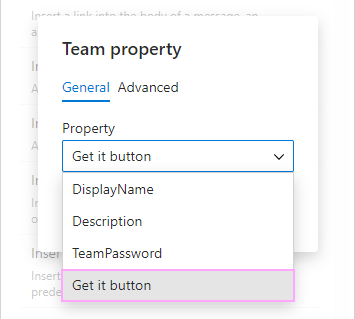
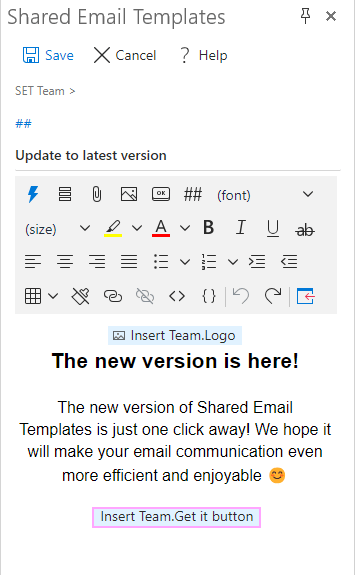
Once inserted, the property will appear in the template preview, with the file name prefixed by “Team” to indicate that it comes from team properties.
When you or anyone else on the team uses this template, the shared assets, such as the logo and button, will be pulled from the team properties and inserted into your Outlook message where appropriate.
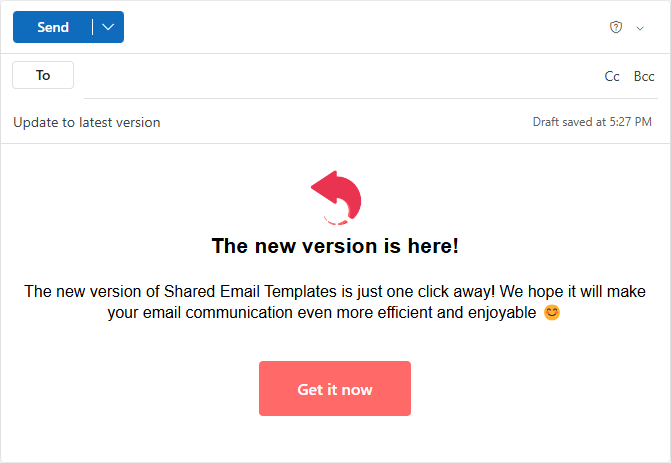
If the team assets need updating, for example replacing a link with a newer version of your software, you’ll only need to update the corresponding property. The change will automatically apply across all shared templates, ensuring everything stays up to date.