
Create company-wide signatures for Outlook
In this article
If you have Admin rights for your Shared Email Templates company account, you can create and manage Outlook email signatures for other users. By adding corporate colors, a logo, or a banner and choosing the same layout for everyone, you can make sure that the signatures will look professional and uniform across your entire company.
If the signatures are set as default, they will be added to your colleagues’ Outlook email messages automatically. It’s also possible to arrange separate default signatures for new messages and for replies and forwards.

Create company signatures #
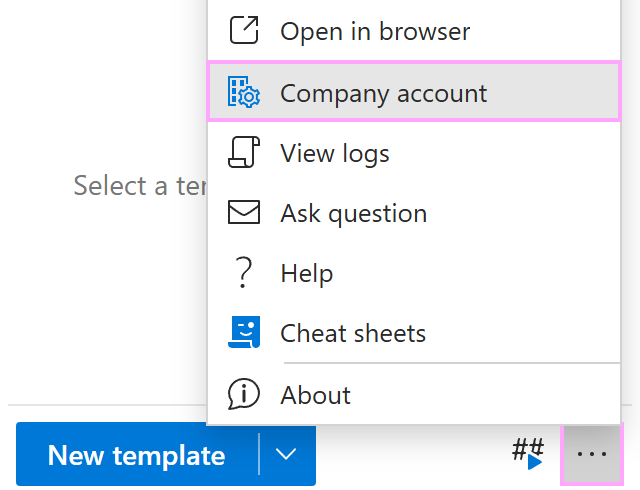
In the Shared Email Templates pane in Outlook, go to the More menu and select Company account.
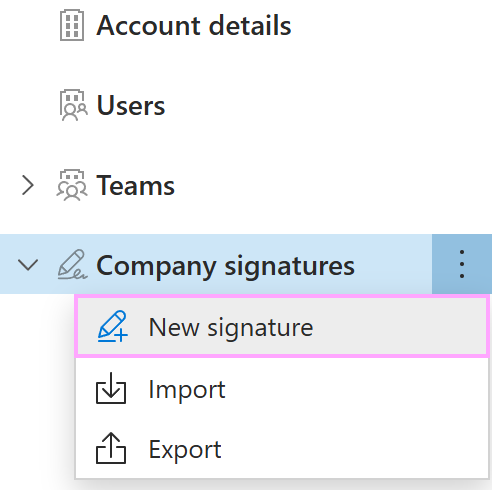
In the Shared Email Templates app that will automatically open in your default browser, right-click Company signatures and select New signature.
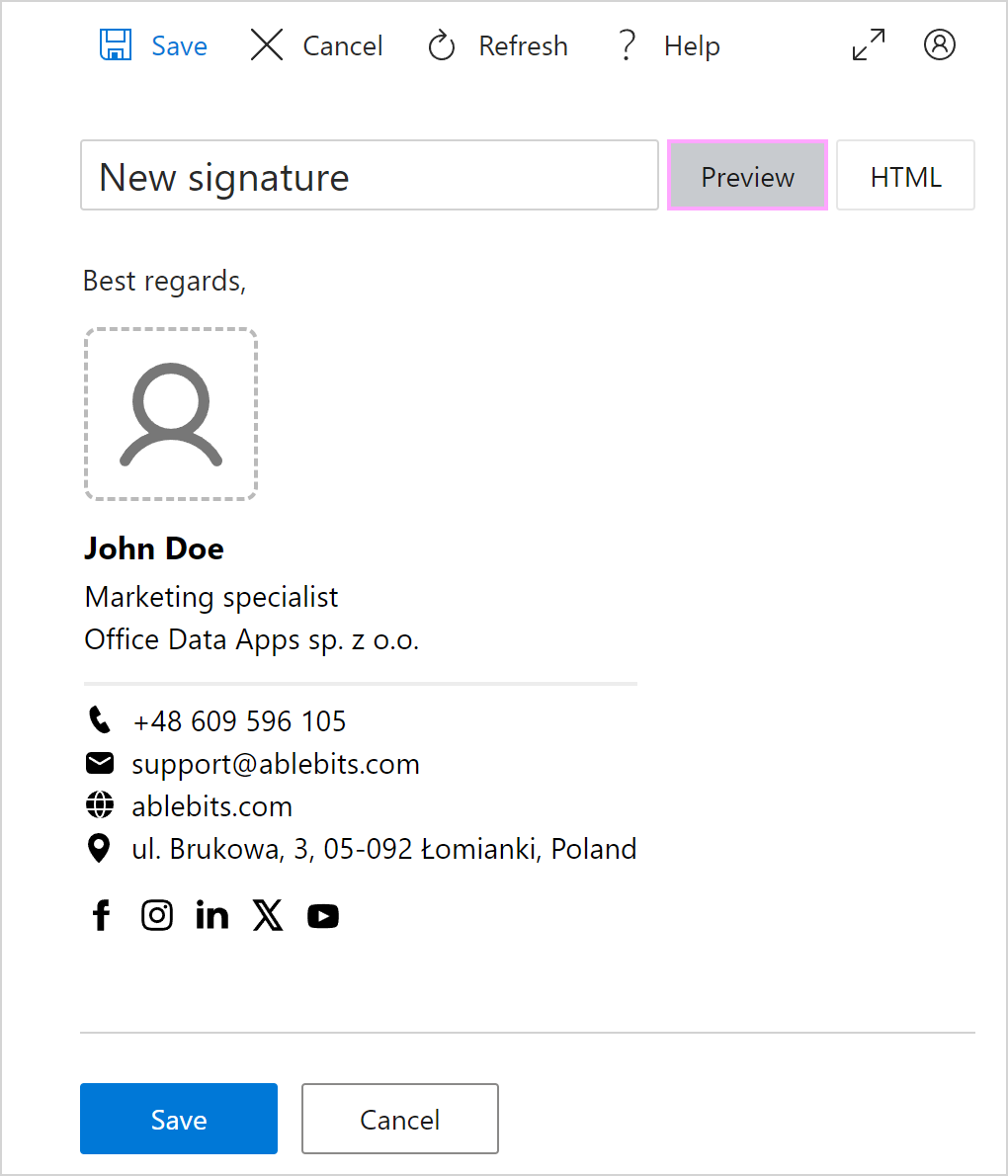
The email signature preview will appear.
Using the Design tab on the right sidebar, select a color theme, a font, a font size, and a layout for your company-wide signature.
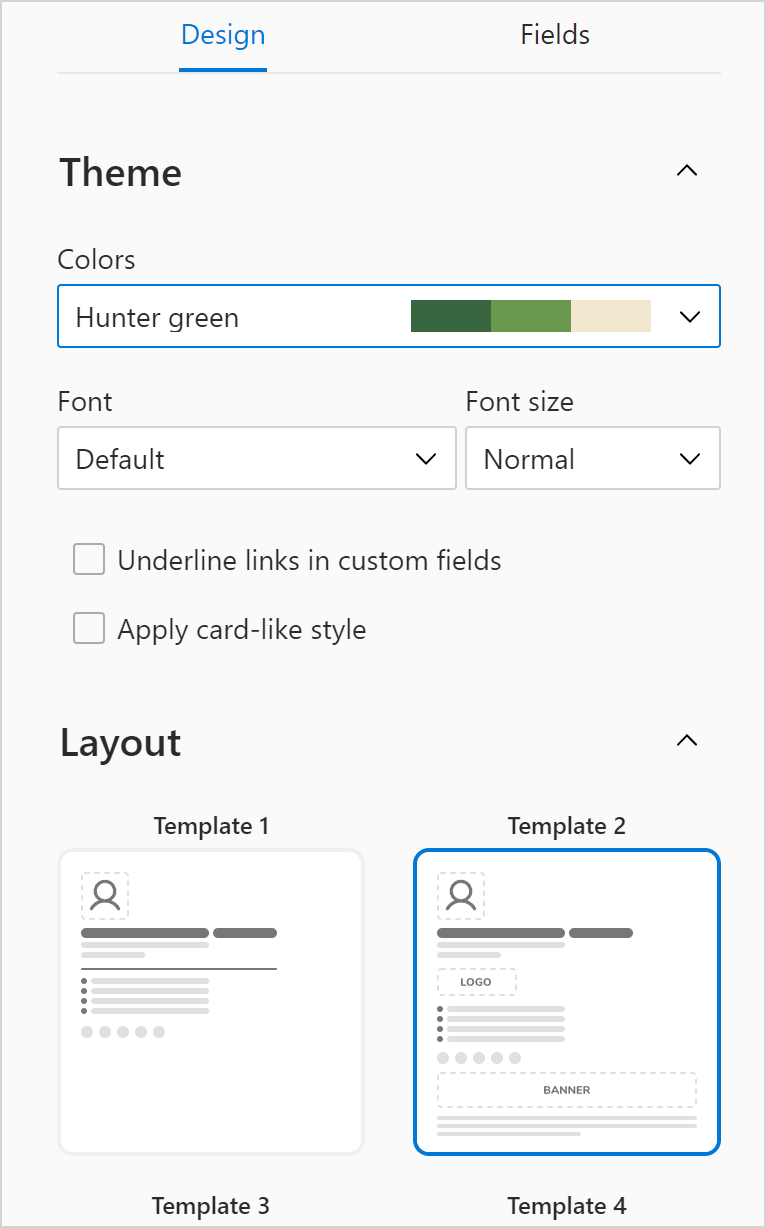
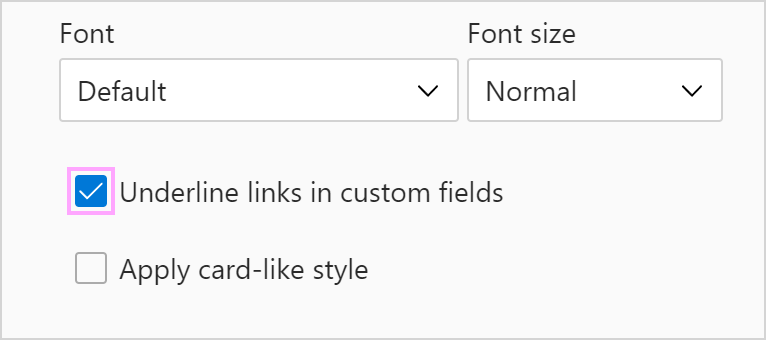
To have links in custom fields underlined, select the Underline links in custom fields checkbox.
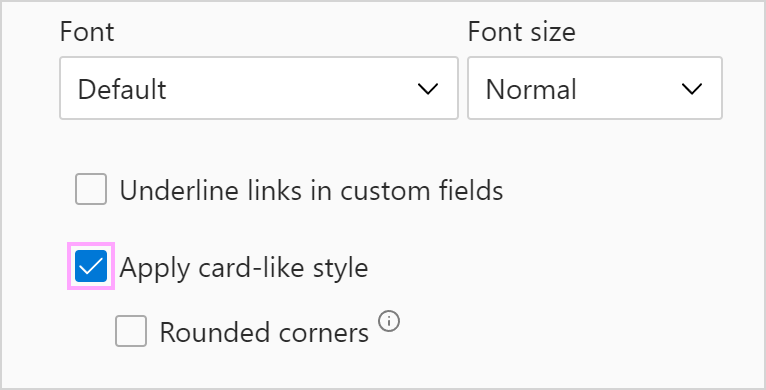
To make the email signature look like a business card, select the Apply card-like style checkbox.
Using the Fields tab on the right sidebar, specify what details to include in your company-wide signature. For your convenience, signature fields are grouped in four sections:
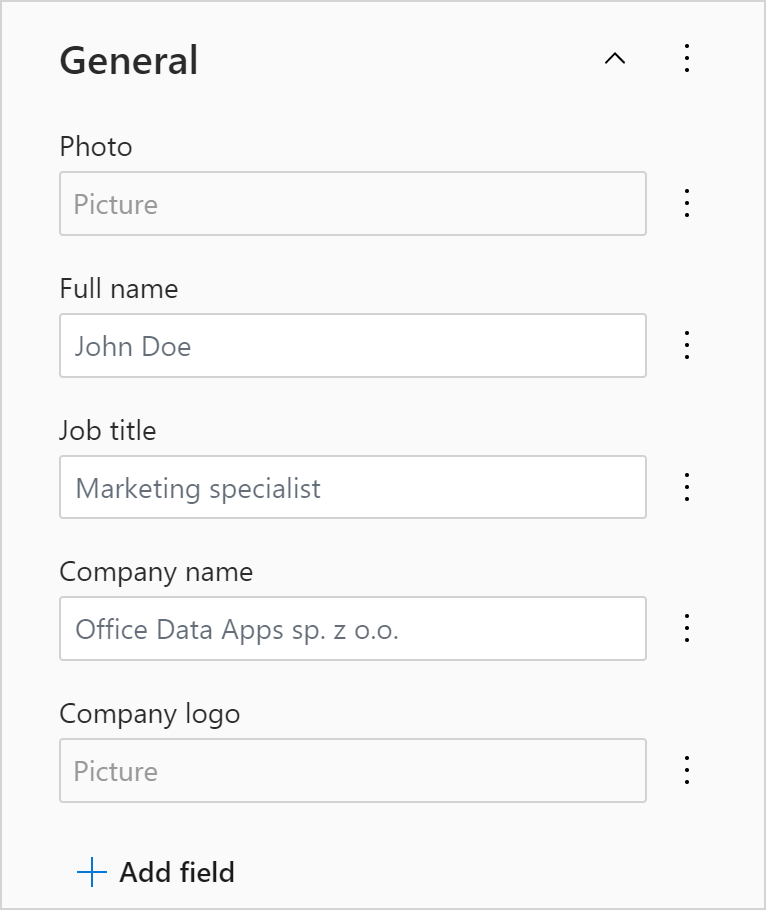
General. This section is intended for a user’s photo, full name, and job title. There’s also room for your company’s name and logo here.
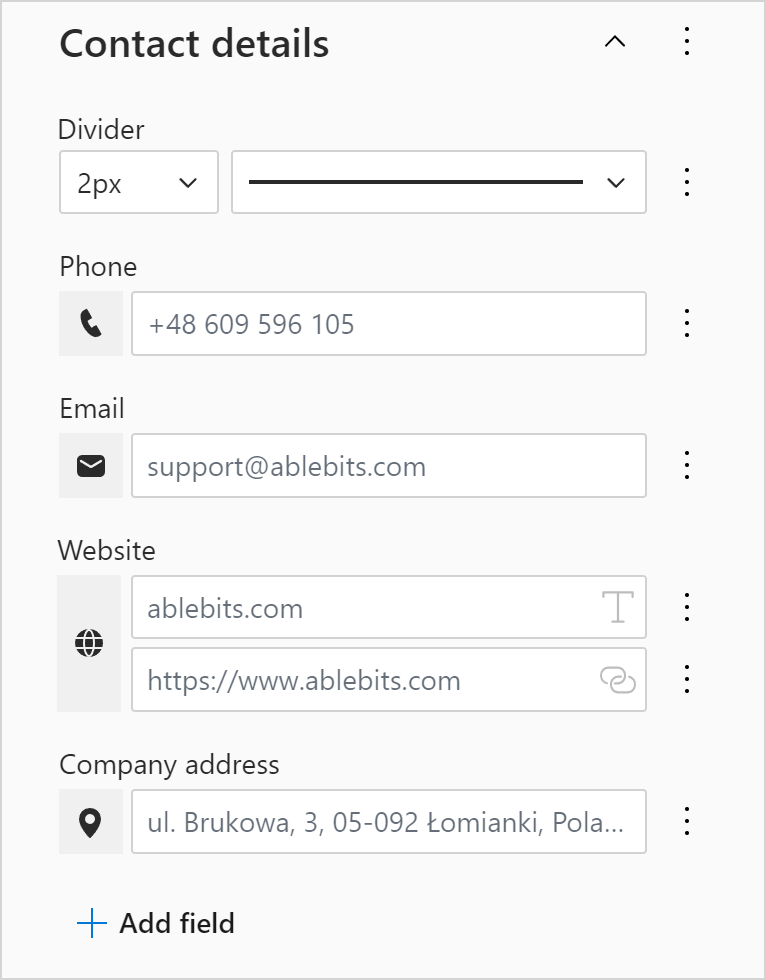
Contact details. This section is for a user’s phone number and email address. It can also contain a link to your company’s website and a postal address.
Social media links. You can enter links to social media profiles here.
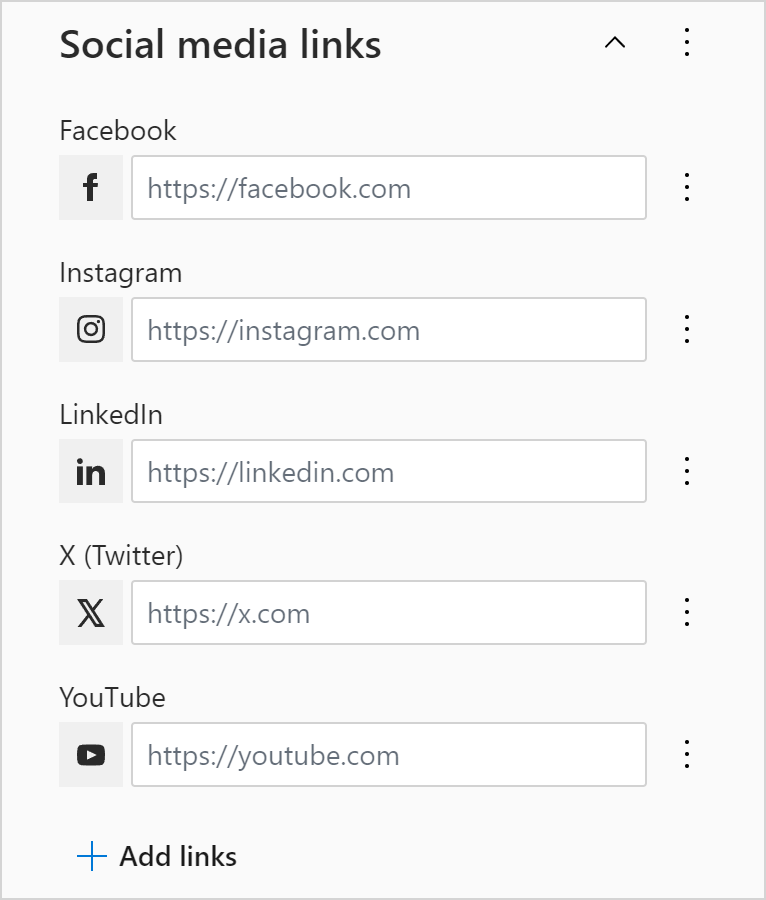
Additional fields. In this section, you can have a sign-off, a banner, and a disclaimer.
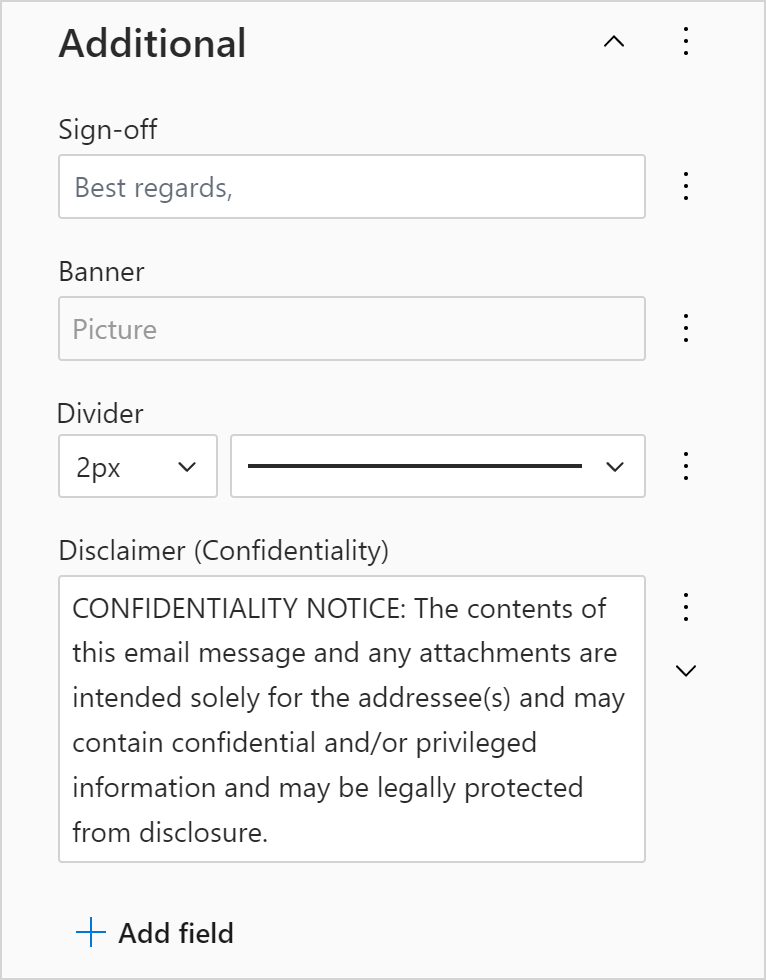
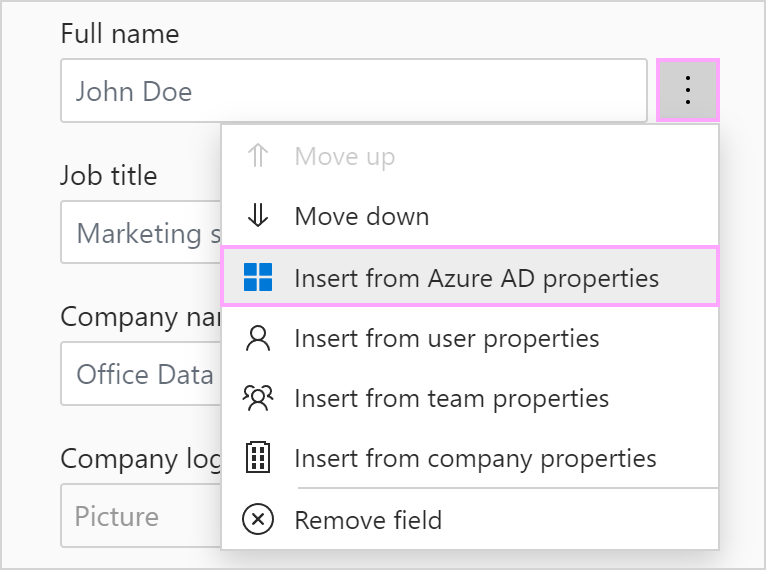
To make a company-wide signature automatically display each user’s personal details, like their name or job title, you need to fill in the corresponding fields using either Azure AD or user profile properties.
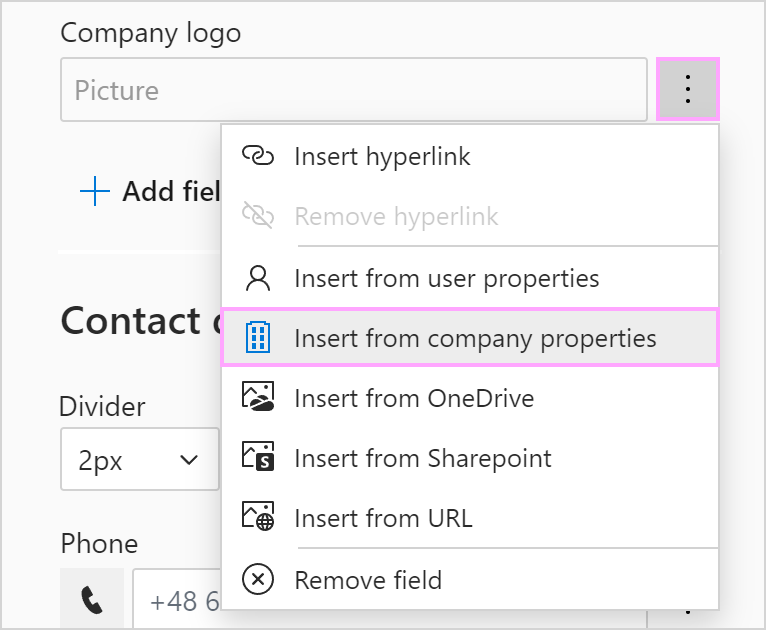
Similarly, to automatically fetch company details, you can use either Azure AD or company account properties.
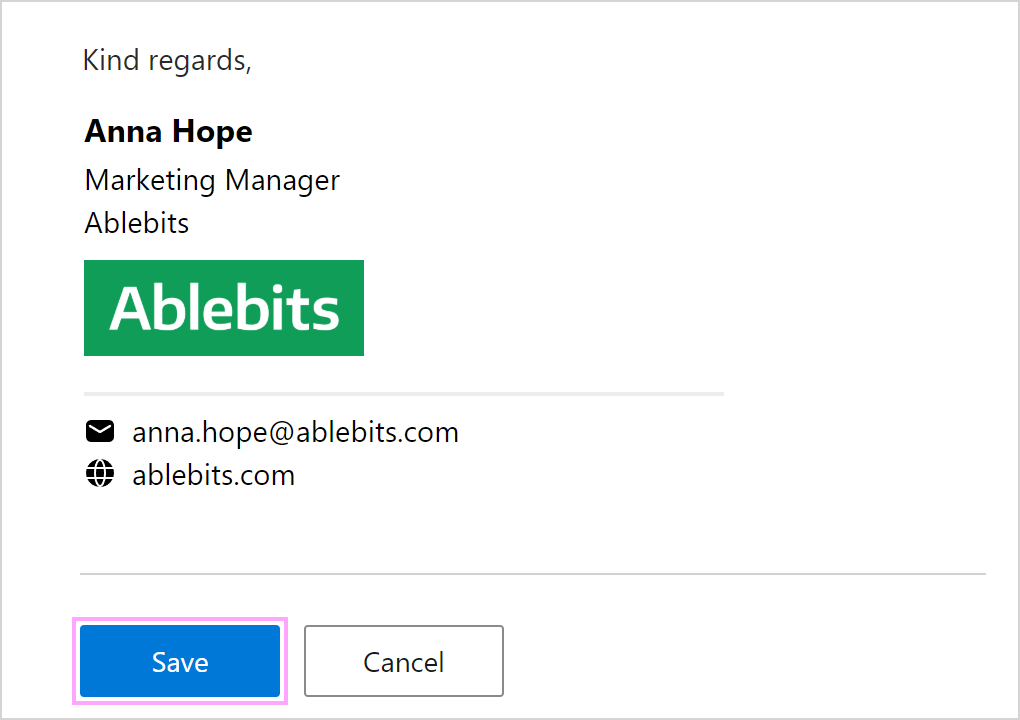
When you’re finished, save your company-wide email signature.
How to add company account properties and use them in signatures #
If you use Azure AD properties to fill signature fields intended for company details, any updates in your company’s Azure AD will be automatically reflected in the signatures, saving your time and effort. If some information you want to include isn’t specified in your company’s Azure AD, you can save it directly in your Shared Email Templates company account as company account properties and then use it for Outlook email signatures. In this case, if any change is needed, you’ll have to make it only once, in the corresponding property, and all the signatures where the property is used will be updated automatically.
To save some information (text or picture) as a custom company account property, follow the steps below.
In the Shared Email Templates pane in Outlook, go to the More menu and select Company account.
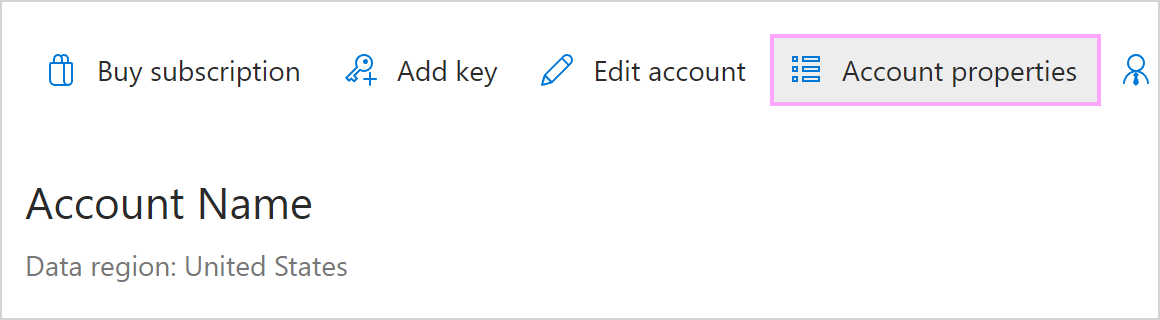
In the Shared Email Templates app, in the Account details section, select the Account properties button.
On the right sidebar that will appear, select the Add property button.
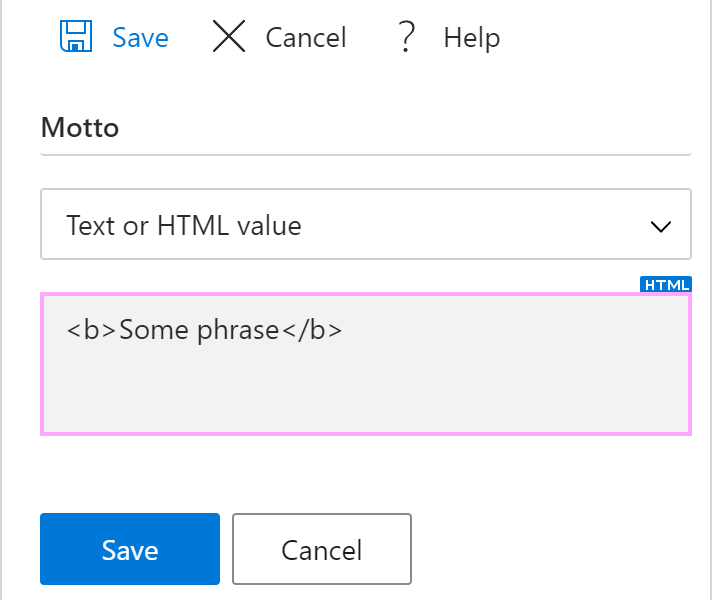
Enter the name of a custom property and choose between Text or HTML value and Picture.
If you want to save some text or HTML value as a property, enter it into the text-entry box.
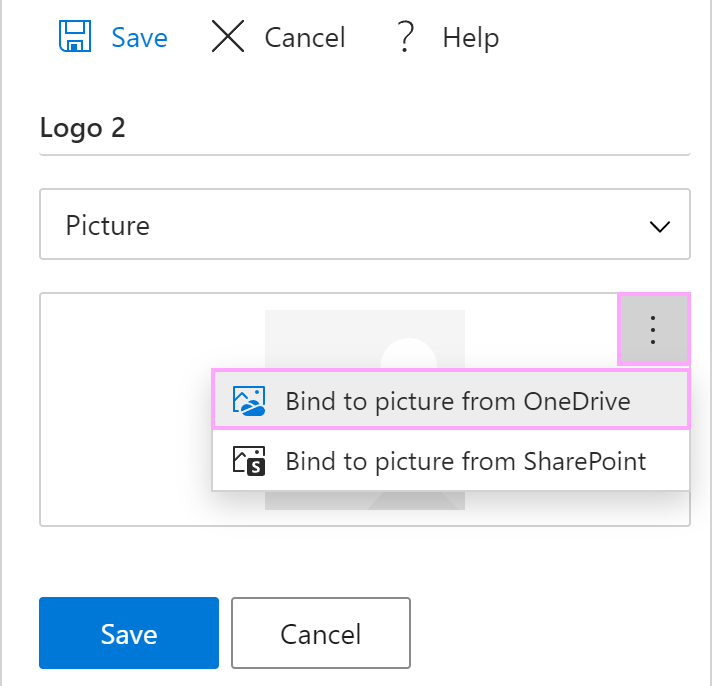
If it’s a picture, first select its location (OneDrive or SharePoint), and then select the file itself.
When you’re done, select Save.
Once you’ve saved the custom company account property, you can use it in your company-wide signature. Just open the ellipsis menu to the right of a signature field, select Insert from company properties, and then select the property name in the dialog that will appear.
How to create signatures with custom HTML #
If you have HTML code that you want to use for your company-wide email signature, follow these steps:
In Outlook, go to the More menu at the bottom of the Shared Email Templates pane and select Company account.
When the Shared Email Templates app opens in your default browser, right-click Company signatures and select New signature.
Switch from the Preview tab to the HTML tab, and then select Edit as HTML.
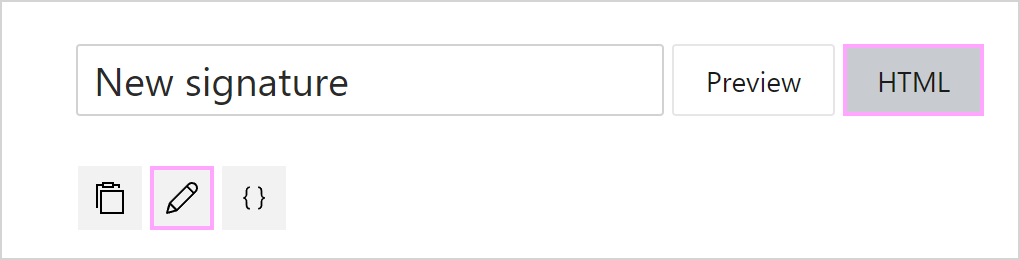
When you’re done, select Save.
Set default signatures for all users #
To set default signatures for all company account users at once, follow these steps:
In Outlook, in the Shared Email Templates pane, go to the More (…) menu and select Company account.
In the Shared Email Templates app, go to Company signatures.
Use the dropdown menus to select:
- A default signature for new messages
- A default signature for replies/forwards
Set default signatures for specific users #
You can set default signatures for specific users in this way:
In Outlook, open the More (…) menu at the bottom of the Shared Email Templates pane, and then select Company account.
In the Shared Email Templates app that will automatically open in your default browser, go to Users.
Select the users for whom you’re going to set the same default signatures.
Select the Signatures button.
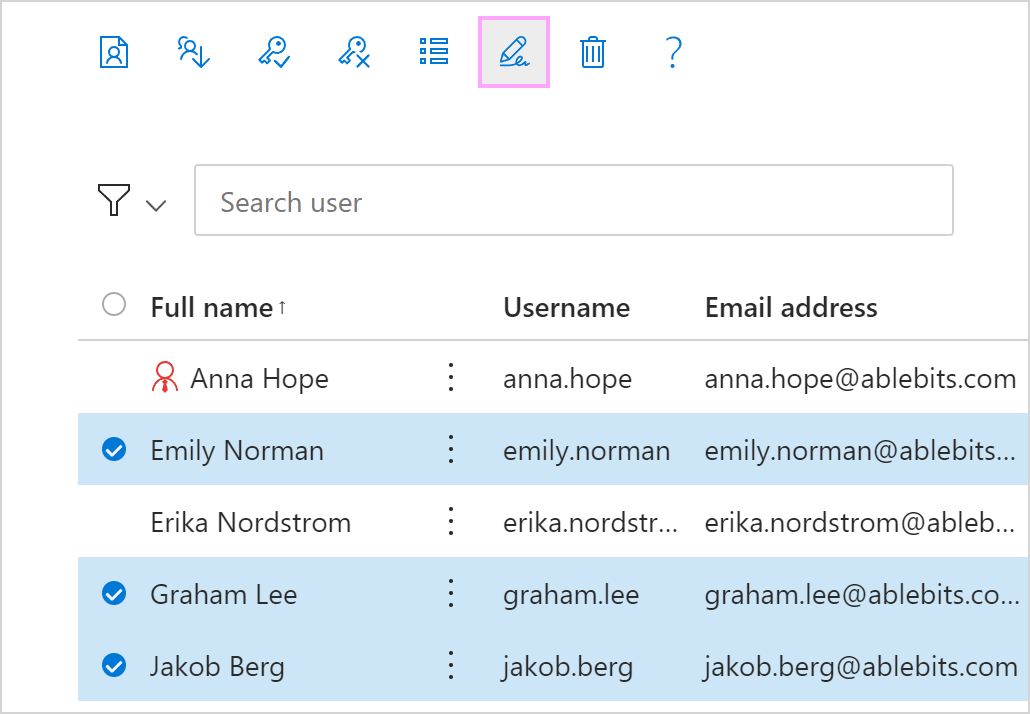
Use the dropdown menus in the right sidebar to select default signatures for new messages and for replies/forwards.
Select Save.
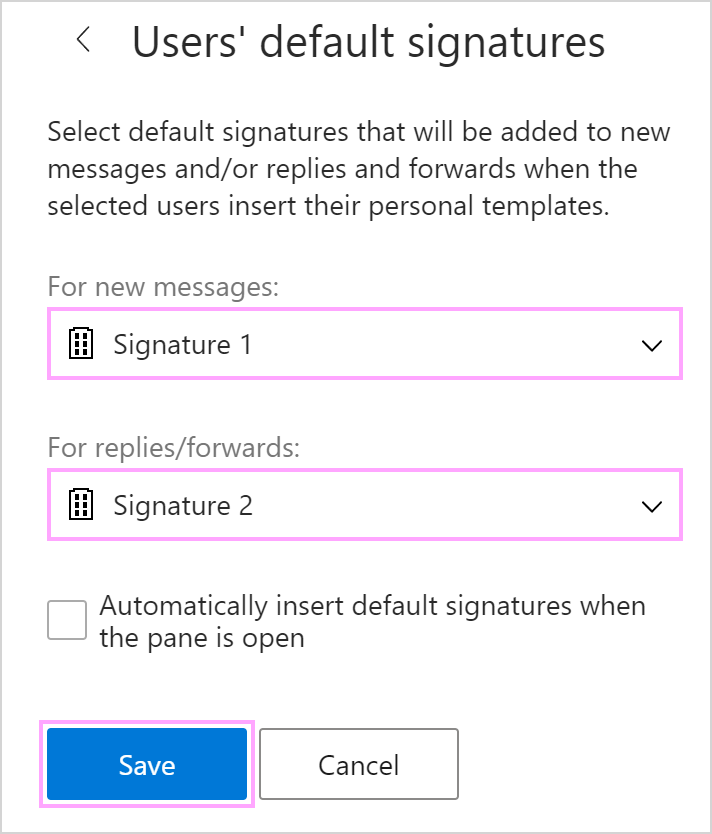
After an admin selects a default company signature for a user, it’s added to the message body along with the user’s personal templates.
How company signatures work #
After an admin creates company signatures, users of the company account can:
Find company signatures on the Signatures tab and insert any of them into an Outlook email message manually when needed.
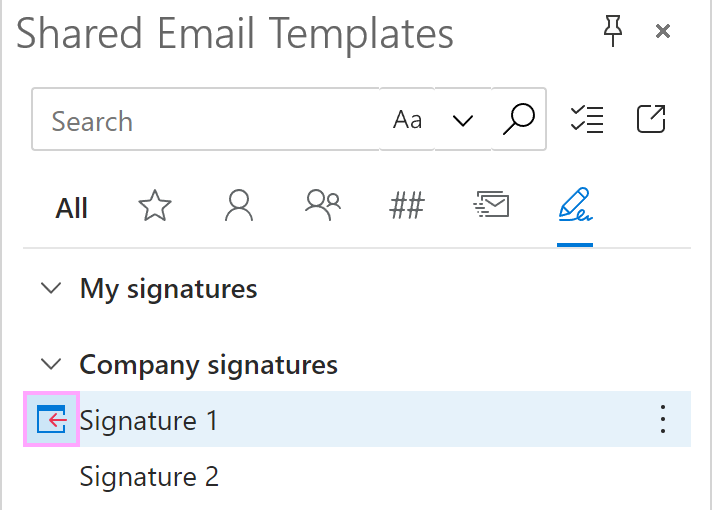
Set any of the available company signatures as default for new messages and/or replies and forwards so as to get the signature automatically inserted into an Outlook email message along with any of their personal templates.
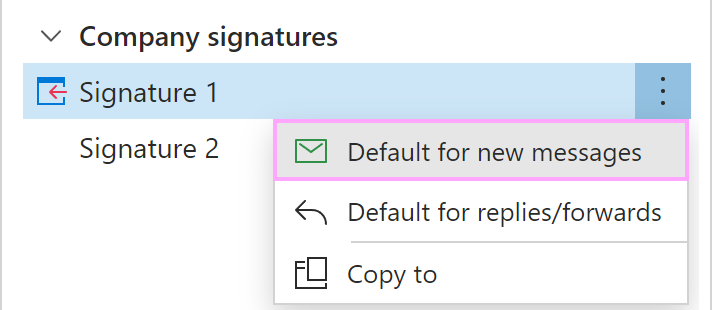
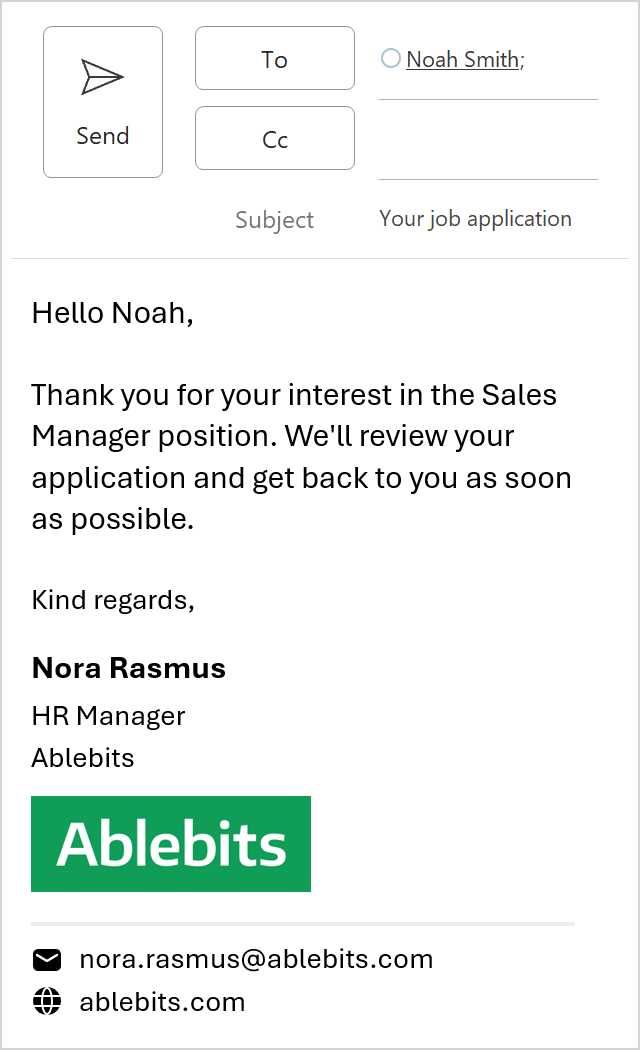
When a company signature is added to the message body, it keeps the company information the same but automatically updates the user’s personal details such as their name, job title, and email address.
 |  |
Edit company signatures #
If you want to modify a company-wide signature, go to Company account > Company signatures, right-click the signature, and select Edit.
Delete company signatures #
If a company-wide signature is no longer needed, go to Company account > Company signatures, right-click the signature, and select Delete.