
How to add signatures to Outlook emails
In this article
With Shared Email Templates, you can quickly create professional email signatures and add them to your Outlook emails manually or automatically, whichever suits you best.
Insert a signature manually #
To insert a signature into an email, follow these steps:
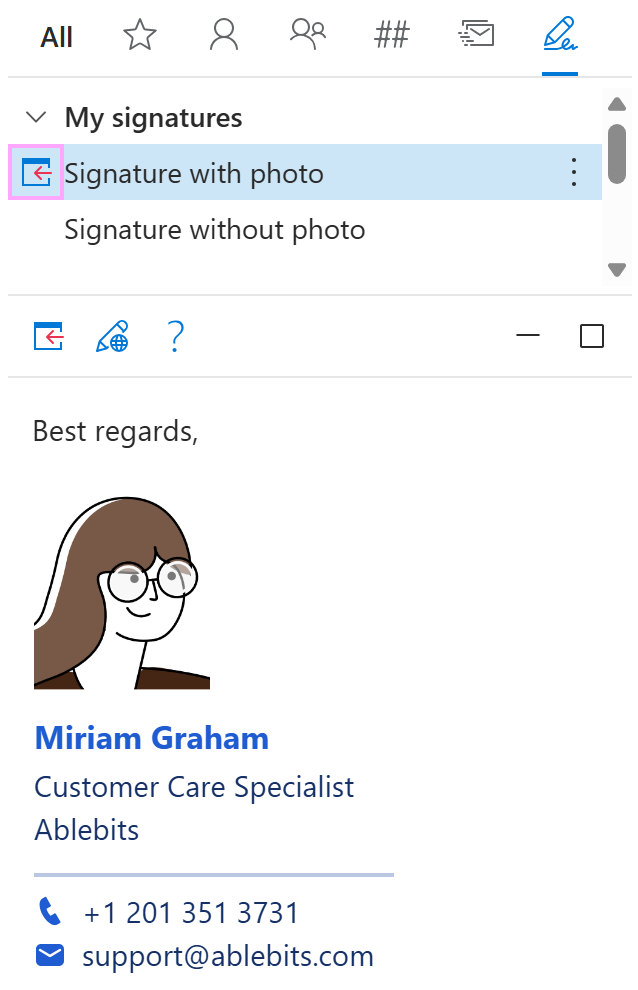
In the Shared Email Templates pane, go to the Signatures tab.
Select the signature you want to add to the message body, and then click the Insert button.
Add a signature automatically with the Insert macro #
To use a specific signature with your Outlook email template, you’ll need the Insert macro.
Start creating or editing your email template.
On the template editor toolbar, select the
 Insert macro button.
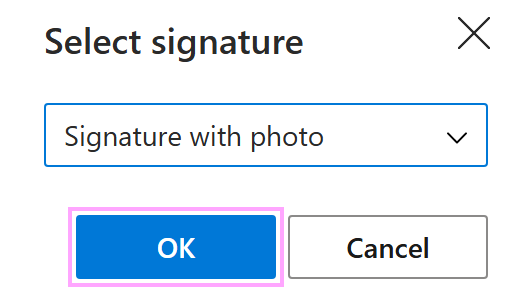
Select Insert signature.
In the Select signature dialog, choose the signature you want to use and click OK.
Save the template.
From now on, when you use this template for an email, the selected signature will be added to the message body automatically.
Add a signature with the Signature box #
You can add a signature to your email template using the Signature box on the template editor toolbar. Just select the Signature box, and then select the signature that you want to use.
Set a default personal signature #
You can set two default signatures: one that’s automatically used for new emails and another for replies and forwards. Learn more.
Set a default team signature #
To make a team signature the default so it’s automatically added to Outlook emails when you and your teammates use shared templates, follow these steps.