Create a personal email signature from a template
In this article
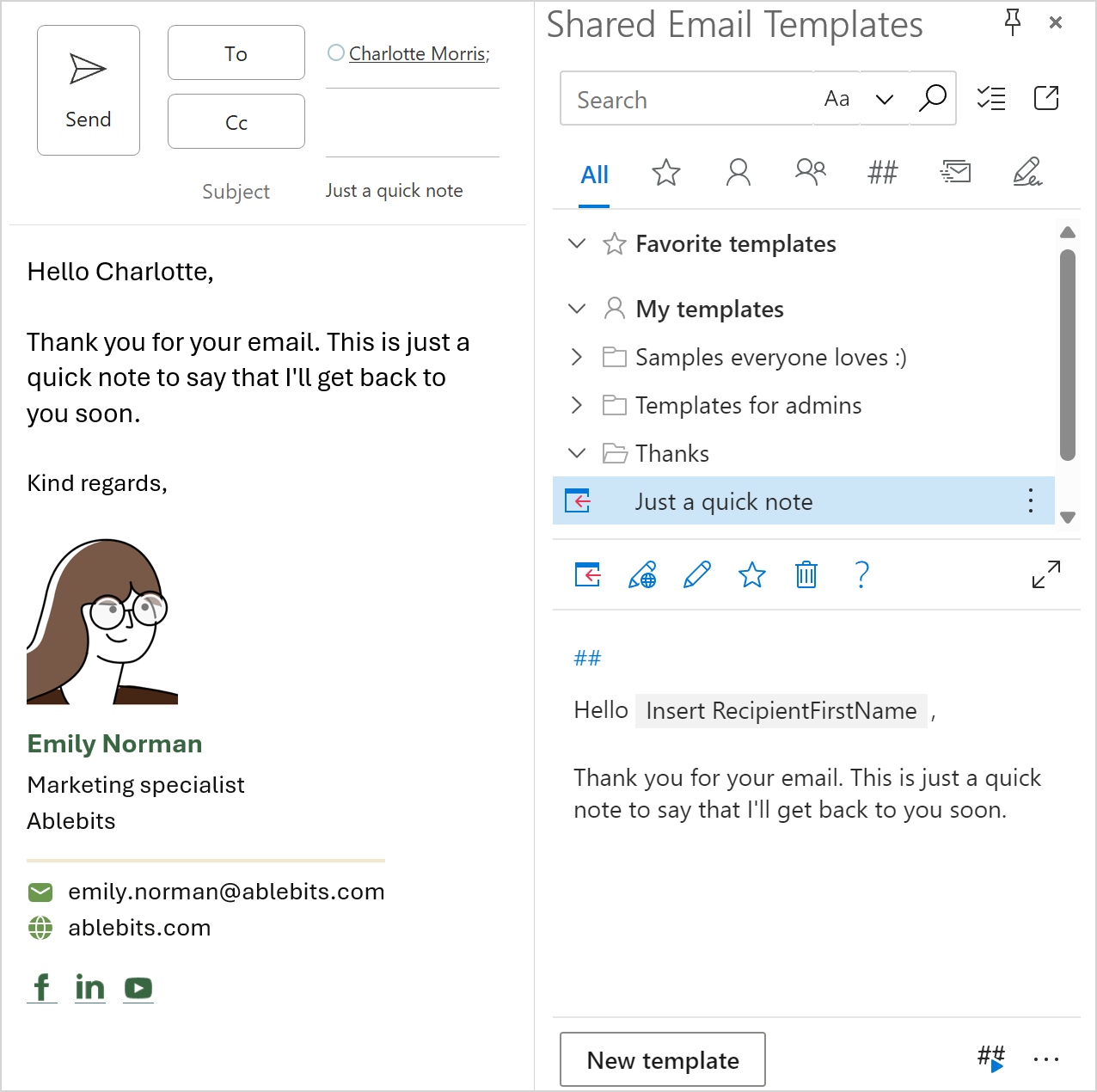
If you want to add nice professional signatures to your Outlook emails, the Shared Email Templates add-in has a quick and easy solution for you. You can create multiple email signatures, choose the default ones, and decide when to add them to the message body: either when you use your personal templates or when the add-in pane is open in Outlook.

Create a personal signature #
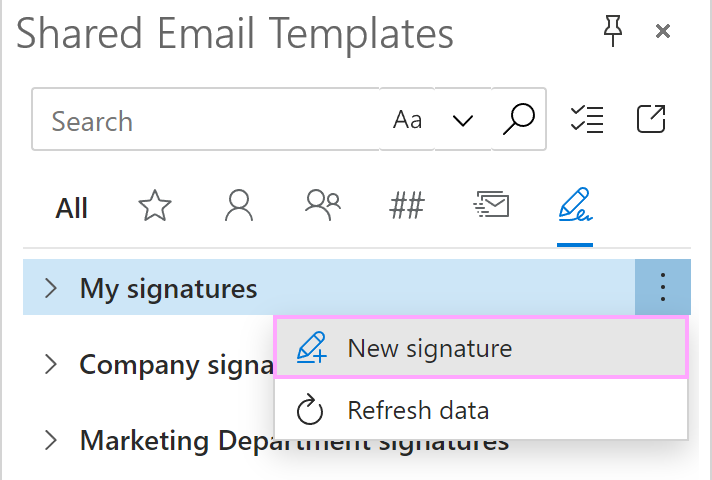
In the Shared Email Templates pane, go to the Signatures tab, right-click My signatures, and then select New signature.
When the Shared Email Templates app shows a signature preview in your default browser, use the right sidebar to pick a design for your signature and enter the required details into signature fields.
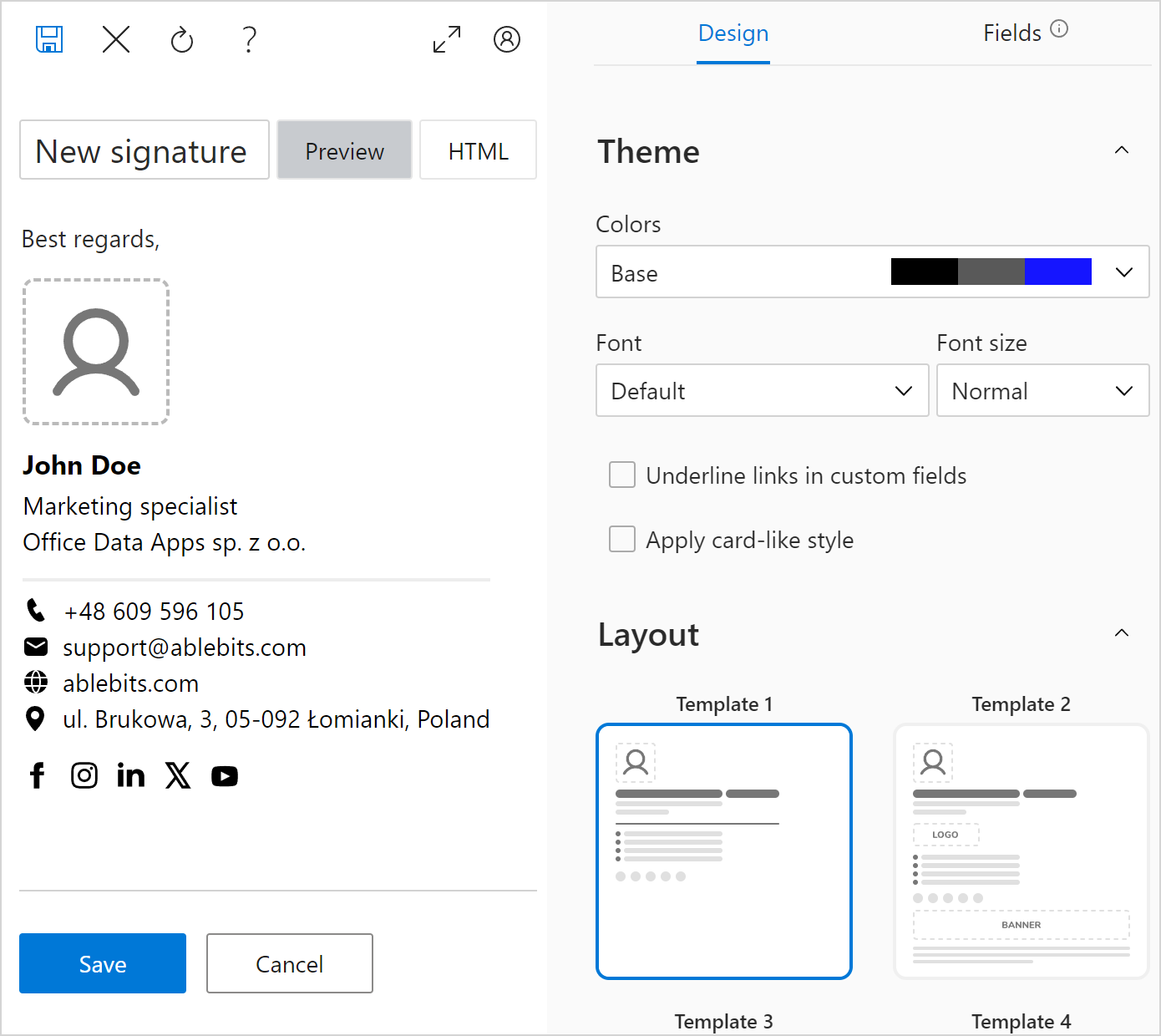
On the Design tab, choose a color theme, a font, a font size, and a layout.
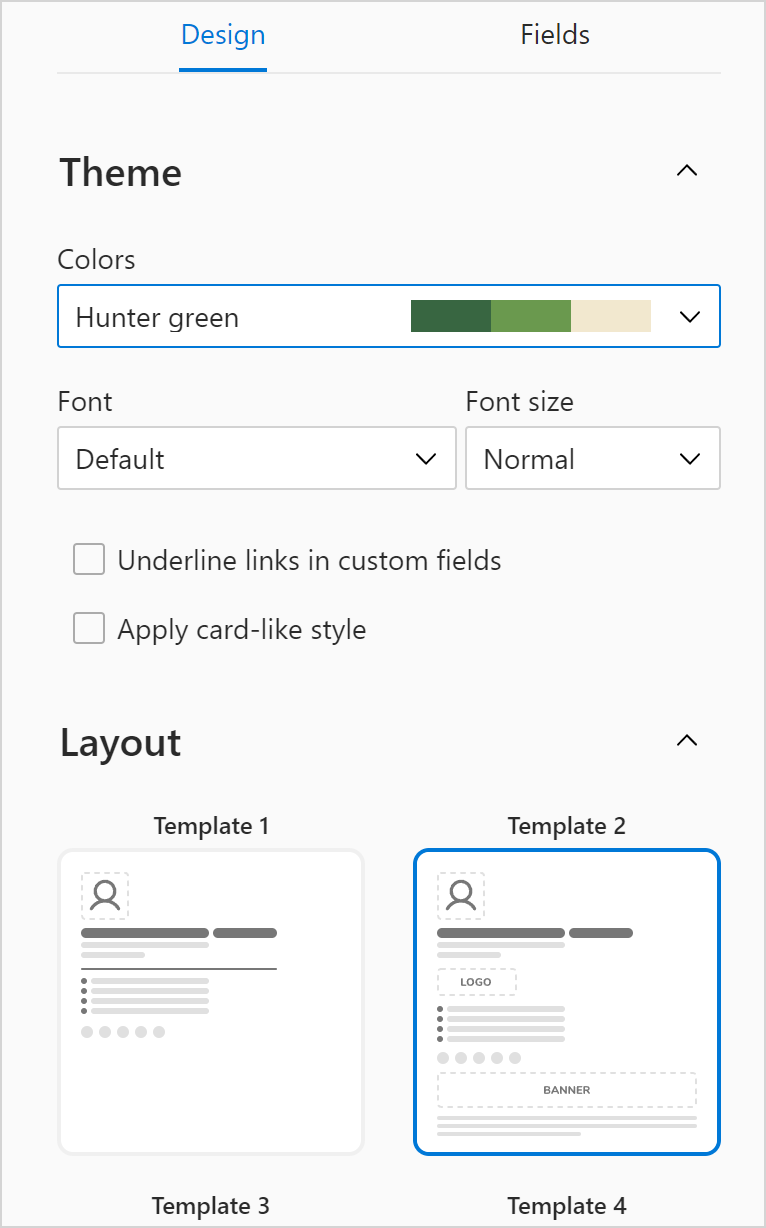
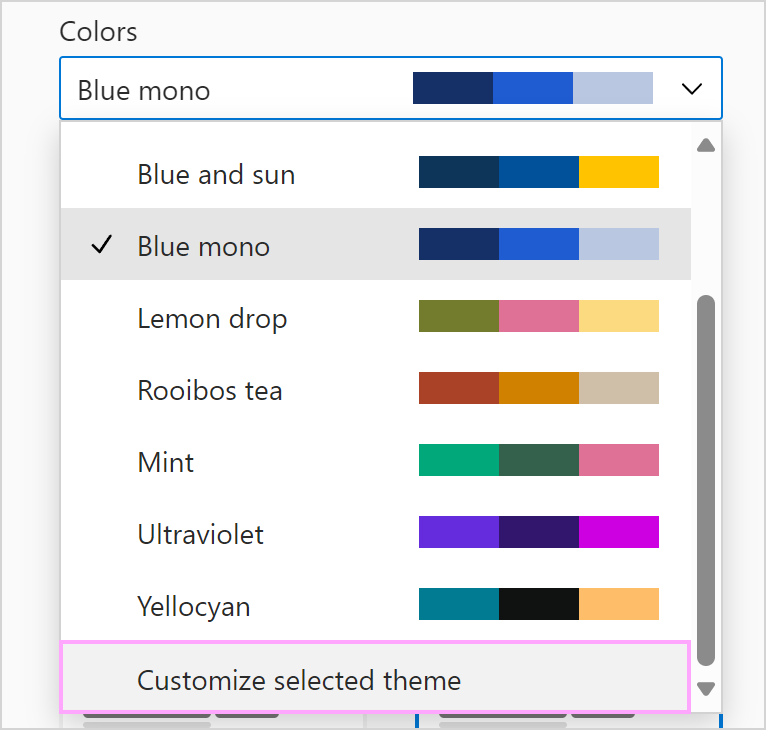
If you prefer a custom color theme, select any of the available themes, open the dropdown menu under Colors again, and select Customize selected theme.
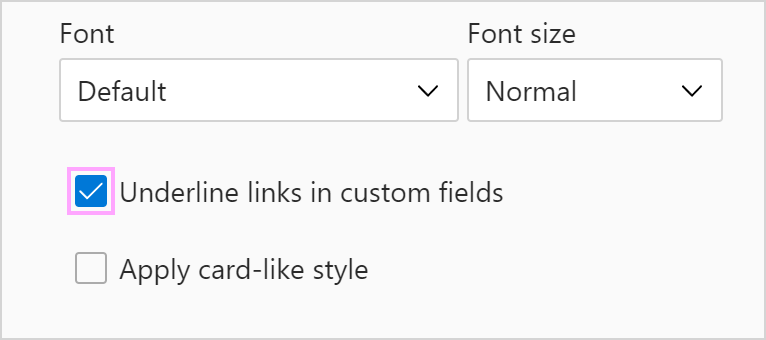
If you’re going to add links to custom fields and want them underlined, select the Underline links in custom fields checkbox.
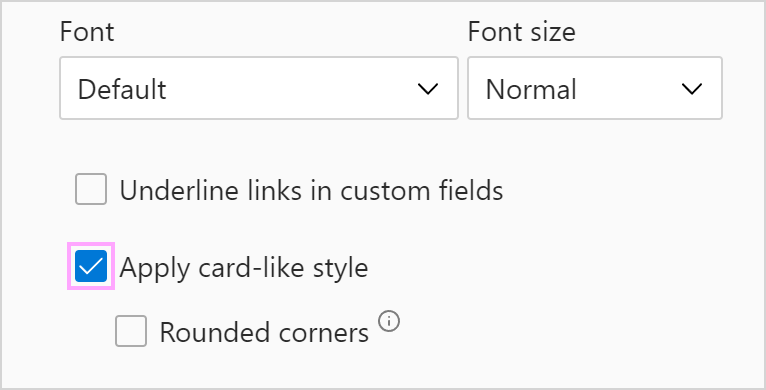
If you’d like to have an Outlook email signature that looks like a business card, select the Apply card-like style checkbox. If you prefer rounded corners, please keep in mind that in some versions of Outlook they might be shown as square ones.
On the Fields tab, enter the necessary content.
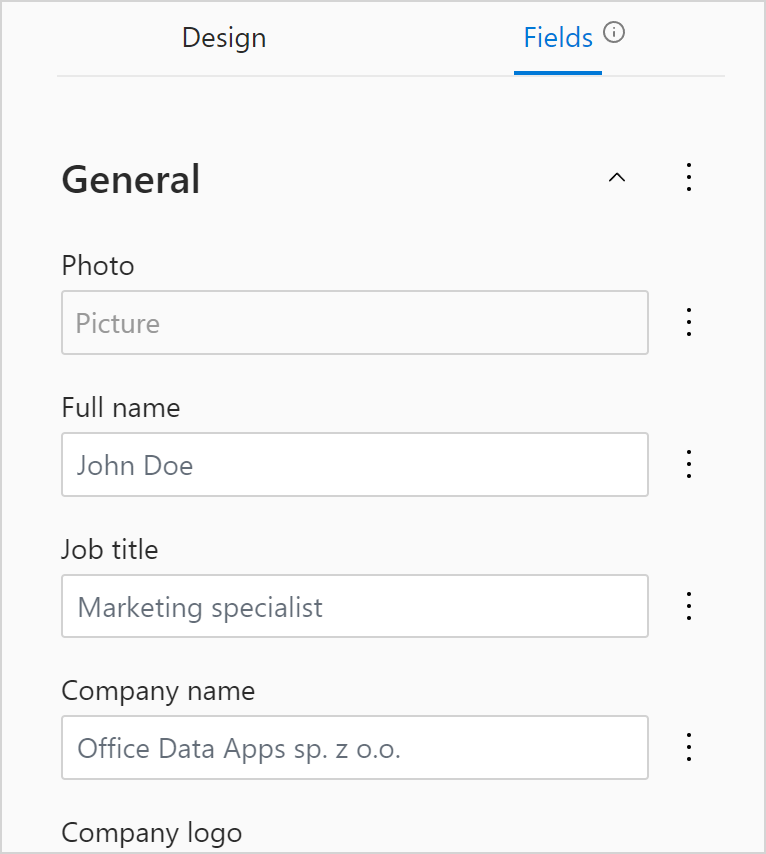
These are available sections:
General. You can have your photo, full name, and job title here. You can also add the name and the logo of your organization.
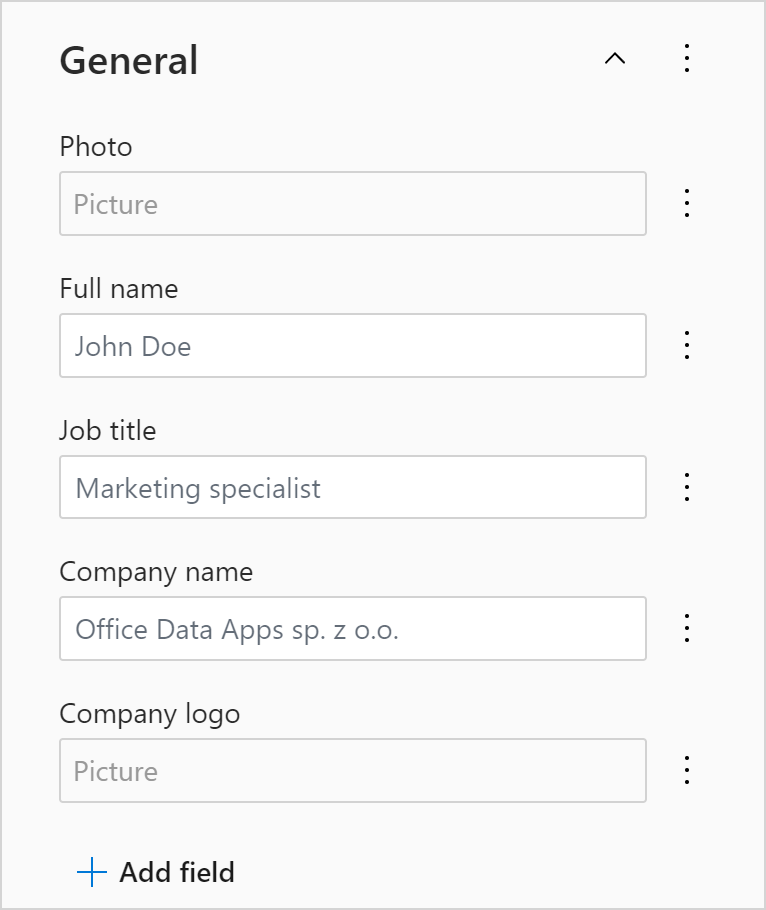
If another field is needed in this section, select Add field.
Contact details. Here you can specify your phone number and email address. You can also include your organization’s website and postal address.
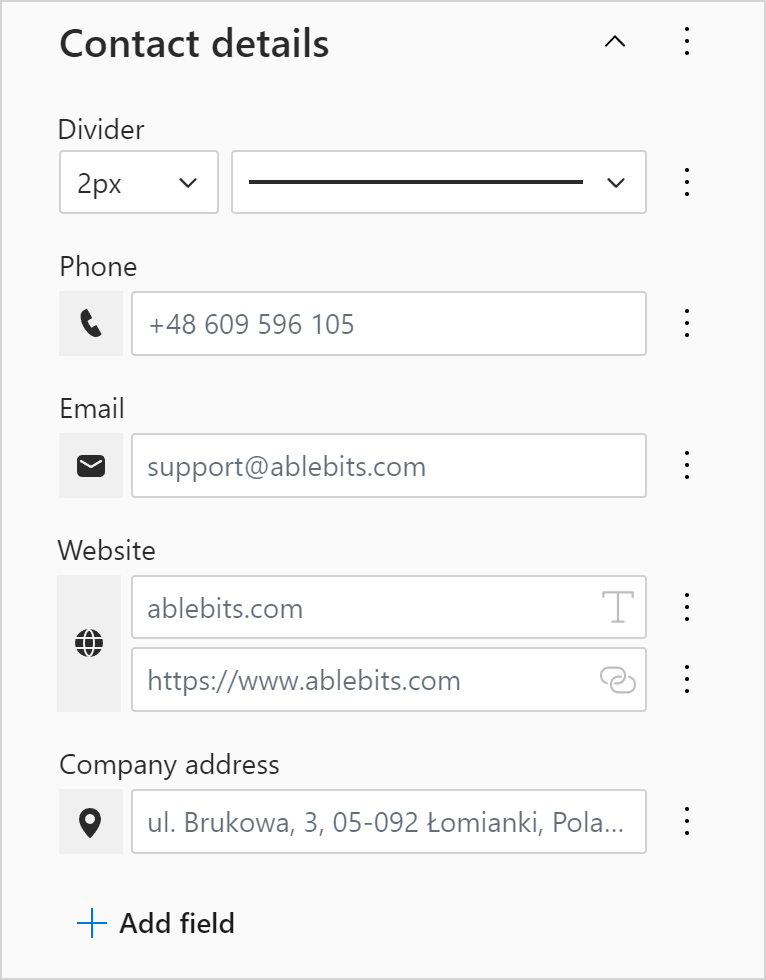
If another field is needed in this section, select Add field.
Social media links. This section is for your social media profiles.
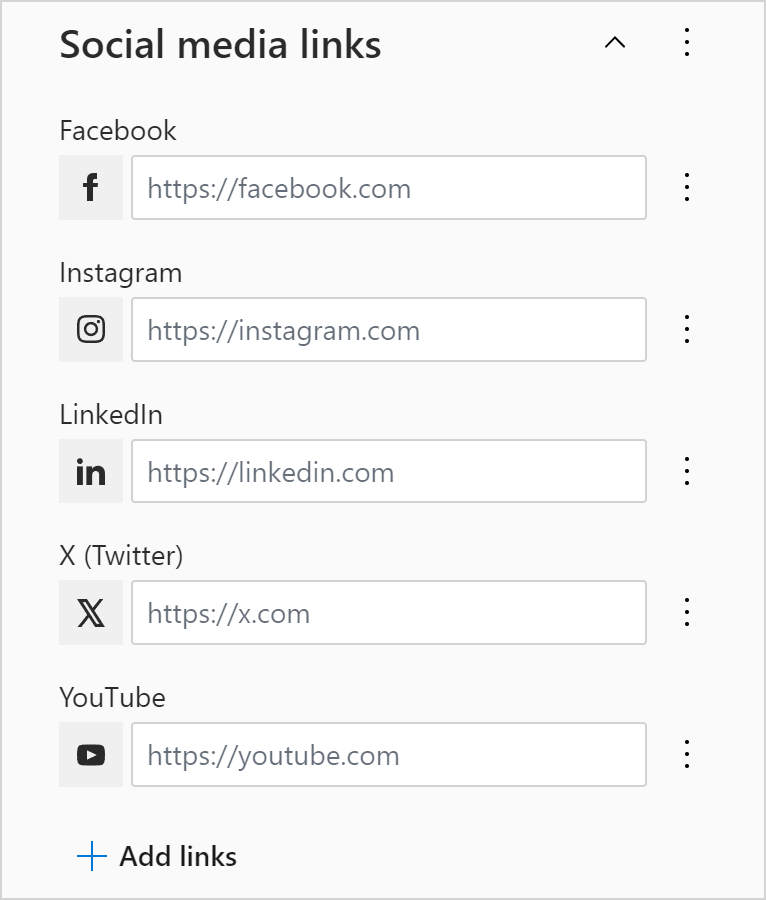
You can have more social media links listed here. You just need to select Add links.
Additional fields. This is a place for your sign-off, banner, or disclaimer.
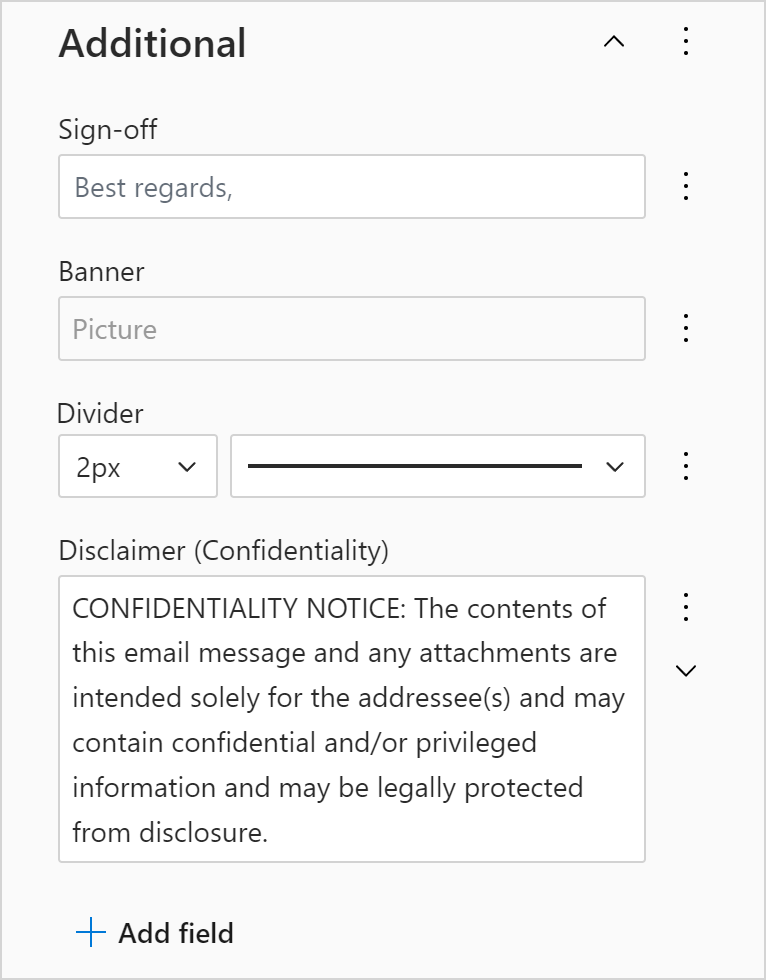
If another field is needed in this section, select Add field.
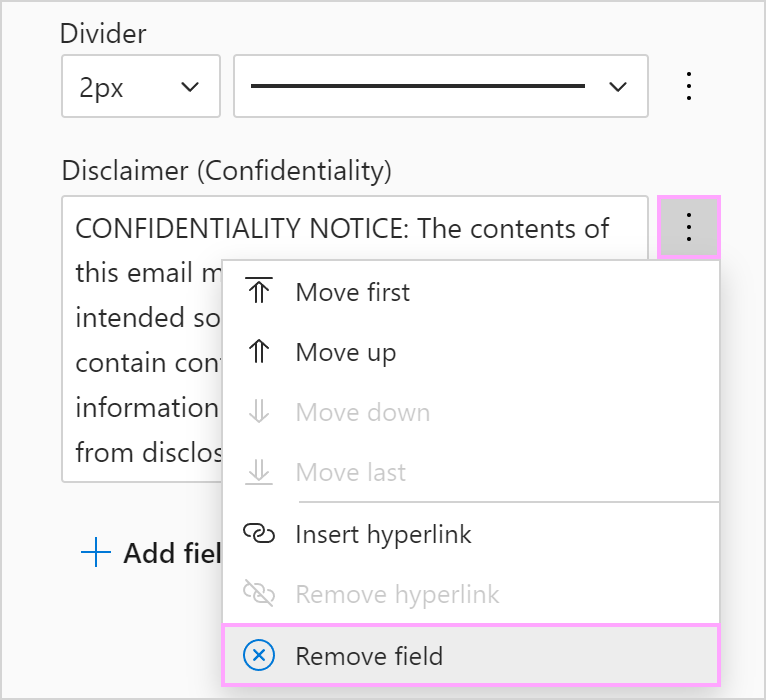
You can delete fields that are not needed by selecting Remove field on the ellipsis menu on the right of a field.
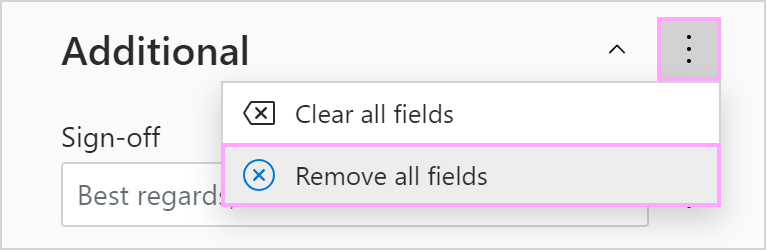
You can delete an entire section by selecting Remove all fields.
If you want to apply text formatting when filling signature fields, use keyboard shortcuts.
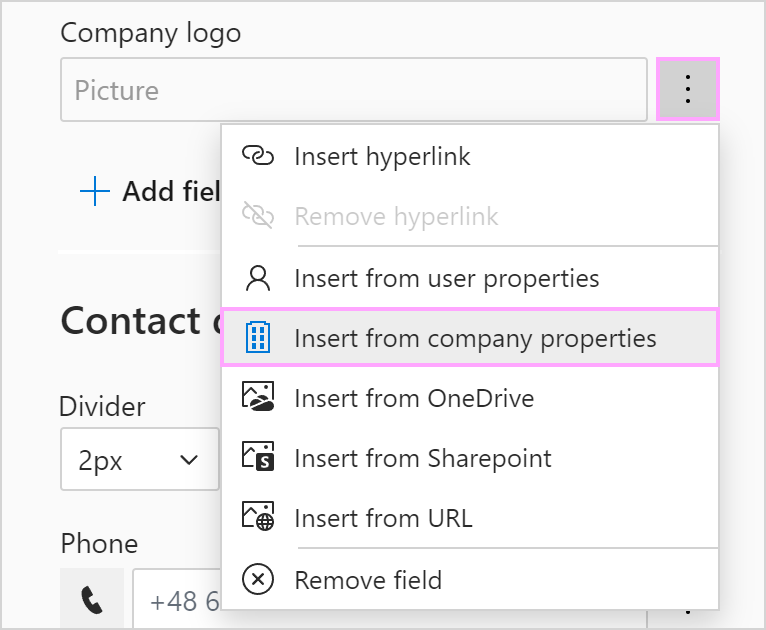
Windows Mac Bold Ctrl+B Command-B Italic Ctrl+I Command-I Underline Ctrl+U Command-U Line break Shift+Enter Shift-Return Alternatively, you can fill each field individually. You can either enter the necessary details manually or retrieve them automatically from the following sources:
Your organization’s Azure AD
Your Shared Email Templates user profile properties
Your Shared Email Templates company account properties
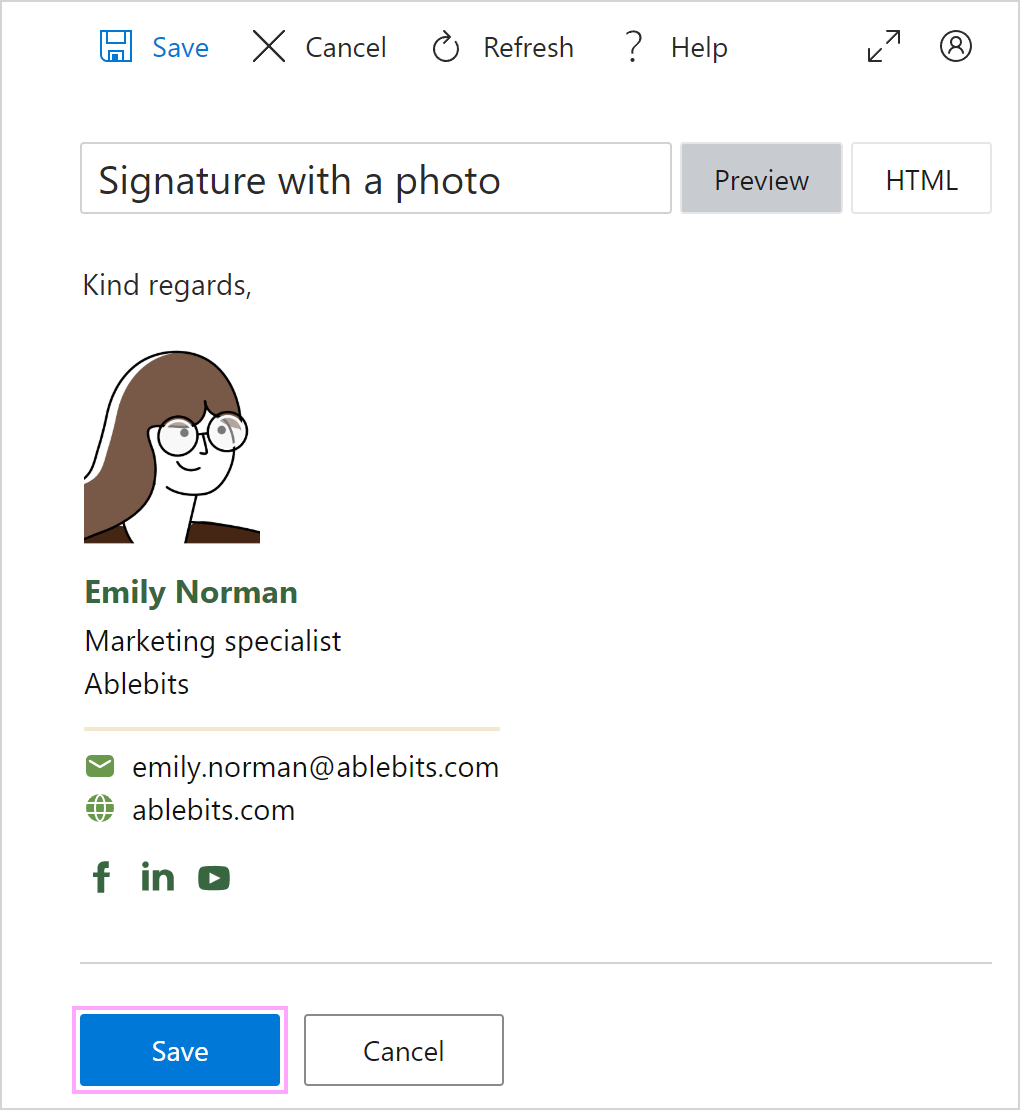
When your email signature is ready, select the Save button.
Custom HTML #
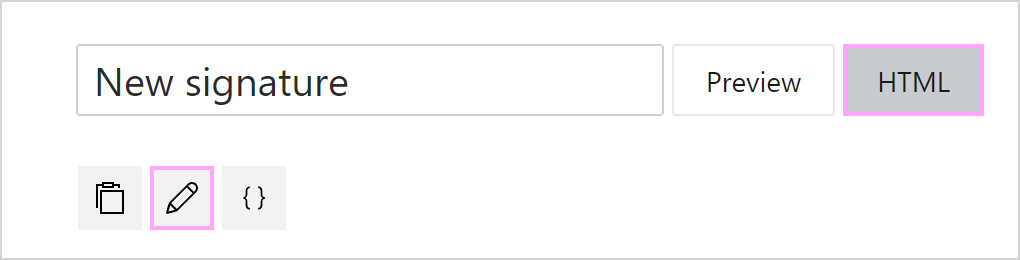
If you prefer your own custom HTML to available signature templates, go to the HTML tab and select Edit as HTML.
Set a signature as the default #
You can have two default personal signatures: one for new messages and one for replies and forwards.
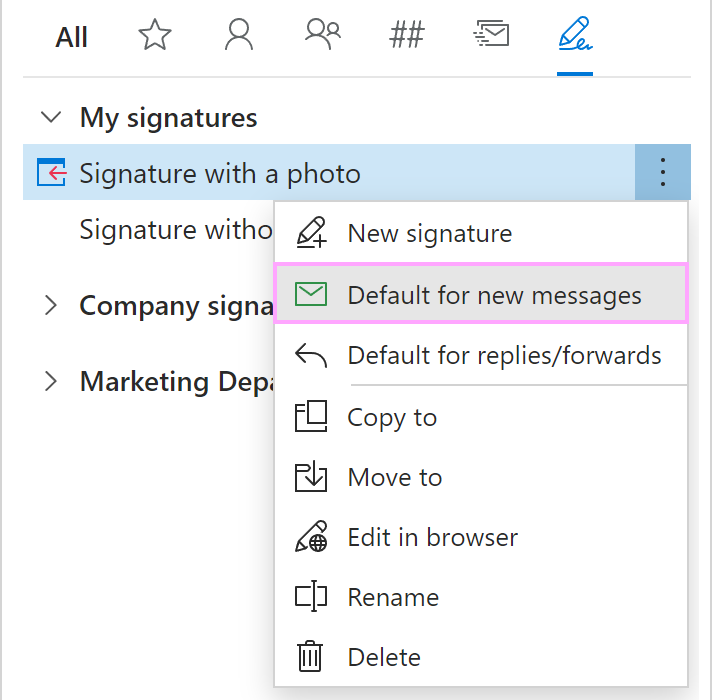
To get a signature added to new messages when you insert your personal templates (My templates), go to the Signatures tab, right-click the signature and select Default for new messages.
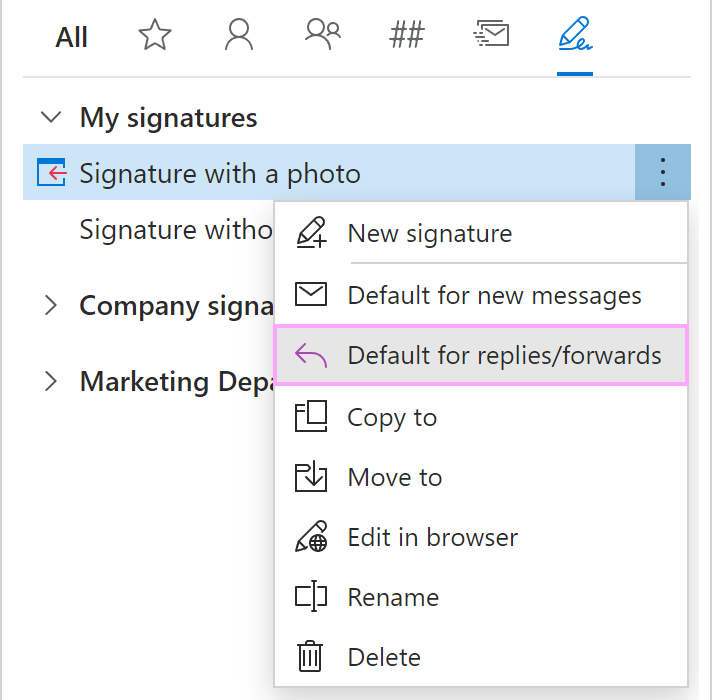
To get a signature added to replies and forwards when you insert your personal templates (My templates), go to the Signatures tab, right-click the signature and select Default for replies/forwards.
You can also specify default signatures by going to the Signatures tab > My signatures. You just need to select the necessary signatures from the two dropdown menus in the lower part of the pane.
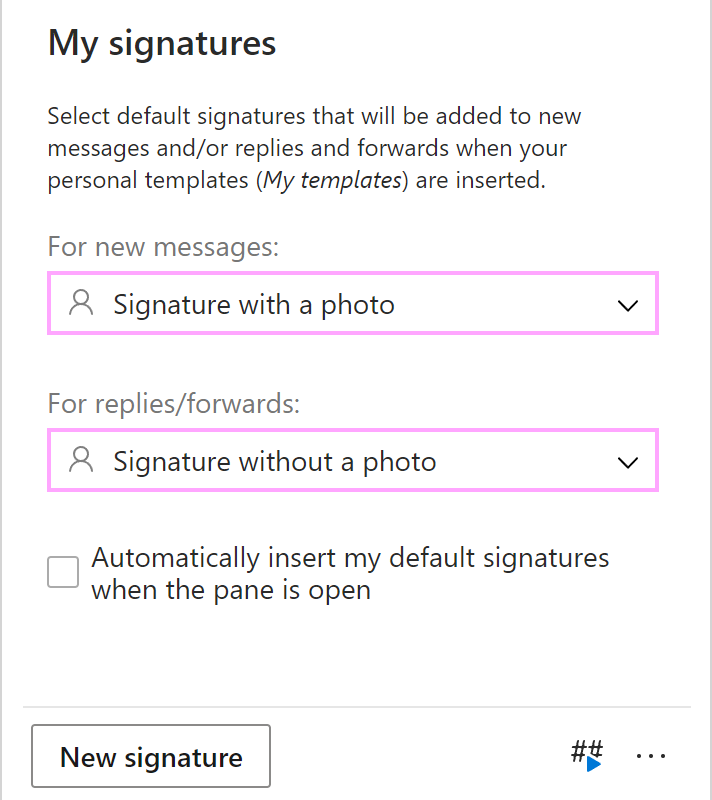
Once default signatures are selected, they are added to the message body based on your settings.
Edit a personal signature #
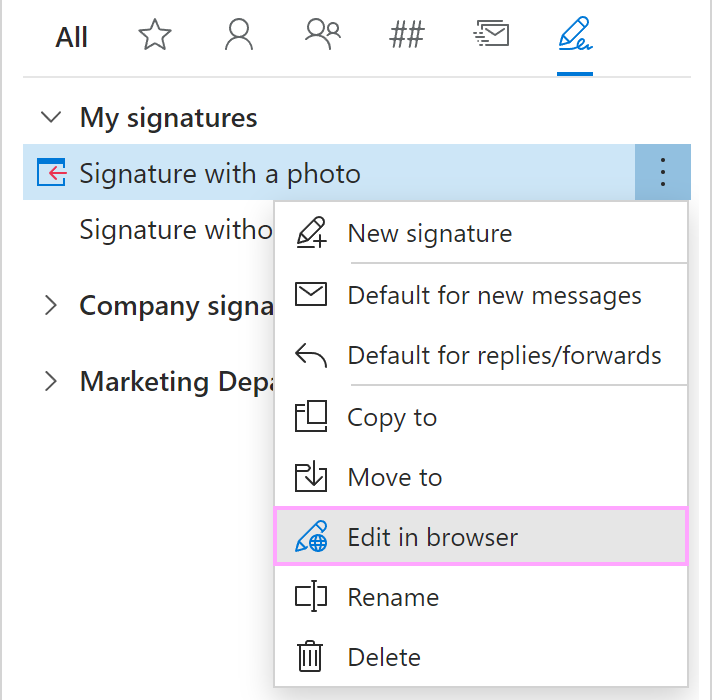
To make changes to a personal signature, go to the Signatures tab, right-click the signature and select Edit in browser.
Delete a personal signature #
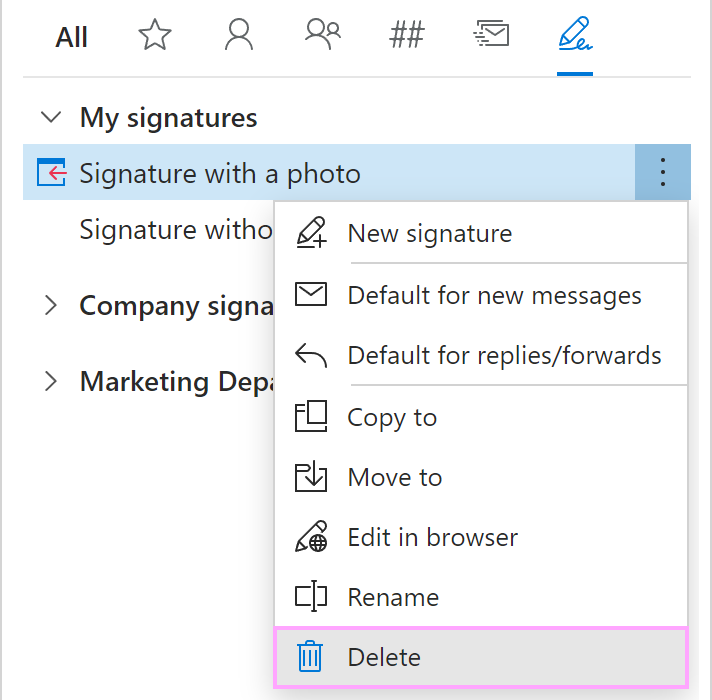
To remove a personal signature, go to the Signatures tab, right-click the signature and select Delete.