
Shared Email Templates
Error: OneDrive or SharePoint file not found
Issue: When I insert a template that attaches a file or inserts a picture from OneDrive or SharePoint, I get the following error: “File not found. Probably, it was deleted or you do not have the access permissions.”
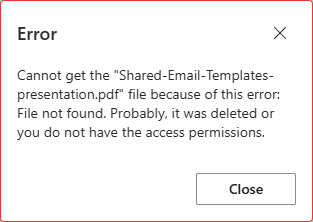
Cause: The file might have been deleted, or you might not have permission to access it.
Solution:
- Open OneDrive or SharePoint in a browser.
- Make sure you are signed in with the same Microsoft account you use in Outlook.
- Check whether you can open the file named in the error message.
- If you cannot find or open the file, ask the file owner or your IT administrator to check whether the file still exists and to review your access permissions.
If you can open the file in your browser, try inserting the template again. If you still see the “File not found” error, please copy and save the Shared Email Templates logs immediately afterward, then send them to us. Here’s how:
- In the lower-right corner of the Shared Email Templates pane in Outlook, click the three dots and select View logs.
- Click Copy to clipboard, paste the copied log information into Notepad, and save it as a .txt file.
- Email the saved file to support@ablebits.com.