
What to do if you forgot your password
In this article
How to reset your Shared Email Templates password #
If you sign in to your Shared Email Templates account with your email address and forgot your password, you can reset it by following these steps:
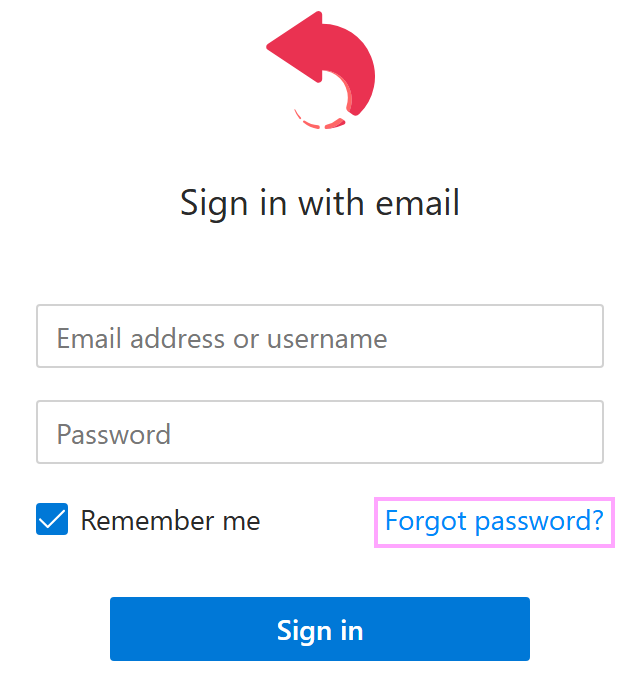
In the Shared Email Templates pane, under Sign in with email, select the Forgot password? option.
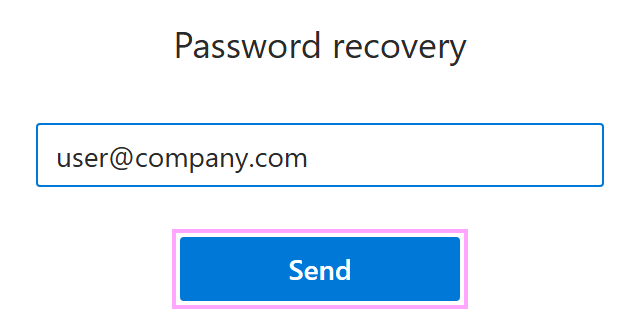
Under Password recovery, enter your email address and select Send.
Check your Inbox for an email from the Ablebits Support Team with “Reset password for your Shared Email Templates account” in the Subject line. If you can’t find the email in your Inbox, check the Junk Email folder.
In the email, select Reset password.
The Shared Email Templates app will automatically open in your default browser. Under Reset password, enter your new password, and then confirm it.
Select Reset.
A confirmation message will appear informing you that your password has been changed. Select Close.
Now you can sign in to your Shared Email Templates account with your new password.
How to locate your team password #
If you’re part of an encrypted team and have already got access to its templates, you can find the team password in the Shared Email Templates pane in Outlook.
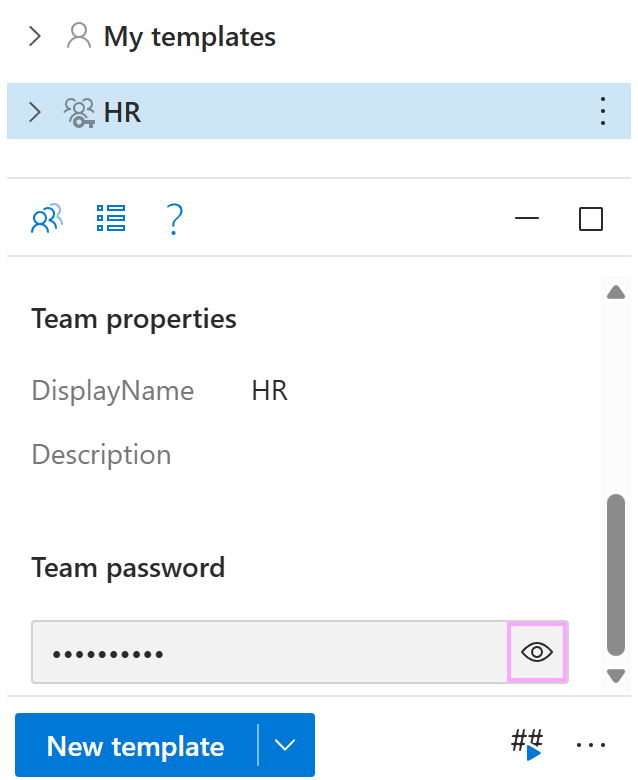
Select an encrypted team and scroll down to the bottom of the team preview.
In the Team password box, click the eye icon.
The View team password dialog appears. For security reasons, you’re prompted to verify your identity:
- If your account was created by signing up with Microsoft, sign in to your Microsoft work or school account.
- If your account was created by signing up with email, enter your Shared Email Templates account password, and then click OK.