
Admin approval is needed for Shared Email Templates
As a result of ongoing changes in the Microsoft-managed default consent policy, you might see the Microsoft Need admin approval dialog when trying to access or use Shared Email Templates.
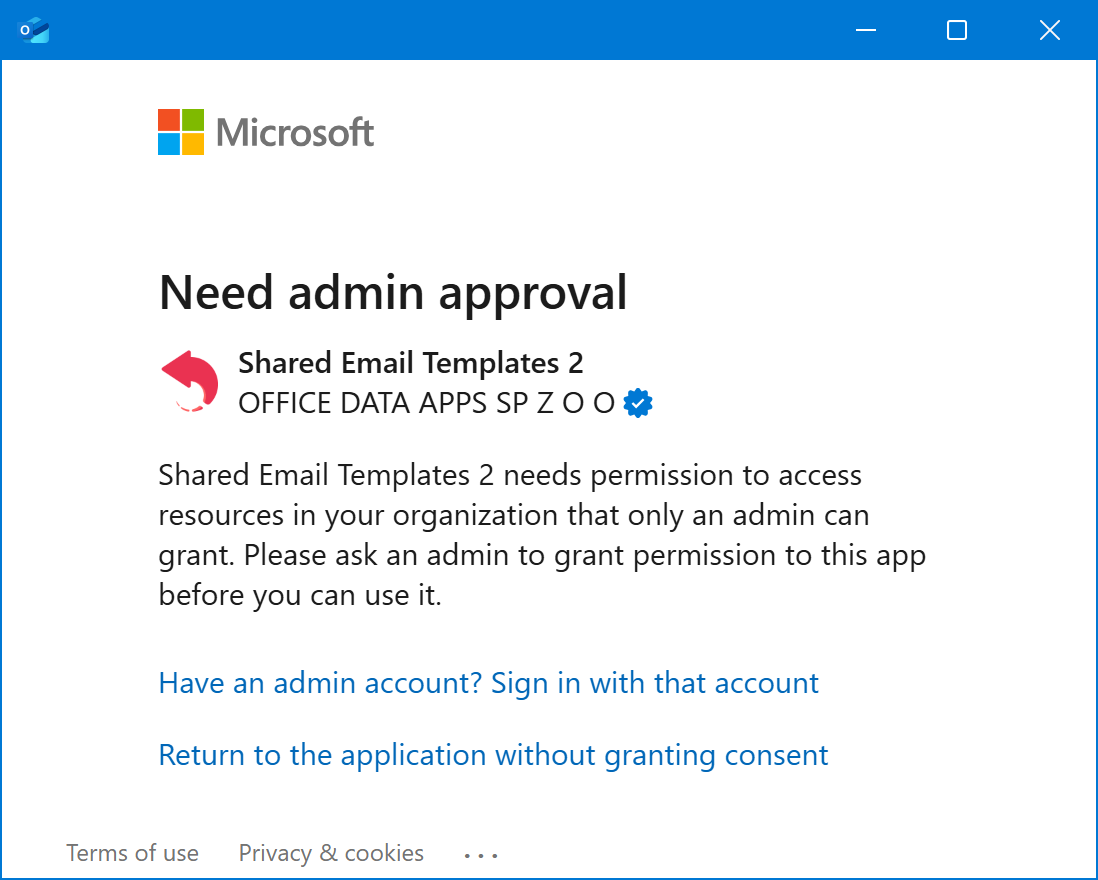
To resolve the issue, contact your organization’s technical support team and ask them to configure the admin consent settings by following the steps below.
Go to the Microsoft Entra admin center.
Sign in as a Global Administrator.
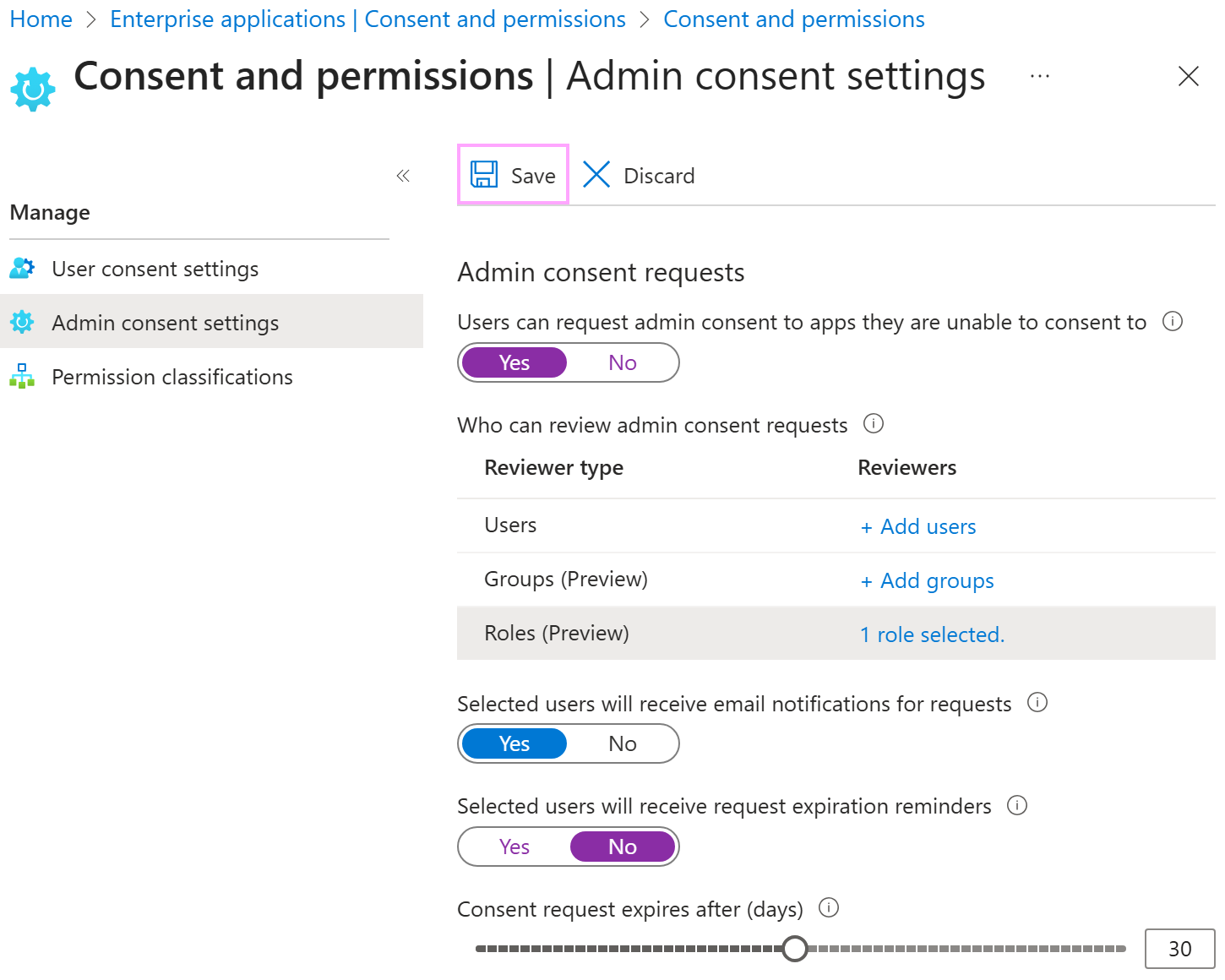
Go to Enterprise apps > Consent and permissions > Admin consent settings.
For Users can request admin consent to apps they are unable to consent to, select Yes.
Under Reviewers, select Add roles, and then select Global Administrator as an admin consent request reviewer.
For Selected users will receive email notifications for requests, keep Yes.
For Selected users will receive request expiration reminders, select No.
Select Save.
After the admin consent settings are configured in this way, your organization’s users will be able to send requests for admin approval using the dialog that appears when admin approval is required (see the screenshot below).

If you see the Approval required dialog when trying to access or use Shared Email Templates, enter your explanation of why you want to use Shared Email Templates into the dialog, and then select Request approval. Your request will be sent to your organization’s admins for reviewing. For detailed information intended for admins, see Review and take action on admin consent requests on the Microsoft Learn website.