
Cannot find Shared Email Templates in Outlook
In this article
Shared Email Templates is missing from the Outlook ribbon #
Issue: I can’t find the Shared Email Templates icon on the Outlook ribbon.
Solution: Look for Shared Email Templates under Apps.
Select an email message.
On the Home tab, open the list of installed add-ins:
In new Outlook for Windows or Outlook on the web, click the More apps button on the ribbon. Alternatively, click the Apps button on the action bar of the Reading Pane.
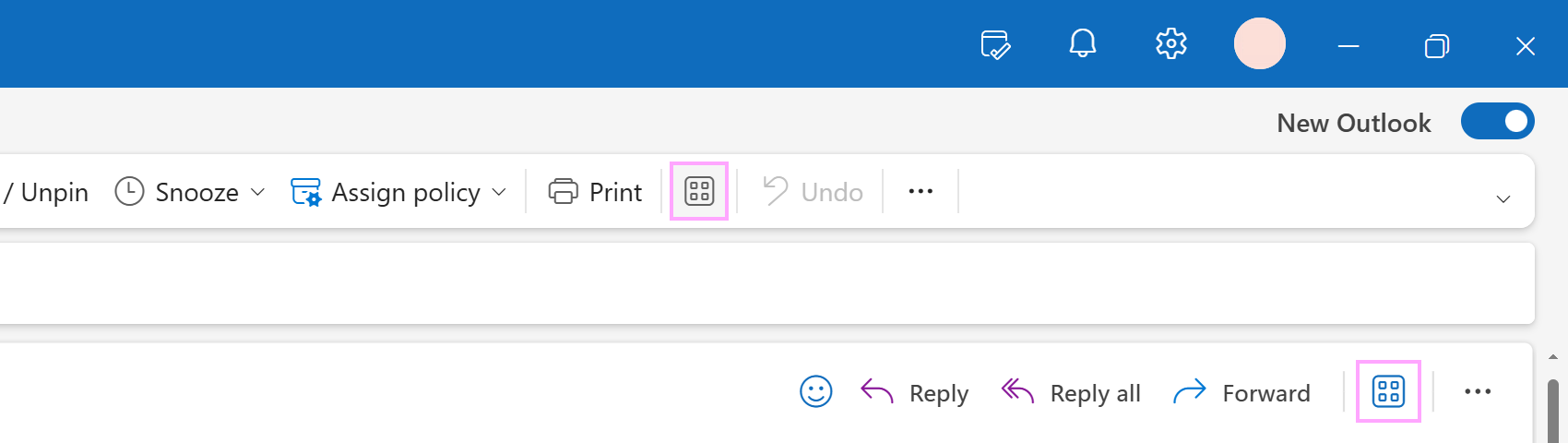
In classic Outlook for Windows, click the All Apps button on the ribbon.

Select Shared Email Templates 2 to open the add-in pane.
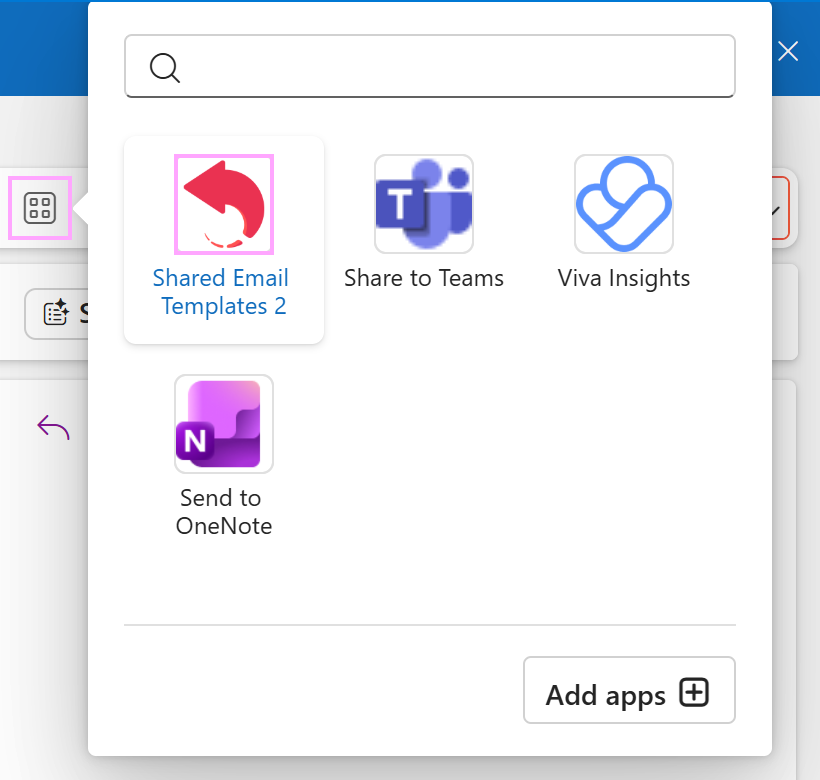
To find Shared Email Templates when replying to an email or composing a new one, go to the Message tab. In new Outlook for Windows or Outlook on the web, click the Apps button on the ribbon. In classic Outlook for Windows, click the All Apps button.
There is no add-in icon right after installation #
Issue: I’ve just installed Shared Email Templates, but I can’t find its icon in Outlook.
Possible causes:
- You have Office updates that need to be installed.
- There’s a problem with Microsoft delivery services.
Solution:
- For desktop Outlook: install Office updates, restart your computer, and then check Outlook for the add-in icon.
- For Outlook Online (Outlook on the web, Outlook in your browser): locate the add-in icon by following these instructions.
The add-in icon has disappeared in the desktop Outlook #
Issue: I no longer see the Shared Email Templates icon on my Outlook ribbon.
Possible causes:
- You have Office updates that need to be installed.
- You have multiple email accounts in Outlook.
Solution: Install Office updates and restart your computer. Then, in Outlook, switch to the account where you installed Shared Email Templates and find the add-in icon.
The add-in icon is visible in Outlook on the web but missing in the desktop version #
Issue: I’ve installed Shared Email Templates and can see its icon in Outlook on the web, but not in desktop Outlook.
Cause: This issue might occur if optional connected experiences are turned off in Outlook.
Solution:
If the Shared Email Templates icon is missing from classic Outlook for Windows, go to File > Options > General, click the Privacy Settings button, and make sure that there’s a check mark next to Turn on optional connected experiences.
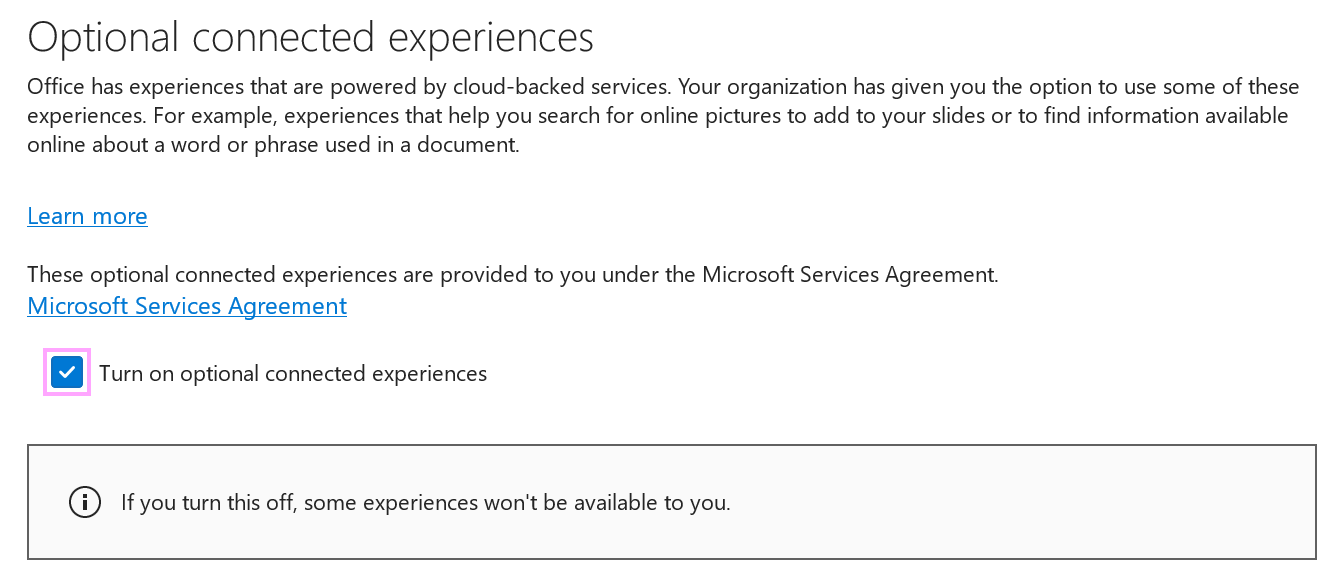
If the Shared Email Templates icon is missing from new Outlook for Windows, go to Settings > General > Privacy and data, click the Privacy settings button, and make sure that the Turn on optional connected experiences toggle is turned on.