
How to open the add-in pane in Outlook
In this article
You can access Shared Email Templates while you’re reading, replying to, or composing an email. If you open the add-in while reading an email, you can’t insert a template.
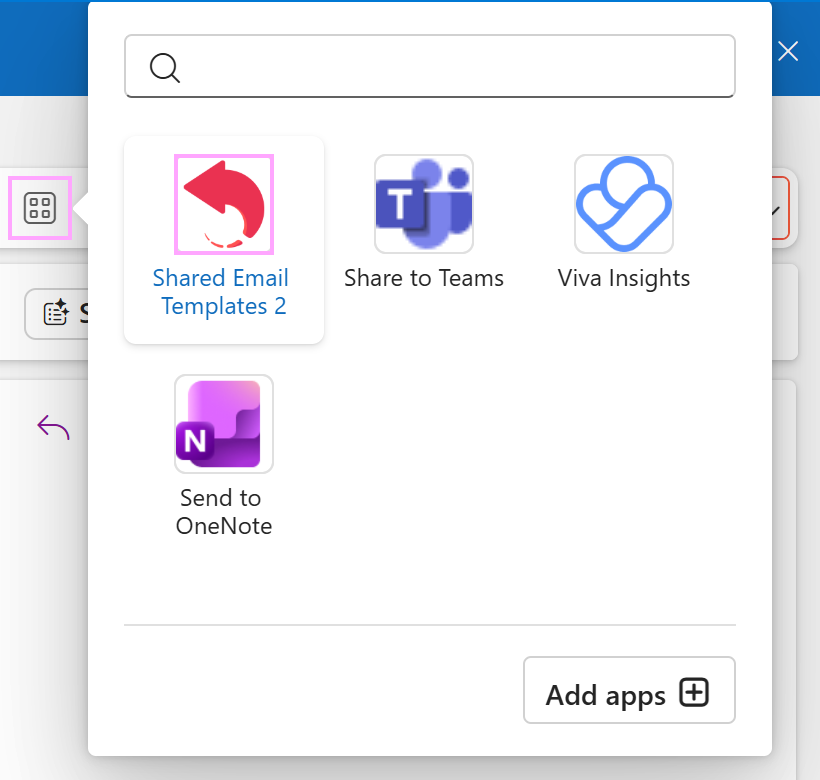
In the new Outlook for Windows #
Select an email message. You can also start replying to an email message or creating a new one.
On the ribbon, select the More apps button.
Select Shared Email Templates 2.
In the classic Outlook for Windows #
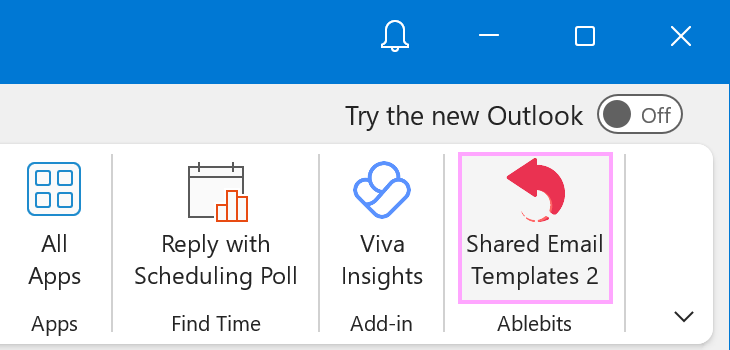
Select an email message or start composing a reply or a new message.
On the ribbon, select Shared Email Templates 2.
In Outlook for Mac #
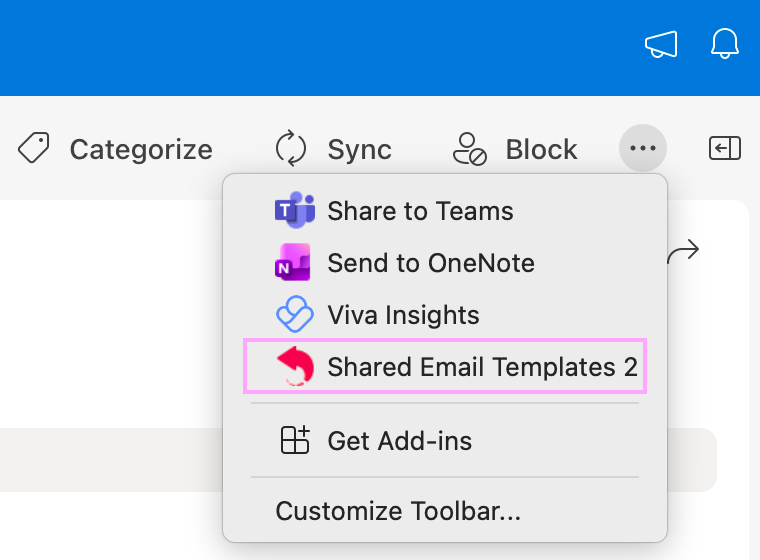
Select an email message or start replying to one or composing a new message.
From the ellipsis (…) menu in the ribbon, select Shared Email Templates 2.
In Outlook Online (Outlook on the web, Outlook in your browser) #
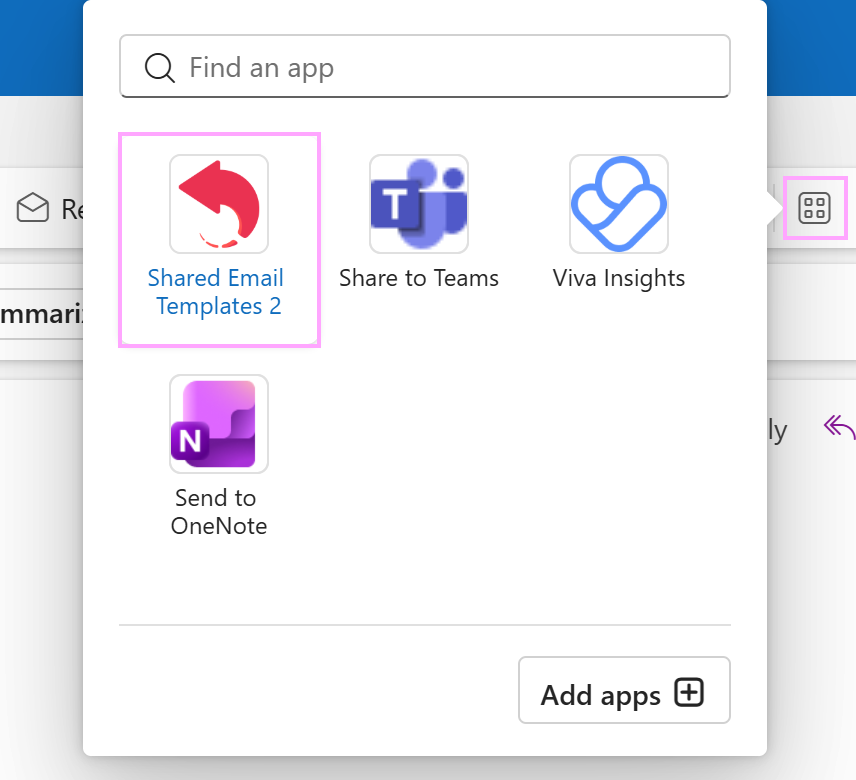
Select an email message. Alternatively, start replying to an email message or creating a new one.
Select the More apps button on the ribbon.
Select Shared Email Templates 2.
What’s next? #
Now that you have the Shared Email Templates pane open in Outlook, you can create a company account or accept your colleague’s invitation to join an existing company account.
What to do if you can’t find the add-in in Outlook #
If you can’t find the Shared Email Templates button in Outlook, see how to locate it.