Overview
In this article
Shared Email Templates pane in Outlook #
You can open Shared Email Templates in Outlook:
- When reading an email.
- When replying to an email.
- When creating a new email, an appointment, or a meeting.
If you open Shared Email Templates while you’re reading an email, you can’t insert a template. It’s simply not possible. To enjoy the full functionality of the add-in, open its pane when replying to an email or when creating a new email, an appointment, or a meeting.
This is the Shared Email Templates pane:
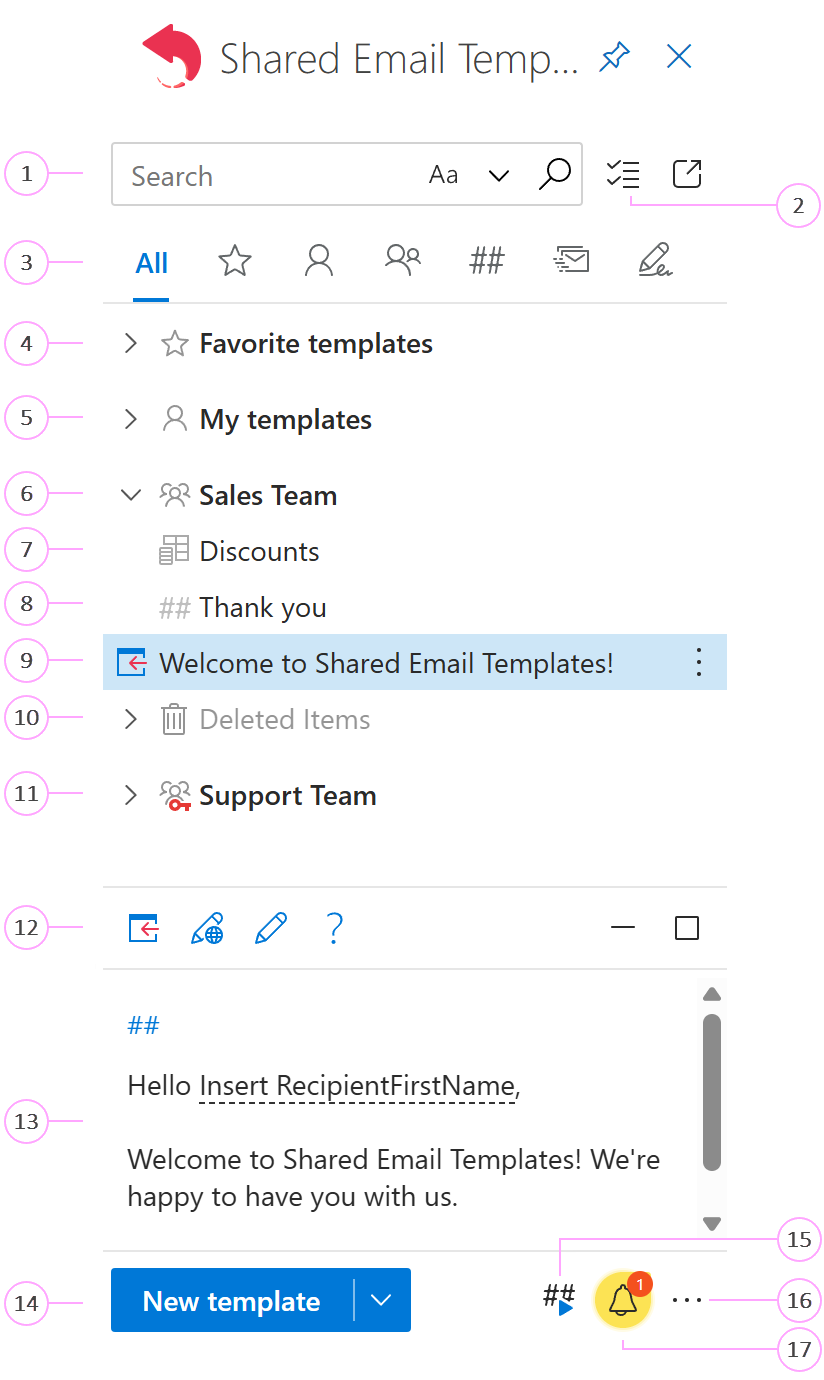
Enter any text into the search box to look for that text in the names and contents of templates and folders. Click Aa to make the search case-sensitive. Also, you can select some text in the message body, click the magnifier icon, and get the list of items that contain this text. Don’t forget to cancel the selection in the message body before inserting a template.
Take advantage of the Selection mode to select several items and copy, move, or delete them at once.
Select a view: All templates, Favorite templates, My templates, Team templates, Shortcuts, Mail merge (you can use Mail merge only if this feature is included in your subscription plan), or Signatures. A company account admin can hide My templates, Mail merge, and Signatures.
You can add any template to Favorite templates by right-clicking it and selecting Add to favorites.
The default personal folders are Favorite templates and My templates. You can create new subfolders for your templates. An admin of a company account can hide My templates.
Shared templates are stored in teams.
You can create simple datasets or connect your Excel workbooks and insert values from them into templates.
You can use template shortcuts to construct your emails and templates.
To insert a template into the message body, select the template and click the Insert button. It’s not possible to insert a template when you’re reading an email.
When you delete a template, it gets to the Deleted Items folder marked with a recycle bin icon. Deleted personal templates get to the Deleted Items folder in My templates. Deleted team templates get to the Deleted Items folder in the corresponding team.
To secure privacy, you can encrypt a team when creating it. Encrypted teams have a key icon.
Here you can find template action buttons: Insert (it’s not possible to insert a template when you’re reading an email), Edit in browser, and Edit.
Select a template to see its content in the preview pane.
Use this button to create a new template.
Here is the Handle shortcuts button. You’ll need it if you use shortcuts to create your emails.
By clicking the three dots, you open the More menu. From this menu, you can go to your profile, change settings, sign out, open the Shared Email Templates app in your default browser, view logs, ask us a question, get online help, access cheat sheets, go to the Shared Email Templates home page, or see what version of Shared Email Templates you use. If you’re an admin of a company account, there’s also the Company account option available to you here. If you’re a user in a company account, you can get the contact details of your admins by selecting the Contact admins option on the menu.
This icon shows that there are unread notifications waiting for you. Click it to see everything you missed.
Shared Email Templates app in your browser #
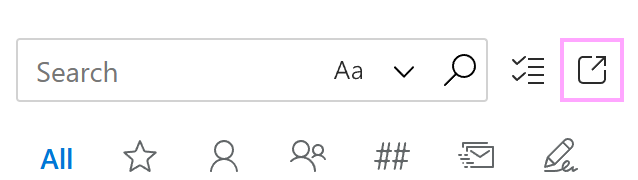
You can open the Shared Email Templates app in your default browser right from the add-in pane in Outlook by clicking Open in browser.
The Shared Email Templates web app looks like in the screenshot below.
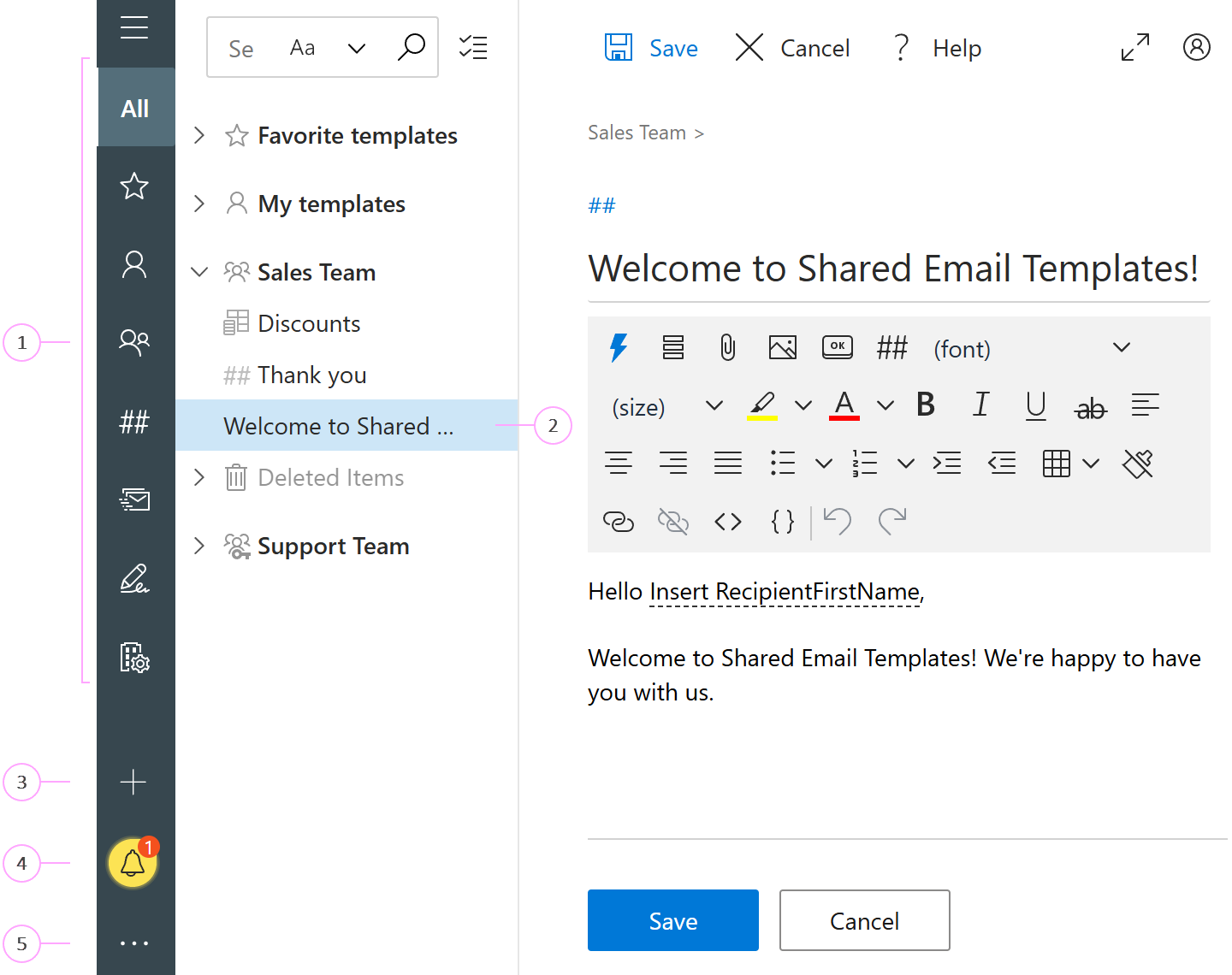
- Here you can find All templates, Favorite templates, My templates, Team templates, Shortcuts, Mail merge (you can use Mail merge only if this feature is included in your subscription plan), and Signatures. If you’re an admin of a company account, Company account is also available to you here. A company account admin can hide My templates, Mail merge, and Signatures.
- After you select a template, its content is shown on the right. You can start editing the template if you want to.
- By clicking the plus sign, you can create a new template, folder, mail merge campaign, or signature.
- If there are unread notifications, you’ll see this icon.
- Click the three dots to open the More menu.
Enable automatic sign-out in the web app: Steps for admins #
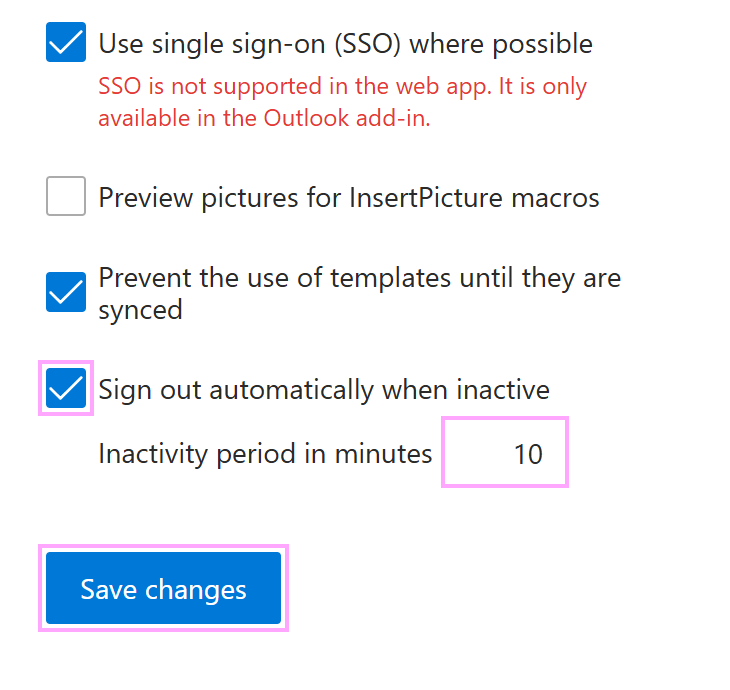
If you’re a company account admin and want to turn on automatic sign-out for yourself in the Shared Email Templates web app, follow these steps:
In the Shared Email Templates pane in Outlook, open the More (…) menu and select Open in browser.
When the Shared Email Templates app opens in your default browser, go to the More (…) menu > Settings.
Select Sign out automatically when inactive.
Specify how long the web app can stay idle before signing you out.
Select Save changes.