
How to create and use email templates in Outlook
In this article
While we might dream of a smart AI that automatically composes a perfect response to every message, the most reliable real-world solution for routine emails is using proofread templates.
This guide provides clear instructions on how to make, save and use email templates in every Outlook version, explains the strengths and limitations of each method, and advises on the best ways to put these templates to work.
How to create reusable text snippets in Outlook (My Templates add-in) #
To reuse short text phrases in your Outlook emails, the My Templates add-in is the best choice. It works the same way in all versions, including classic Outlook (365 – 2021), new Outlook, and Outlook on the web. The only difference is how you open it.
Access My Templates #
Start by creating a new message, and then follow the steps below for your version of Outlook:
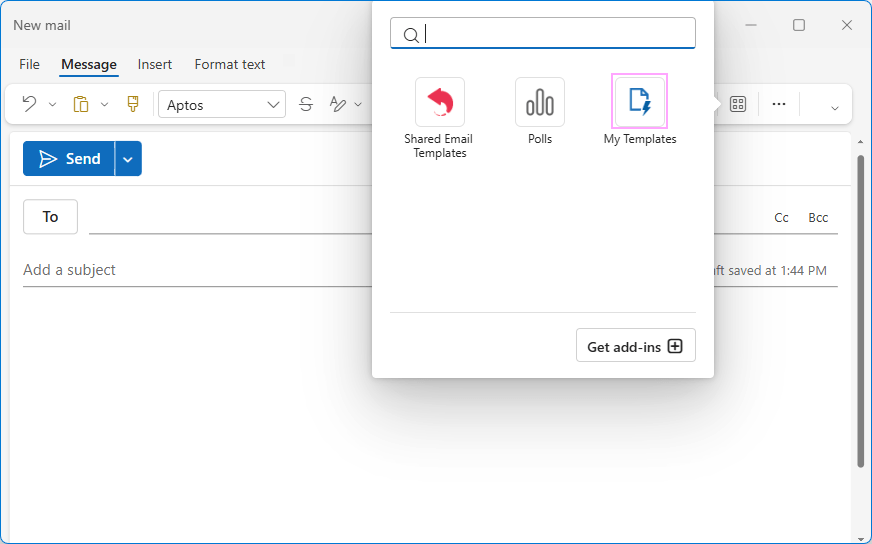
In new Outlook and Outlook on the web: On the Message tab, click Apps, and choose My Templates.
In classic Outlook: On the Message tab, click View Templates. Alternatively, click All Apps, and then choose My Templates.
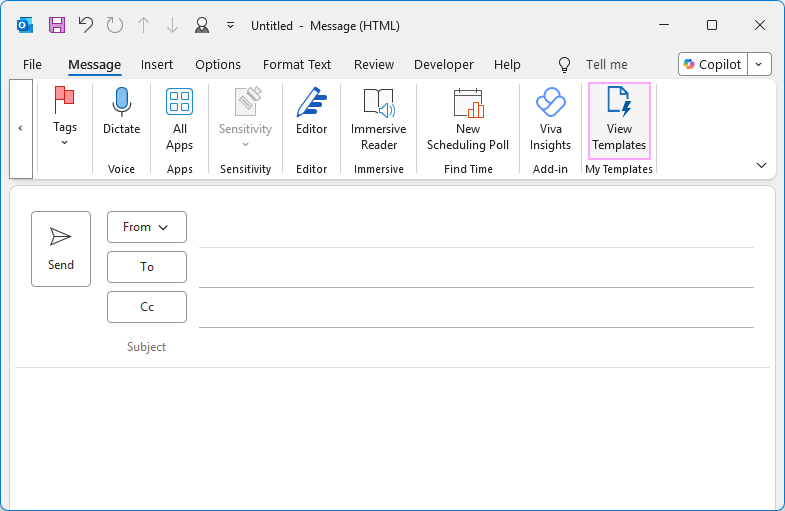
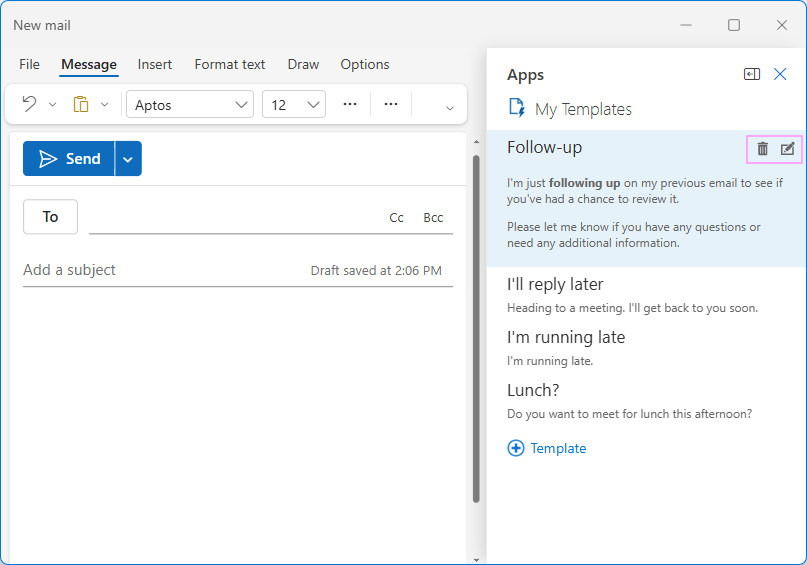
The My Templates pane will appear on the right, with a few prewritten text snippets ready to use. The process of creating and editing templates is the same in all Outlook versions.
Create a template #
To create and save a new canned response, follow these steps:
In the My Templates pane, click + Template.
Enter a title and type your text in the corresponding boxes.
If needed, format text in bold or italic, and add emojis or lightweight images.
Click Save.
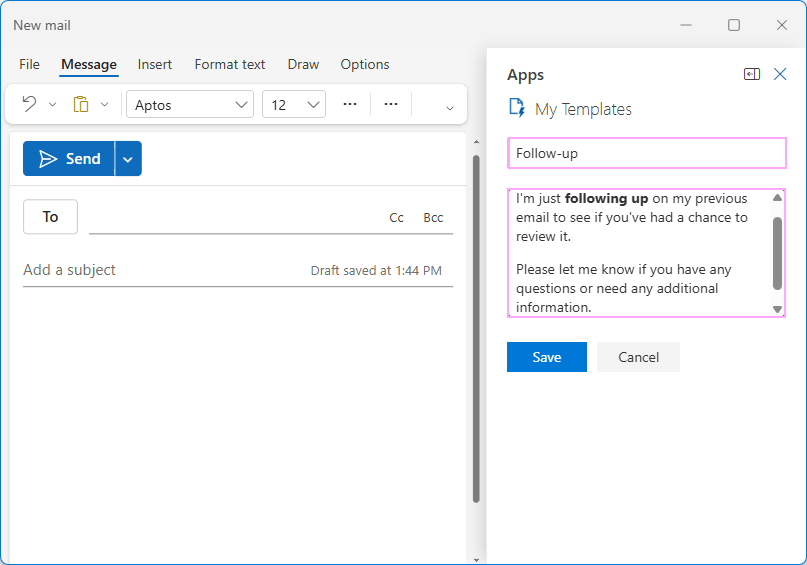
Your new canned response will appear in the pane among other templates, arranged in alphabetical order.
Use a template #
To insert a saved template into a message:
Create a new message or reply to an existing one.
Open the My Templates pane.
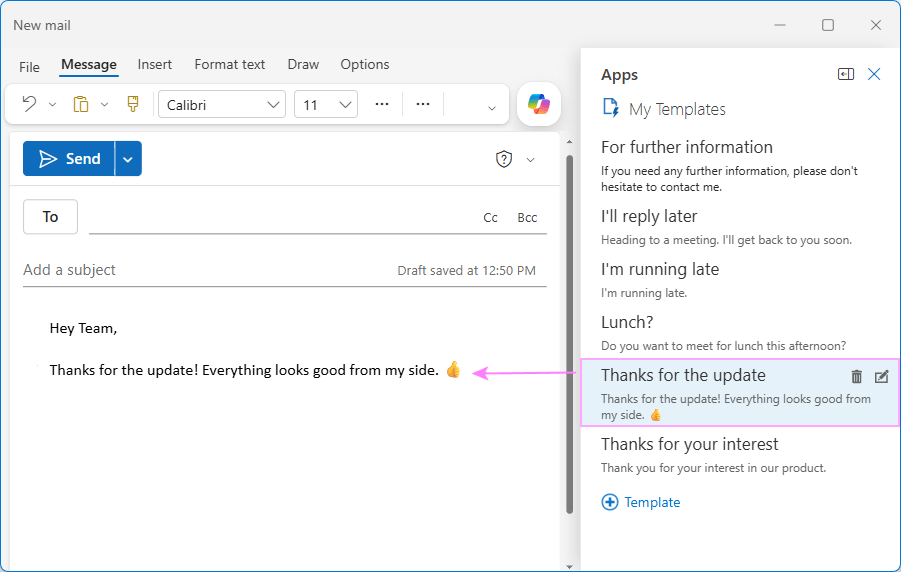
Click on the template you want to insert, and it will be pasted into the message body right away.
Edit or delete a template #
To make changes to an existing template or remove it completely:
Hover over the template in the pane.
Click the Delete or Edit button in the upper right corner of the template.
Things to know about My Templates #
Before you start using the My Templates add-in, here are a few important things to keep in mind:
Size limit. The total size of My Templates is limited to 32 KB. This includes everything: text, formatting, pictures and other embedded content.
Supported accounts. In classic Outlook, My Templates are available only for your main mailbox. In new Outlook, they are available for every connected Microsoft 365 and Outlook.com account and are saved directly to the account you are currently using. The My Templates add-in is not available for third-party accounts, such as Gmail or Yahoo. Your canned responses do not sync between different mailboxes added to your Outlook, so you will need to create a separate set of templates for each individual account where you want to use them.
Cross-app syncing. My Templates work in all Outlook applications (classic, new and web) and they sync across different apps where you’re signed in with the same account.
Shared mailbox limitations. In classic Outlook, templates are always private to your own account, even when you work in a shared mailbox. In new Outlook and web, templates created in a shared mailbox promoted to a full account can be viewed and edited by anyone with access to that mailbox.
How to create an email template in Outlook 365 – 2010 #
If you want to save a complete email for future use, an Outlook Template (.oft) is the way to go. You can include almost anything you’d put in a regular message, from images and attachments to a predefined subject and recipients.
Save an email as Outlook template #
To make a reusable email template in Outlook, carry out these steps:
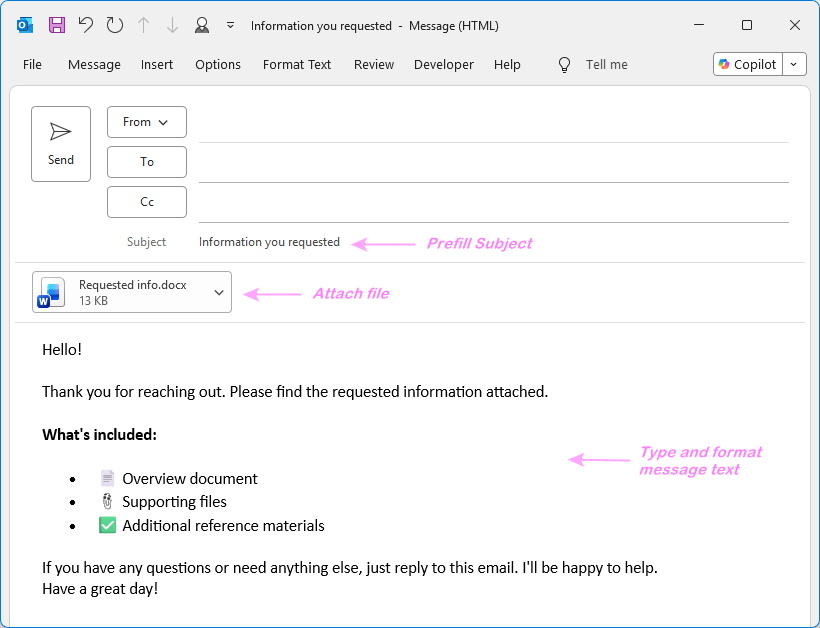
Compose an email. Create your message as you normally would. Type text, apply formatting, insert tables, lists, images, and attach any files you want to include in the template.
Fill message fields (optional). If needed, prefill the Subject line and To, Cc, or Bcc boxes. You can leave the address fields blank if you plan to use the template for different recipients each time.
Save an email as a template in Outlook.
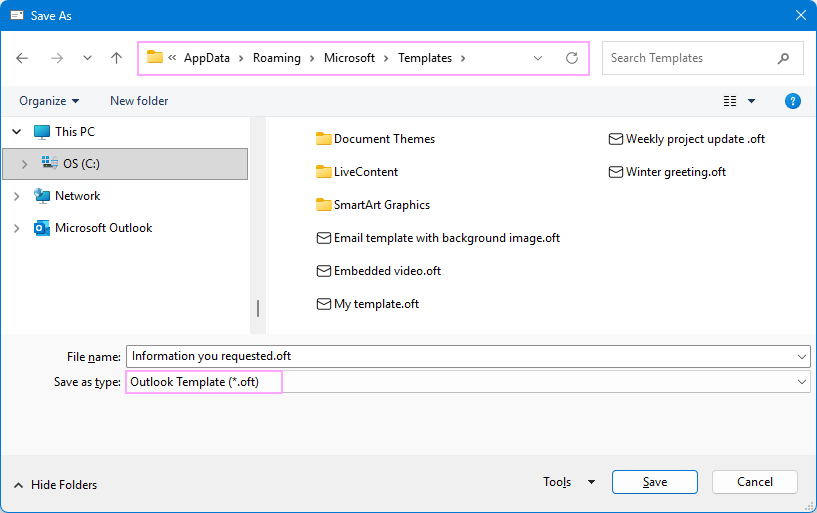
Click the File tab > Save As. The Save as dialog box will open.
In the Save as type dropdown list, select Outlook Template (*.oft).
Enter a descriptive name for your template.
Click Save.
Done. Your email draft is now saved as an Outlook template and is ready to use whenever you need it.
Create an email from template #
Accessing your saved email templates in classic Outlook is a bit trickier than it should be. They aren’t immediately visible when you create a new message, so you need to know where to look.
To create a new message from a template:
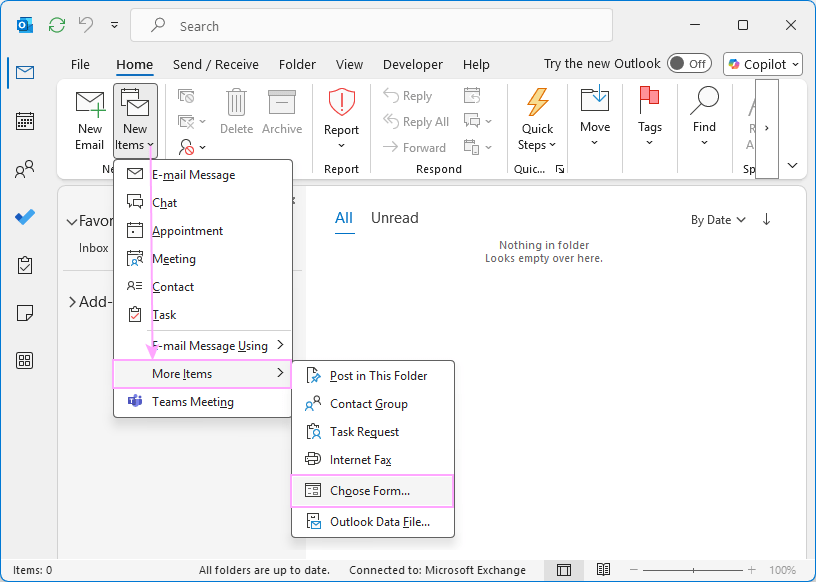
On Outlook’s Home tab, click New Items > More Items > Choose Form.
The Choose Form dialog box will open. From the Look in drop-down list, select User Templates in File System. This displays all .oft templates you’ve saved to the default location. Select the template of interest and click Open.
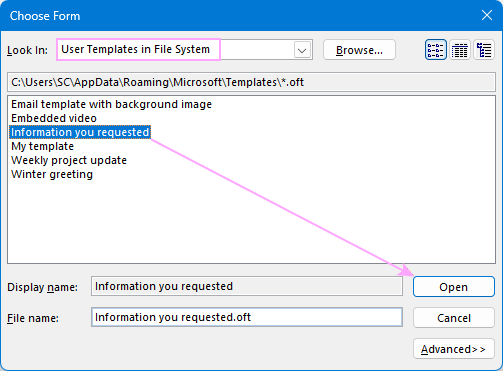
A new message will be created based on the selected template. It will automatically include everything you saved, including the subject, body text, attached files, and embedded images. You can edit the message as needed before sending it. The template itself remains unchanged, ready for the next use.
Change an .oft template #
Editing templates in classic Outlook isn’t very intuitive either. You can’t make changes directly to an .oft file. Instead, you need to first open the template as a new message, make your edits, and then save it back as a template. Here are the detailed steps:
Open the template as a new message: Home tab > New Items > More Items > Choose Form > User Templates in File System.
Edit the message like any regular email.
Save the updated template under the same name: File > Save As > Outlook Template (*.oft).
When prompted, click Yes to replace the existing template.
Delete an .oft template #
When you no longer need a certain email template, simply delete the corresponding .oft file from your computer or cloud storage, just as you would any other file. Here’s how:
Open the templates folder. In File Explorer, navigate to the folder where your templates are stored. To get straight to the default location of .oft files, paste the following path into File Explorer’s address bar and press Enter:
%userprofile%\AppData\Roaming\Microsoft\TemplatesDelete the .oft file. Select the unwanted .oft file, and press Delete on your keyboard. Or right-click the file and choose Delete from the context menu.
How to make full-featured email templates in new Outlook and web #
To turn an entire email into a reusable template in new Outlook and Outlook on the web, make use of inbuilt Mail Templates. Just like their classic Outlook counterparts (OFT templates), they let you prefill all the main parts of an email, including the message body, subject, and recipients.
Create an email template #
Creating a full-feature message template in new Outlook and web app is a two-step process:
Compose your email. On the Home tab, click New > Mail to open a blank email. Include any content you wish and format it exactly as you want it to look in future emails. You can add links, tables, bullet lists, insert pictures, and attach files. Optionally, you can also enter the subject line and recipients (for example, if it is a regular update sent to the same contacts).
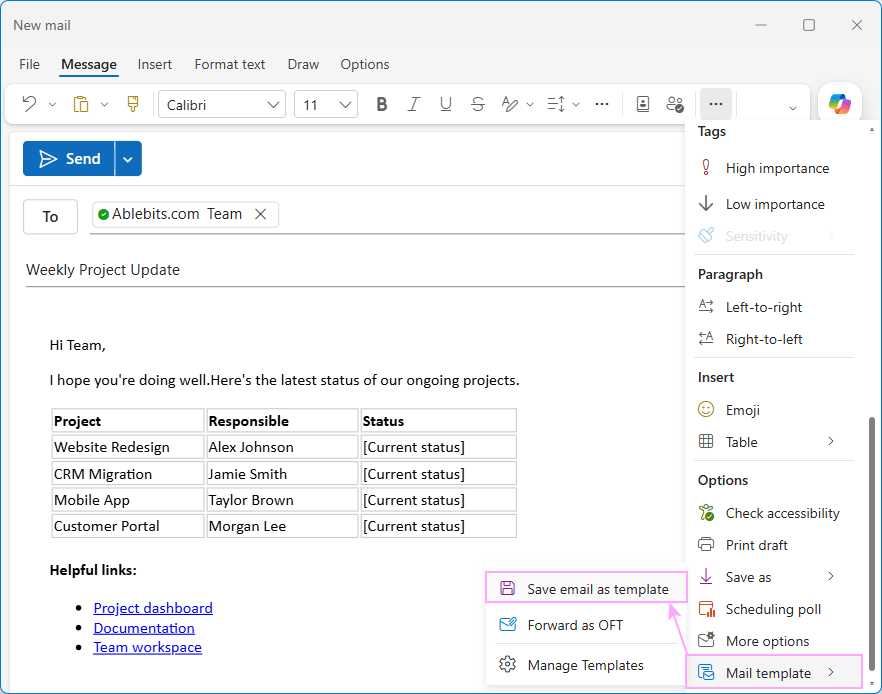
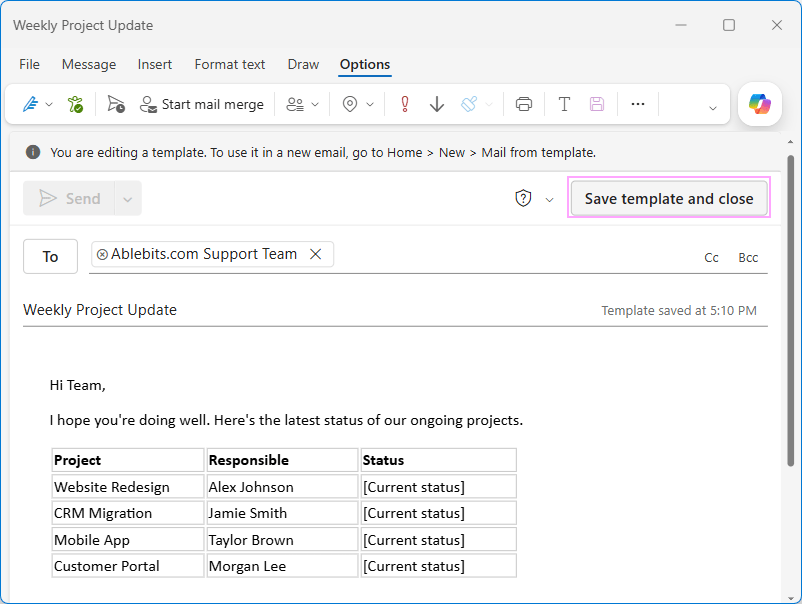
Save as template. On the Message tab, click More options (three dots) > Mail template > Save email as template.
Once your email is converted to a template, the Save template and close button appears in the upper-right corner. Click it to close the message window.
Insert a template into an email #
To create an email from a template in new Outlook and Outlook on the web, just do this:
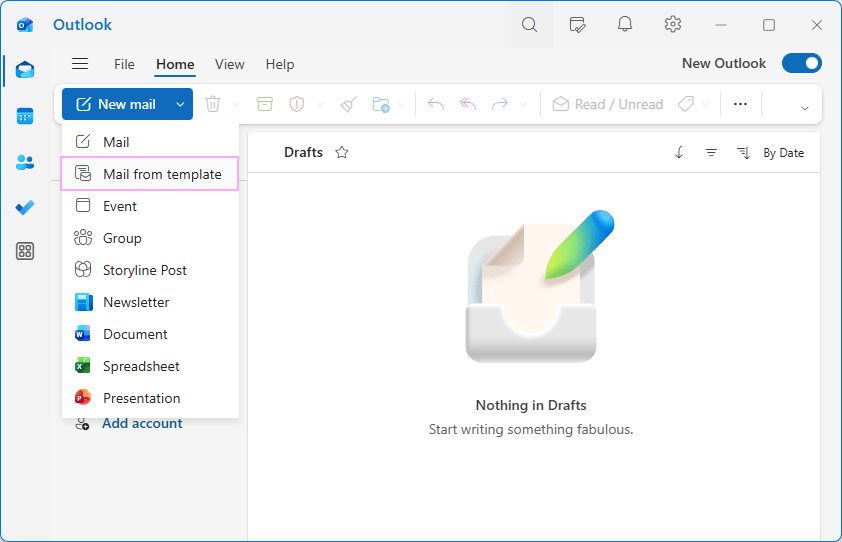
On the Home tab, click New > Mail from template.
In the Templates dialog box, select the one you want to use.
A new message draft opens with all the template’s elements in place. You can make any required changes to the message body, subject, or any other fields.
When your message is ready, click Send.
View, change, and delete mail templates #
In the new Outlook and Outlook on the web, all template management is done from the Settings page:
Navigate to Settings > Mail > Templates. This displays all your templates, organized by account.
View templates. By default, templates for your primary account are shown. To view templates for a different account, select it from the Your templates for dropdown list.
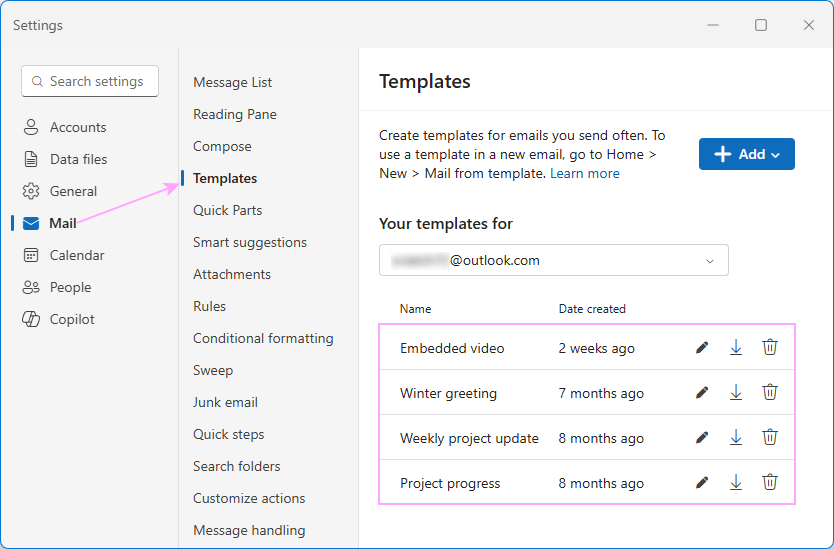
Delete a template. To permanently remove a template you no longer need, click the Delete button (trash bin icon) next to it.
Modify a template. Click the Edit button (pencil icon) next to the template you wish to change. This will open the template in a message window, where you make your changes. When you’re done, click the Save template and close button in the upper-right corner.
Import OFT templates from classic Outlook #
When transitioning from classic Outlook, you may want to bring your favorite OFT templates with you. Here’s how to import them directly into the new Outlook app:
In new Outlook, navigate to Settings > Mail > Templates.
If you have multiple accounts, select the one you want to import the template into from the Your templates for dropdown list.
Click Add > Add OFT.
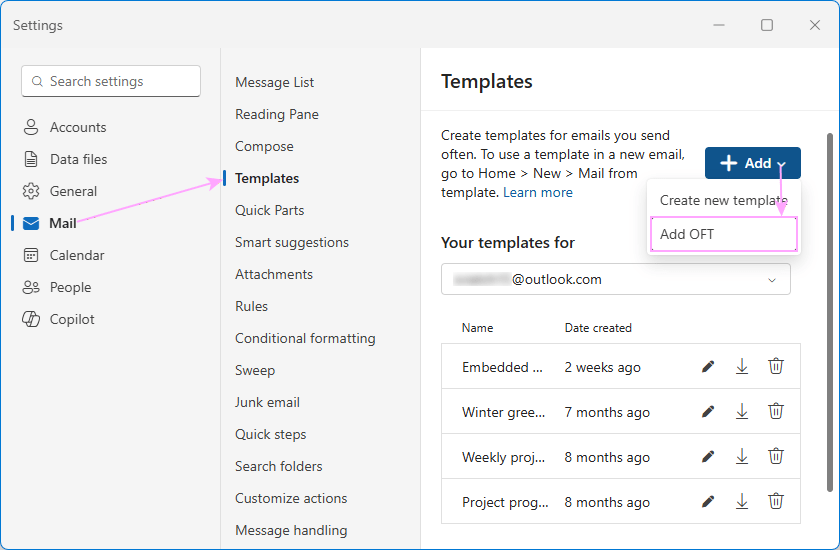
In the Add mail template (.oft) window, click Choose.
In File Explorer, browse to the folder containing your .oft files, pick the one you want to import, and click Open.
Back in the Add mail template window, click Add.
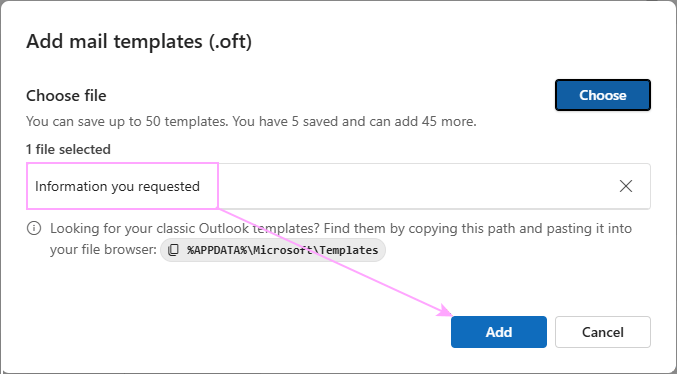
The OFT template is imported to the selected account and is ready to use. In the same way, you can import .oft files that someone else has shared with you.
Things to know about Mail Templates in new Outlook and web #
A couple of things to keep in mind before you start:
Size limit. Currently, you can save up to 50 email templates per account.
Account-specific. Mail templates are stored in the cloud for the mailbox you used to create them. They aren’t shared across different accounts added to new Outlook, so you’ll need to create a separate set of templates for each account where you want to use them.
What’s next? #
Now that you know how to create and use native email templates in Outlook, perhaps it’s time to take things a step further and explore a couple of advanced options.
Personalized email templates #
Imagine that your Outlook templates could adapt dynamically to each recipient. For example, the recipient’s name is automatically inserted into the greeting or anywhere else in the message body or subject. Each time you use a template, it prompts you to enter recipient-specific information or choose an option from a predefined list. It can even pull relevant, up-to-date information from your Excel table!
All these and a lot more personalization options are already available with Shared Email Templates.
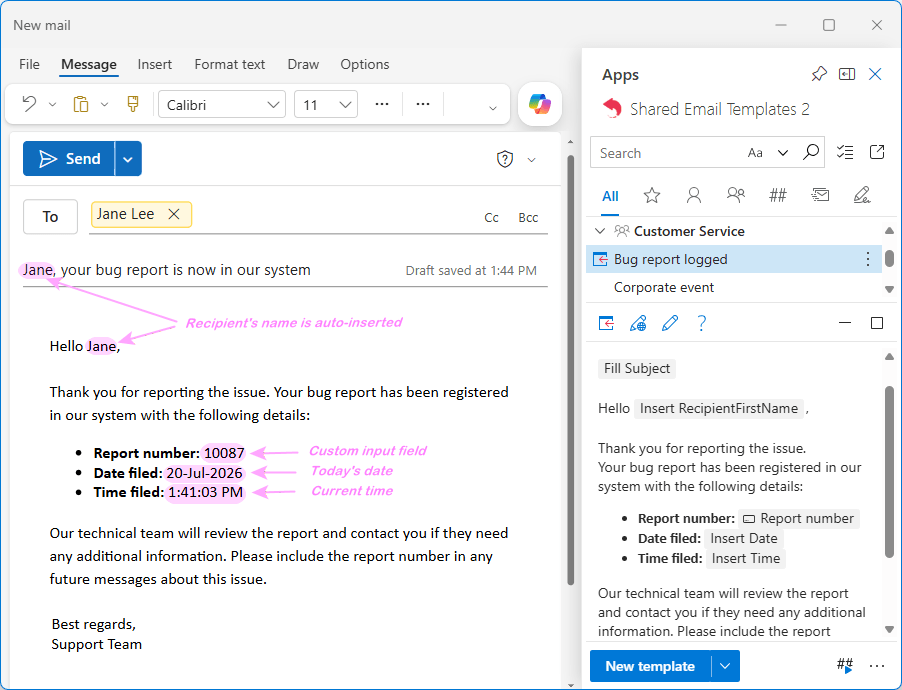
To learn more, check out: Personalizing email templates in Outlook.
Sharable email templates #
With some effort, time and creativity, you can find a way to share almost any built-in Outlook template with other users. For example:
To share OFT templates in classic Outlook, save or copy them to OneDrive or any other cloud storage you prefer.
To share Mail Templates in new Outlook and web, either forward an OFT file while composing an email or save your template as an OFT file and share it.
To share My Templates… well, you can copy a text snippet, and then either send it by email or save it to a shared folder. This may not be what most people have in mind when they talk about sharing, but for now, it’s the only available option.
An alternative solution is Shared Email Templates, which was designed specifically for efficient collaboration. To share a template with your teammates, simply save it to the appropriate team folder. To share templates with everyone in your organization, add all users to a dedicated team, then copy or move your templates to that team’s folder. Fast, easy and safe!
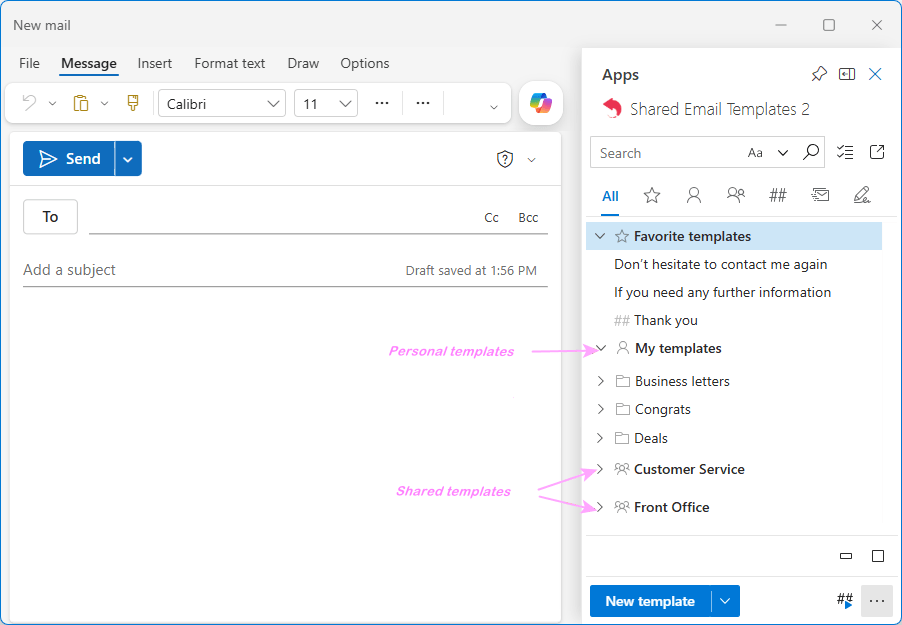
For detailed guidance, see How to share email templates in Outlook.
Outlook email templates: Summary table #
The table below compares the main template options, including the supported Outlook versions, capabilities and limitations, and typical use-cases.
| OFT templates | Mail Templates | My Templates | Shared Email Templates | |
|---|---|---|---|---|
| Supported versions | Classic Outlook (365 – 2010) Can also be imported to New Outlook and Outlook on the web. | New Outlook, Outlook on the web | Classic Outlook (365 – 2021), New Outlook, Outlook on the web | Classic and new Outlook for Windows, Outlook for Mac, Outlook on the web |
| Formatting | Full formatting, including tables, lists, hyperlinks, and other elements | Plain text with basic styling | Rich formatting, tables, links, clickable buttons, HTML templates | |
| Prefilled subject and recipients | Yes | Yes | No | Yes |
| Attachments | Yes (not updated when the original changes) | No | Yes (syncs with the original OneDrive or SharePoint file) | |
| Images | Yes (not updated when the original changes) | No | Yes (syncs with the original OneDrive or SharePoint image) | |
| Personalization | Static content; recipient-specific details must be edited manually. | Yes (including recipient and sender details, custom input fields, dropdowns, date and time pickers, conditions, etc.) | ||
| Sharing | Can be shared by email or through cloud storage. | Can be forwarded or exported as OFT files; copies do not stay synchronized. | No sharing option | Inbuilt sharing via team folders; user or editor permissions. Changes are available to all team members in real-time. |
| Limits (templates size and number) | No set limit. The number and size of OFT files are restricted only by the available space on a hard drive or cloud storage. | Up to 50 email templates per account | The combined size of all templates is limited to 32 KB. | 1500+ templates |
| Message type | New messages | New messages | New messages, replies, and forwards | New messages, replies, and forwards |
| Usability | Poor. Requires a lot of menu clicks to open | Average. Can be opened with a couple of clicks, but inaccessible when composing an email. | Good. Available in a message window (as a plain list, without the folder structure) | Excellent. Available in a message window; comfortably organized into folders and subfolders; instant search |
| Best for | Complete emails, with structure content, rich formatting, attachments, or complex layouts | Short phrases and commonly used text blocks | Personalized templates with attachments and images; centralized sharing; syncing across all Outlook apps | |
You are now fully equipped to handle email templates in any Outlook version. Take a few minutes today to set them up for your most repetitive emails and enjoy the time you save… perhaps with an extra coffee break 😊