
Email templates in Outlook classic, new and web: from setup to everyday use
In this article
By Svetlana Cheusheva, updated on August 11, 2026
If you find yourself typing the exact same messages week after week, email templates can save you a surprising amount of time. The challenge is that Microsoft does not offer a single, universal template system. Currently, there are three different Outlook apps (classic, new, and web), and each manages templates differently.
In this tutorial, we’ll clear up the confusion. You will learn which templates are available for your specific Outlook version, what they can and cannot do, which situations they are best suited for, and how to set them up.
What is an email template in Outlook? #
An Outlook email template is a prewritten and preformatted message that you can reuse whenever you need it. Instead of writing the same email content from scratch every time, you simply insert the template, make any necessary changes, and send it.
There are a few ways to make reusable message templates in Outlook. Below is a quick overview of each method.
My Templates add-in #
My Templates is Microsoft’s add-in for Outlook that lets you quickly insert short text snippets into an email.
These templates only support plain text with basic formatting (bold, italic, underline) and very small images. They do not support rich-formatting, attachments, and preset message fields such as To, Cc, Bcc, or Subject.
My Templates is best suited for brief, text-only content such as greetings, thank-you notes, follow-ups, reminders, and the like.
Originally designed for new Outlook and web, these templates are now available in the classic desktop application too. They are stored in the cloud, connected to your mailbox, and are available on any device where you sign in with the same account.
Originally introduced for new Outlook and Outlook on the web, these templates are now also available in the classic desktop version of Outlook. They are stored in the cloud linked to your mailbox and are available on any device where you sign in with the same account.
How to create:
Start a new email or reply.
On the Message tab, click Apps > My Templates.
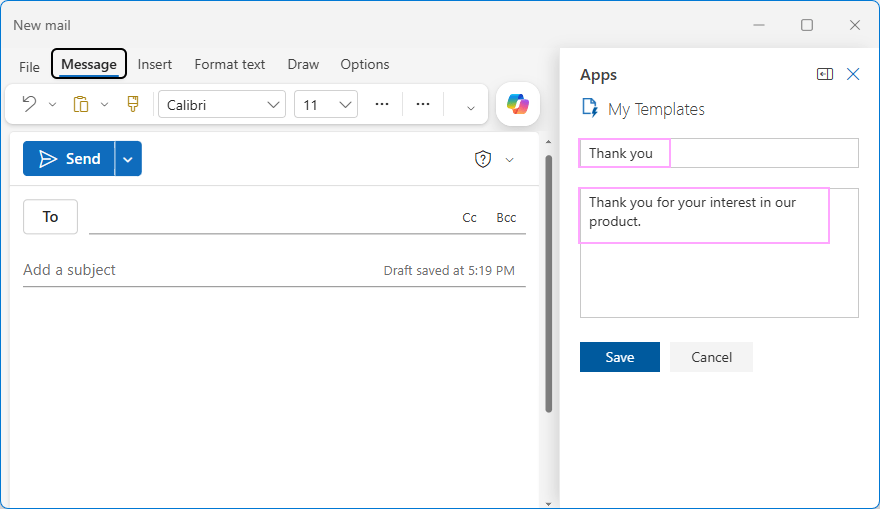
In the My Templates pane, click + Template.
Enter the template’s title and text.
Click Save.
How to use:
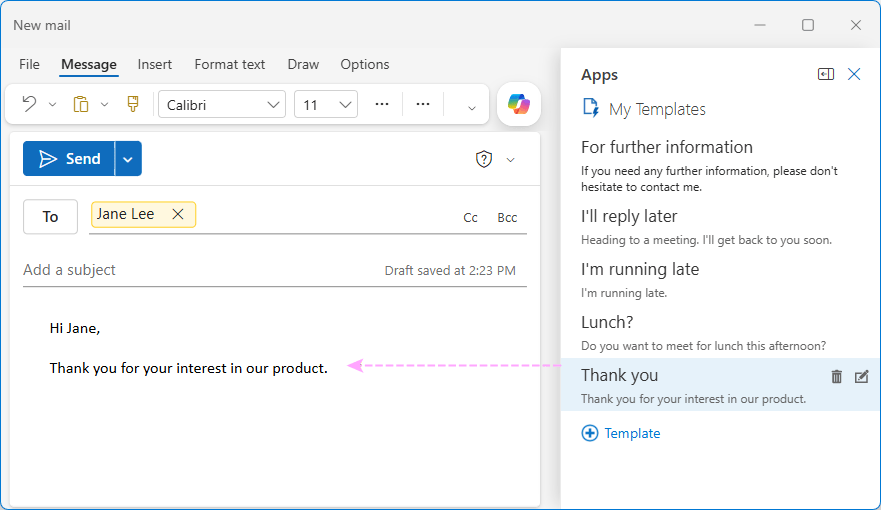
On the app’s pane, click the template of interest.
Find it inserted in the message body.
To explore this further, see How to create reusable text snippets in Outlook.
Summary
Availability: classic Outlook (365 – 2021), new Outlook, Outlook on the web
Size limit: 32 KB for all templates combined
Advantages: simple and intuitive to use, sync automatically across all Outlook apps
Drawbacks: limited size and formatting options, inability to attach file and pre-fill email fields, limited availability in shared mailboxes
OFT templates #
OFT files (short for Outlook File Template) are comprehensive templates that let you predefine almost every part of an email, including the message body, To, Cc and BCC fields, subject line, formatting, attachments, images, and other content.
When opened, an OFT template creates a new message prepopulated with the body text, recipients, and other saved properties. You can modify that email as needed before sending it.
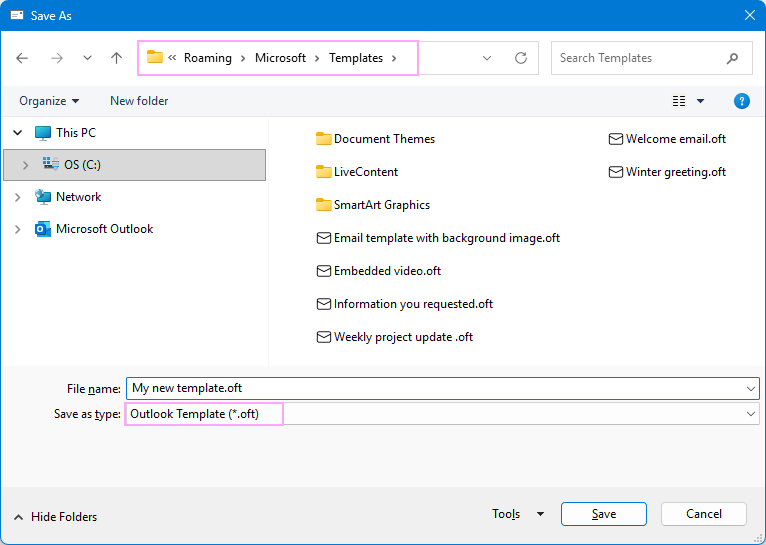
By default, Outlook saves .oft files to the Templates folder under your Windows user profile. You can also save them to any other folder on your computer, a network drive, or cloud storage.
Although these templates are not portable by nature, you can still share them with other people or move to another computer by sharing or coping .oft files.
If needed, you can also import OFT templates to new Outlook and Outlook on the web. Keep in mind that after importing, a separate copy of each template will be created in a cloud-based mailbox, which won’t sync back to the original .oft files stored locally.
OFT files are the oldest Outlook template format. They were introduced over two decades ago in Outlook 97 and are still supported in every version of the classic desktop application, from Outlook 2010 to Microsoft 365.
How to create:
Compose an email as you normally would.
Add the desired formatting, images, links, and attachments.
Pre-fill any fields you want, including Subject, To, Cc, or Bcc.
Click the File tab > Save As.
In the Save as type dropdown list, select Outlook Template (*.oft).
How to use:
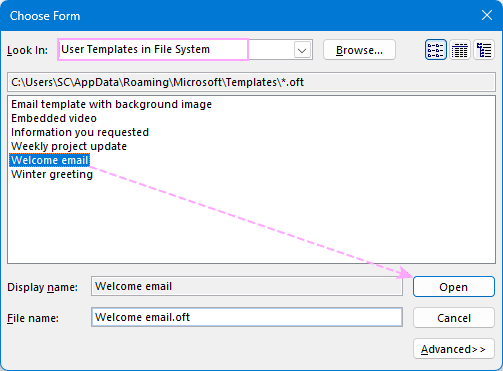
On the Home tab, click New Items > More Items > Choose Form.
In the Choose Form dialog box, select User Templates in File System.
Pick the desired template and click Open.
For a complete walkthrough, see How to create OFT templates in Outlook.
Summary
Availability: classic Outlook (365 – 2010)
Size limit: None. Restricted only by the available space on your hard drive or cloud storage.
Advantages: feature-rich, easy to create and save, can be imported to new Outlook and Outlook on the web, can be transferred to another computer
Drawbacks: inconvenient to use (to open a template, you need to navigate through multiple menu levels), do not sync between different Outlook apps
Mail Templates #
For quite a long time, message templates in new Outlook and Outlook online were limited to text-only snippets provided by the My Templates add-in. In 2025, a long-awaited update finally brought full-featured email templates that support advanced formatting, images, links, attachments, and other elements.
Mail Templates in new Outlook and Outlook on the web offer everything that classic Outlook’s OFT templates do but without their biggest drawback – you don’t have to dig through a bunch of menus to use one :)
As with other features in new Outlook, Mail Templates are stored in your cloud-based mailbox. This means you can access them from wherever you log in using that same email account.
How to create:
Compose your email. Add the content and formatting you want, attach any files, and pre-fill any required message fields.
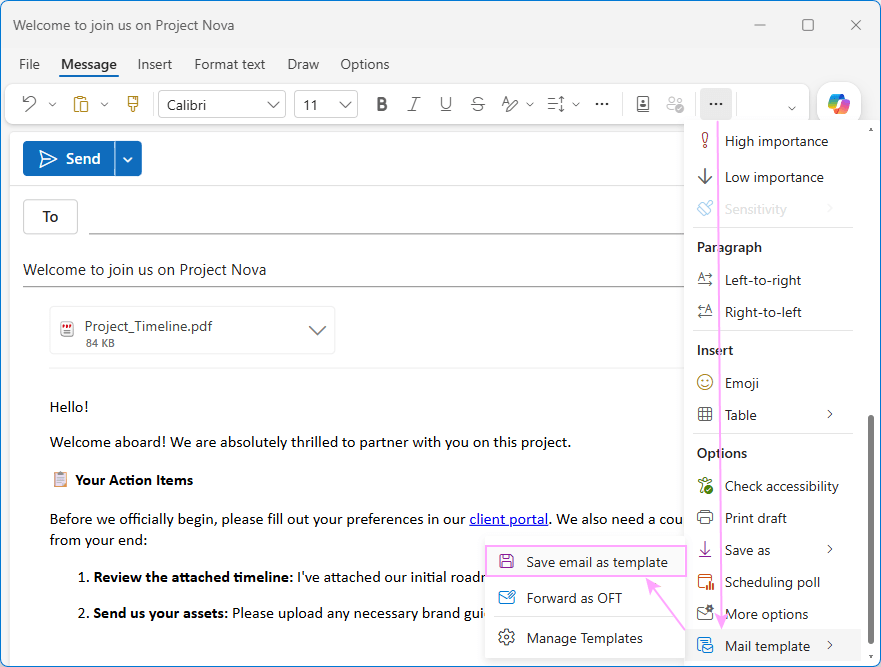
On the Message tab, click More options (three dots) > Mail template > Save email as template.
How to use:
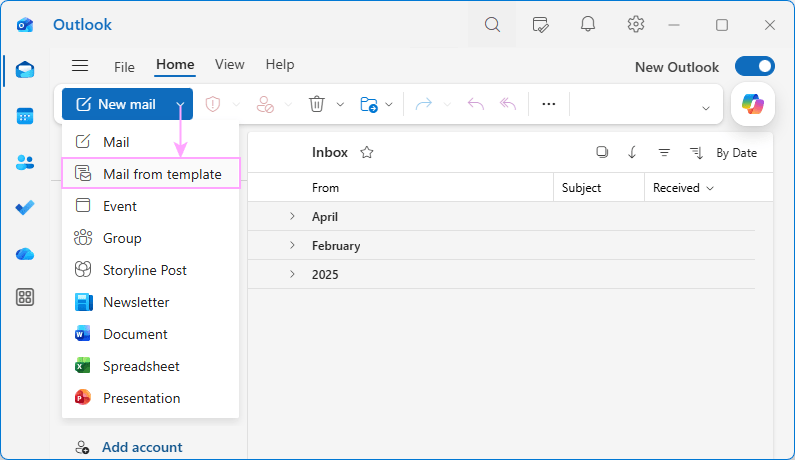
On the Home tab, click New > Mail from template.
Choose the template you want to use.
A new message draft opens. Make any required changes, and then click Send.
For a more complete overview, see Full-featured email templates in new Outlook and web.
Summary
Availability: new Outlook, Outlook on the web
Advantages: feature-rich, easy to create and use, can be imported from classic Outlook, sync across the new Outlook and web apps
Number limit: Up to 50 templates per account
Drawbacks: are not available for email replies, do not sync with classic Outlook; cannot be organized into folders, arranged in custom order, or searched for
Shared Email Templates #
If you are looking for a versatile solution that works consistently in any Outlook version and suits anything from a short greeting phrase to a complete message with branded formatting, welcome to Shared Email Templates.
The Shared Email Templates add-in combines the best of the two worlds. Like My Templates, it keeps your canned responses in a handy side panel while you compose an email (with an extra benefit of organizing them into folders). Like OFT templates, it supports rich formatting, hyperlinks, attachments, images, and other advanced content.
On top of that, it includes many useful features (personalization, fillable fields, shortcuts, HTML templates and, of course, sharing between different users and devices) that are not available in in-built Outlook templates.
How to create:
Select the content. Open any existing Outlook email (sent, received, or draft). Alternatively, if you are currently composing a message, highlight the text you want to save.
Choose where to save the template. In the add-in’s pane, select the destination folder and click New Template. You can save it to a personal folder for your own use or to a team folder to share it with colleagues.
Save email elements. When prompted, select which elements of the message to keep (formatting, images, subject line, recipients, and attachments), then click Create.
Refine the template. The template opens in the built-in editor, where you can customize and personalize it further by adding custom input fields, recipient-specific details, or dynamic content from your datasets.
Save the template. When your template is ready, click Save.
How to use:
Start replying to an existing email or create a new one.
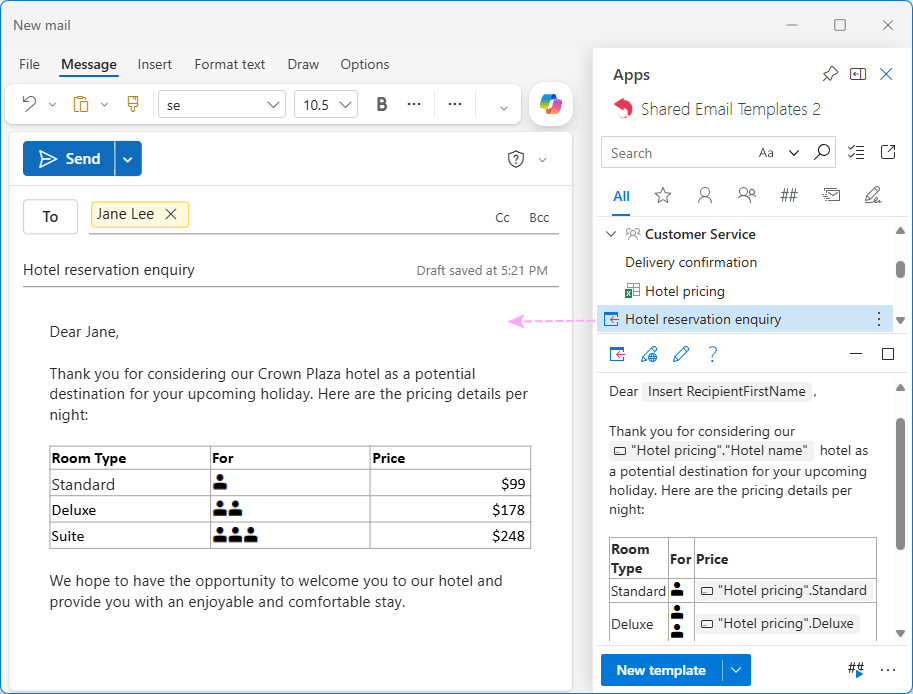
Double click the template in the pane or click the Insert button next to its name.
To see this explained in depth, visit Make a shareable email template for Outlook.
Summary
Availability: classic Outlook (365 – 2019), new Outlook, Outlook on the web
Limits: there are limitations on the number of templates, folders, and teams depending on a subscription
Advantages: many advanced features, easy and secure template sharing, sync across different Outlook apps, can be accessed from any device
Drawbacks: paid app (free trial available)
Frequently asked questions #
Below are answers to some of the most common questions about creating, using, and storing email templates in Outlook.
What is the best email templates tool for Outlook? #
As is often the case, the best choice depends on your specific purpose and workflow:
To keep frequently used phrases and short text blocks at your fingertips while composing a message, use My Templates.
For complete formatted messages, use OFT templates in classic Outlook or Mail Templates in new Outlook and Outlook on the web.
For dynamic personalized emails automatically tailored to each recipient, Shared Email Templates is the clear choice.
Can I use templates when replying to Outlook emails? #
That depends on which template tool you are using.
My Templates: Yes. You can insert these text snippets directly into any reply you are composing.
OFT and Mail Templates: Not directly. Opening one of these automatically generates a new message. However, you can open the template as a new email and then copy the required content into your reply.
Can I edit a template-based message before sending? #
Yes, absolutely. Templates are simply starting points. After opening or inserting one, you can change, add, or delete any part of the message before hitting Send.
Can I include attachments in Outlook templates? #
Yes. OFT templates in classic Outlook and Mail Templates in new Outlook and web support attachments.
However, each native Outlook template stores a separate static copy of the attached file. Changes made to the original file don’t sync to the template. To send the latest version of the file to the recipient, you must edit the template or replace the attachment manually every time.
This is the key difference from Shared Email Templates, which include references to files rather than separate copies. The files themselves are safely stored on your OneDrive or SharePoint, and any changes made to the originals are automatically reflected in the templates.
Where are Outlook email templates stored? #
Different templates are stored in different locations.
By default, OFT files are saved to your computer’s hard drive in this folder:
C:\Users\{UserName}\AppData\Roaming\Microsoft\Templates
Because the AppData folder is hidden by default, the fastest way to find them is to paste the following path into the Windows Run dialog (Win + R) or your File Explorer’s address bar and press Enter:
%appdata%\Microsoft\Templates
My Templates and Mail Templates are stored in the cloud, linked to your email account rather than a specific device.
Do message templates sync across different Outlook apps? #
Again, the answer depends on the type of template you are using. Some sync across all versions of Outlook, while others are restricted to a specific device.
Here is exactly how each type handles syncing:
My Templates: Yes. They sync automatically across all three Outlook apps (classic, new, and web).
Mail Templates: Partially. They sync between the two apps where they are available – in new Outlook and Outlook on the web.
OFT Templates: No. They are only available in classic Outlook and do not sync with any other Outlook apps.
Shared Email Templates: Yes. If you use this add-in, your templates will sync across all Outlook apps (classic, new, and web) and operating systems (Windows and Mac).
Can I share my Outlook email templates with other users? #
Not by default. All native Outlook templates are tied to your account unless you manually share OFT files or save them to a shared folder. If sharing is a must-have feature for your team or company, consider using the Shared Email Templates add-in, which was created specifically for that purpose.
You now know all possible ways to create and use email templates in Outlook. Hopefully, this guide has helped you choose the best strategy for your daily communications, or at least pointed you in the right direction 😊