
Outlook Quick Parts as an alternative to email templates
In this article
By Svetlana Cheusheva, updated on August 11, 2026
When it comes to repetitive messages in Outlook, email templates can save you a lot of time. But did you know they are not the only option available? For reusable pieces of email content, Outlook provides one more time-saving feature, named Quick Parts.
In this tutorial, you will find clear practical guidance on how to set up and use Quick Parts in your Outlook version, what benefits it provides compared to email templates, and what is the best use of each.
What is a Quick Part in Outlook? #
Outlook Quick Parts are reusable snippets of predefined content, serving as building blocks for emails. Aside from text, they can also include images, emojis, hyperlinks, tables, and formatting.
Introduced in Outlook 2007 as a more versatile replacement for AutoText, Quick Parts are now available across all Outlook apps (classic, new and web) and all accounts (including Microsoft 365, Outlook.com, and third-party mailboxes).
Despite its wide availability, the feature works somewhat differently in Outlook classic and new. Below is a brief overview of what is available and what is missing in each app.
Quick Parts in classic Outlook (365 – 2010) #
In classic Outlook, Quick Parts are supported for all items, including messages, appointments, meetings, contacts, and tasks. For convenience of use, they can be organized in galleries and categories, where they are arranged alphabetically from A to Z. The items cannot be rearranged in a custom order.
To insert a quick part into an email, you can use a shortcut, AutoComplete suggestion, or choose from the gallery.
Classic Outlook stores Quick Parts locally on your computer in the NormalEmail.dotm file, the default template that contains global email settings. This local storage has both advantages and drawbacks.
Because the file is linked to the Outlook application rather than to a specific mailbox, your Quick Parts sync between all accounts connected to Outlook.
On the downside, Quick Parts do not travel with you when you change devices. To transfer them to a new device, you must copy the NormalEmail.dotm file from your old computer and place it in the corresponding location on the new one.
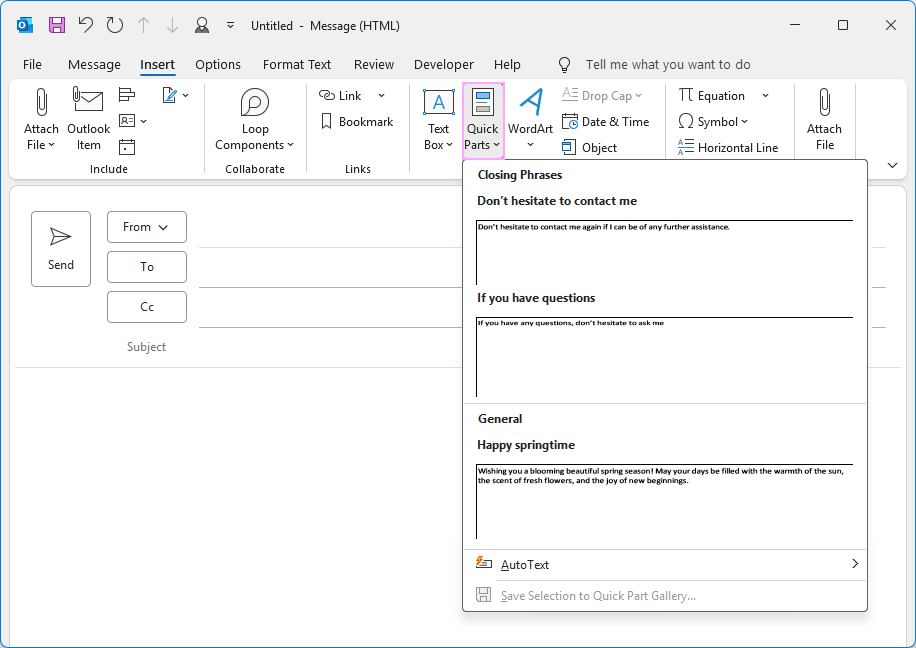
Quick Parts in new Outlook and web #
Compared to the classic desktop application, Quick Parts in new Outlook and Outlook on the web have a more limited set of features. The main limitations are:
Quick Parts are available only for emails. They are not supported in calendar and other items.
They cannot be organized into galleries and categories.
The items are arranged in the order they were created and cannot be sorted or rearranged.
Quick Parts are account-specific, meaning they are available only in the mailbox where you created them.
A Quick Part can be inserted into a message from the ribbon. Keyboard shortcuts are not supported, and AutoComplete suggestions do not appear.
On the plus side, new Outlook stores Quick Parts in the cloud. As a result, they sync automatically across new Outlook desktop and Outlook on the web for the same account.
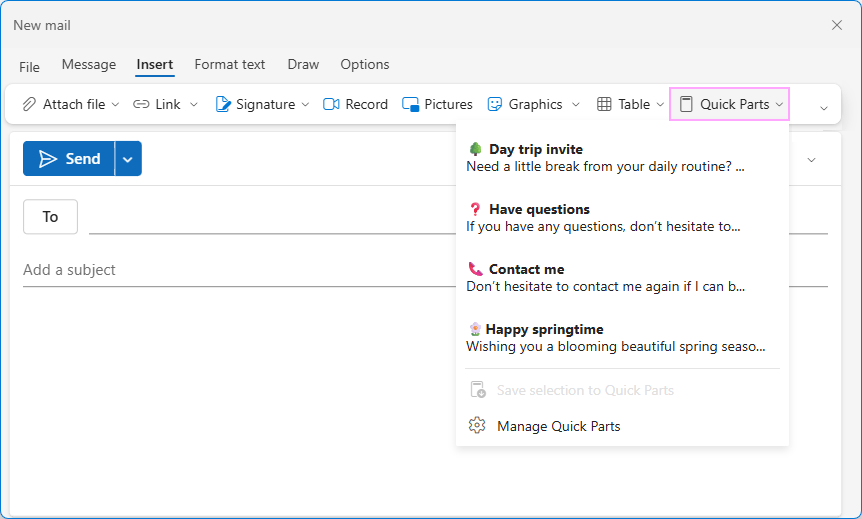
Comparison table: Quick Parts in Outlook classic, new and web #
The table below summarizes the key differences between Quick Parts in different Outlook versions.
| Classic Outlook (365 – 2010) | New Outlook and web | |
|---|---|---|
| Supported items | Emails, appointments, meetings, contacts, and tasks | Email messages only |
| Organization | Can be organized into galleries and categories | Galleries and categories are not supported |
| Sorting | Alphabetically | Chronologically |
| Usage (insertion methods) | Ribbon, keyboard shortcuts, AutoComplete | Ribbon only |
| Storage location | Stored locally on a computer | Stored in the cloud |
| Accounts | Shared across all accounts added to Outlook | Account-specific |
| Syncing between devices | Do not sync between devices; requires manual copying of the NormalEmail.dotm file | Sync automatically when using the same account |
| Syncing between Outlook apps | Cannot be shared or transferred between classic and new Outlook; must be recreated manually | Sync between Outlook new and web; do not sync with classic desktop application |
How to add Quick Parts in Outlook #
Start by creating a new email: type text, apply formatting, insert picture, tables or any other elements. When the email is ready, follow the below steps to save it as a Quick Part.
Create a Quick Part in classic Outlook #
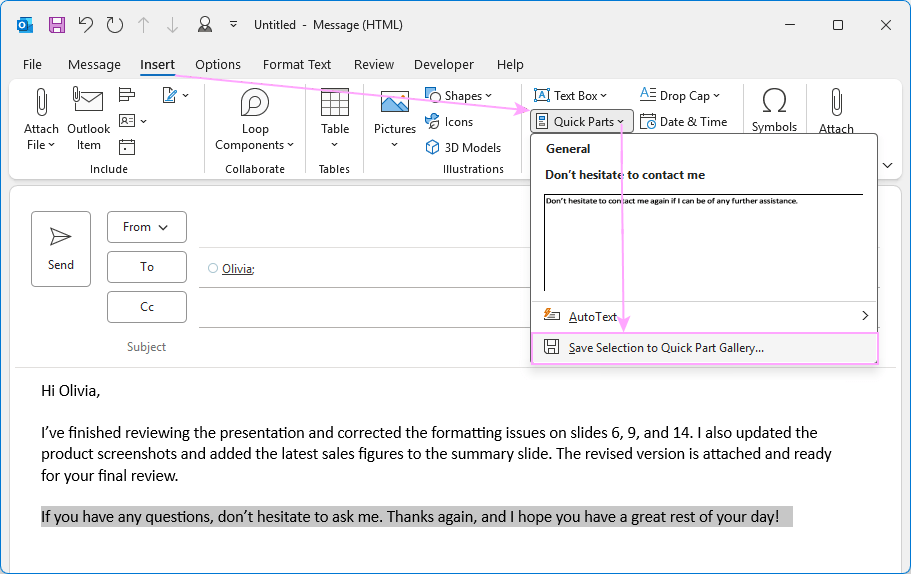
In a message you are composing, select the content you want to save.
On the Insert tab, in the Text group, click Quick Parts > Save Selection to Quick Part Gallery.
Set up the properties of your new building block such as the name, gallery, category, and storage location. When done, click OK.
The newly created Quick Part is saved to the selected gallery. You can reuse it any time when replying to someone’s email, creating a calendar event, or setting up a new task.
Quick Parts properties #
Each Quick Part has a few properties that you define when setting it up. To organize your items more effectively, it might be helpful to know what each property is responsible for and what options are available.
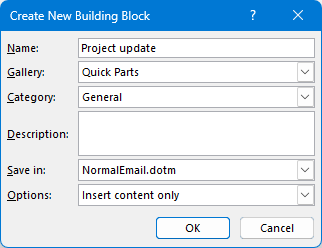
Name - each quick part must have a unique name. These names can be used to insert quick parts into emails, so choose short ones that you can easily remember.
Gallery - Select Quick Parts to keep all your entries in one place.
Category - kind of sub-folders for additional grouping. The default is General. If you have many Quick Parts, select Create New Category to group them by topic or purpose.
Description - optional and generally unnecessary because it is not displayed when using Quick Parts.
Save In – keep the default selection (NormalEmail.dotm) to make Quick Parts available for all Outlook items.
Options - controls how the quick part is inserted:
Insert content only - inserts it at the cursor position. This is the default and most useful option.
Insert in its own paragraph - places it in a separate paragraph, even if the cursor is in the middle of the text.
Insert content in its own page - starts it on a new page. This is mainly useful in Word and makes no sense for Outlook.
Add a Quick Part in new Outlook and web #
Highlight part of the email you want to save as a reusable snippet.
Go to the Insert tab and click Quick Parts > Save selection to Quick Parts.
Name your new item.
Click Save.
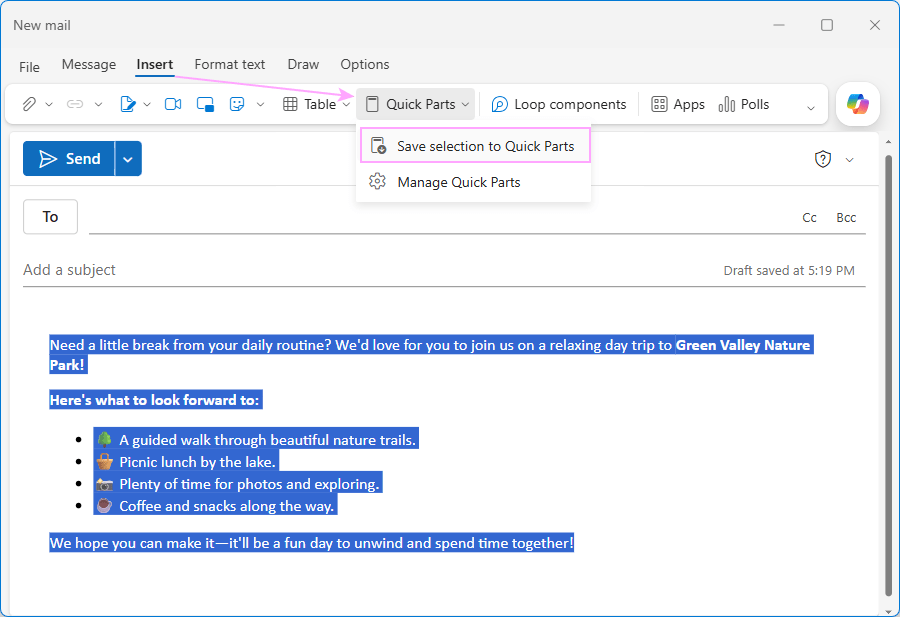
That’s it. Your new reusable snippet is now available in both new Outlook and Outlook on the web for that specific account where you created it.
How to use Quick Parts in Outlook #
Using Quick Parts in Outlook is straightforward. Create a new message or start an email reply and follow the instructions below for your version.
Insert a Quick Part in classic Outlook (365 – 2010) #
There are three ways to use Quick Parts in classic Outlook. They work for any item: email, meeting, appointment, task and contact.
Shortcut: Type the Quick Part name where you want it to appear and press F3.
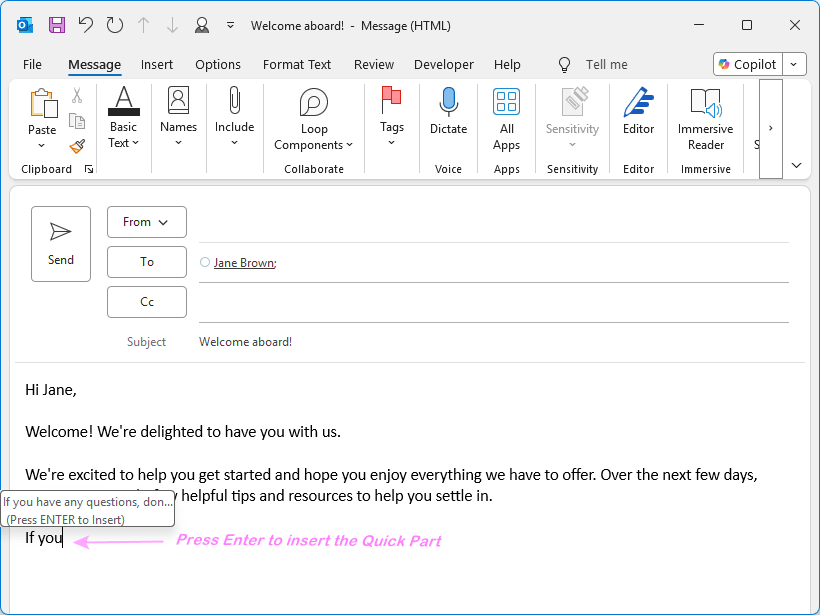
AutoComplete: Start typing the Quick Part name. When the Press ENTER to Insert suggestion appears, press the Enter key. This is usually the fastest and most convenient method.
Select from gallery: Position the cursor where you want to insert the Quick Part. Go to Insert > Quick Parts select the snippet you want. It’s useful when you cannot remember the name of the needed item.
Insert a Quick Part in new Outlook and web #
In new Outlook and Outlook on the web, there is currently just one way to use Quick Parts:
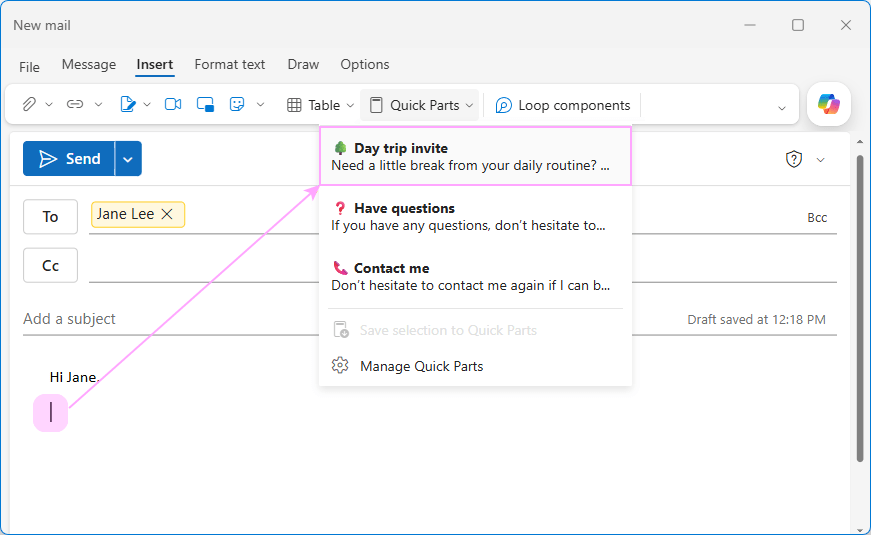
In the message you are composing, place the cursor where you want to insert a Quick Part.
Go to the Insert tab > Quick Parts.
Select one of your saved snippets.
How to edit Quick Parts in Outlook #
Changing existing Quick Parts is probably the main weakness of the feature. It’s not intuitive or user friendly in any Outlook version.
Edit Quick Part properties in classic Outlook (365 – 2010) #
To rename an existing Quick Part, change its category, or move it to another gallery, proceed in this way:
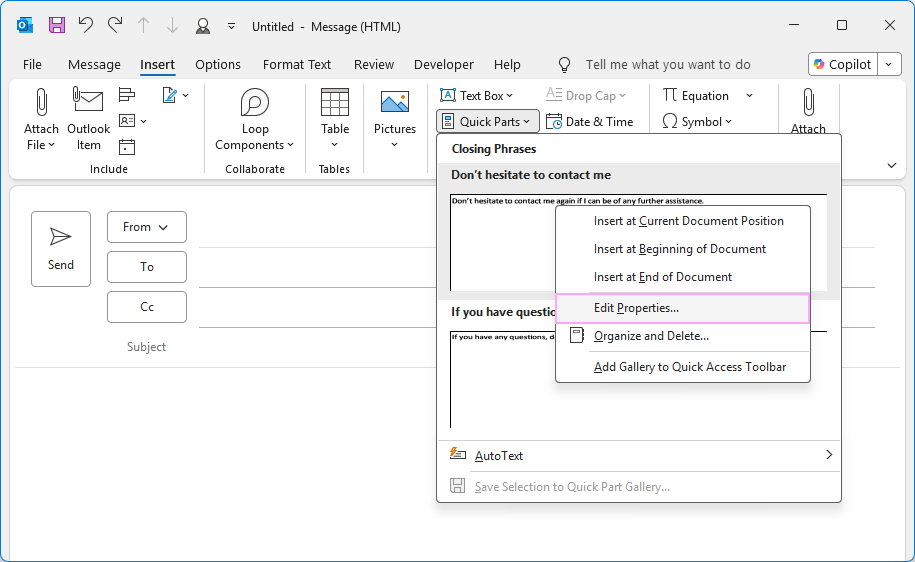
On the Insert tab, click Quick Parts.
Right-click the snippet you want to change and select Edit Properties…
In the Modify Building Block dialog box, make the desired changes: type a new name, choose another gallery or category, etc. When done, click OK.
When asked to confirm the changes, click Yes.
Manage Quick Parts in new Outlook and web #
There are two ways to access the Quick Parts settings in the new Outlook app and Outlook on the web:
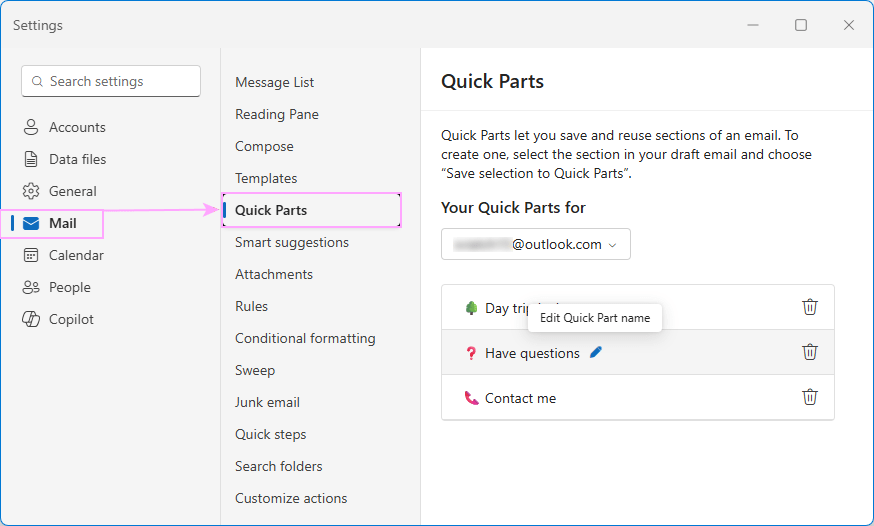
From the main Outlook window: Settings > Mail > Quick Parts.
From the message window: Insert > Quick Parts > Manage Quick Parts.
In this Settings window, you can:
Rename items – click the Edit button (pencil icon).
Remove items – click the Delete button (trash bin icon).
You cannot:
Rearrange items.
Edit the Quick Part content.
Edit Quick Parts content in Outlook #
There is no direct way to change the content of an existing Quick part in any Outlook app. The only possible way is to replace the original entry. Here’s how to do this:
Insert the existing Quick Part into an email.
Make the required changes to the content and formatting.
Save the updated snippet with the same name as the original.
When prompted, confirm that you want to redefine the building block (in classic Outlook).
How to delete Quick Parts in Outlook #
Deleting a Quick Part you no longer need is easy.
Delete Quick Parts in classic Outlook (365 – 2010) #
On the Insert tab, click Quick Parts to open the gallery.
Right-click any snippet and select Organize and Delete.
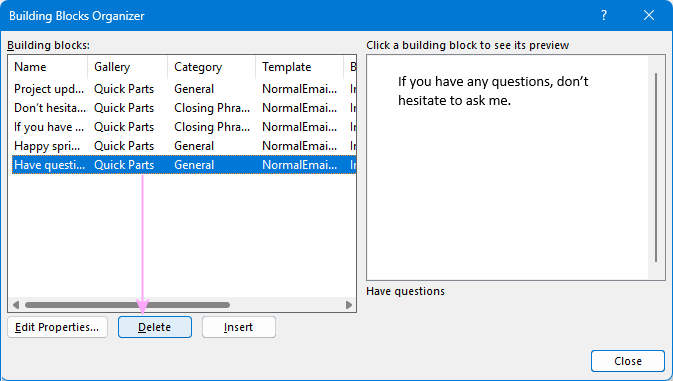
In the Building Blocks Organizer window, select the item you wish to remove and click the Delete button.
When asked to confirm the deletion, click Yes.
Remove Quick Parts in new Outlook and web #
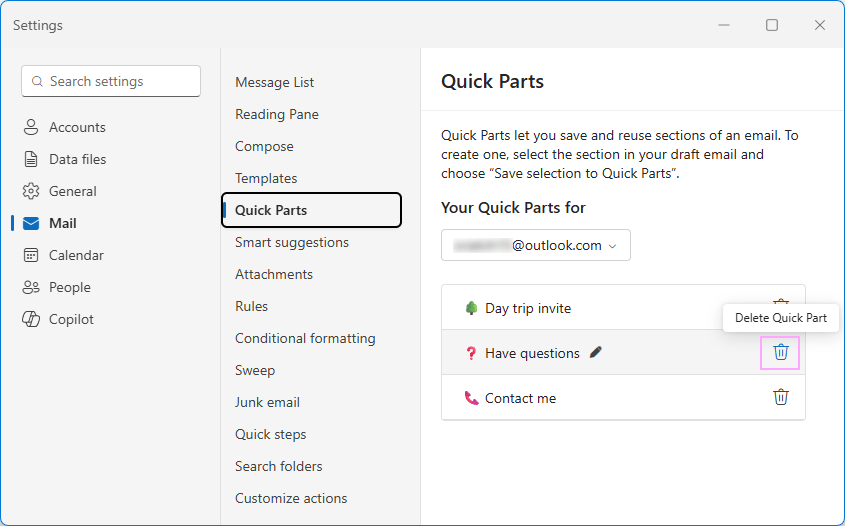
Navigate to Settings > Mail > Quick Parts.
Hover over the item you want to remove, and then click the Delete (trash bin) icon.
Where are Outlook Quick Parts stored? #
The storage location depends on the Outlook version you use.
Classic Outlook (365 – 2010) #
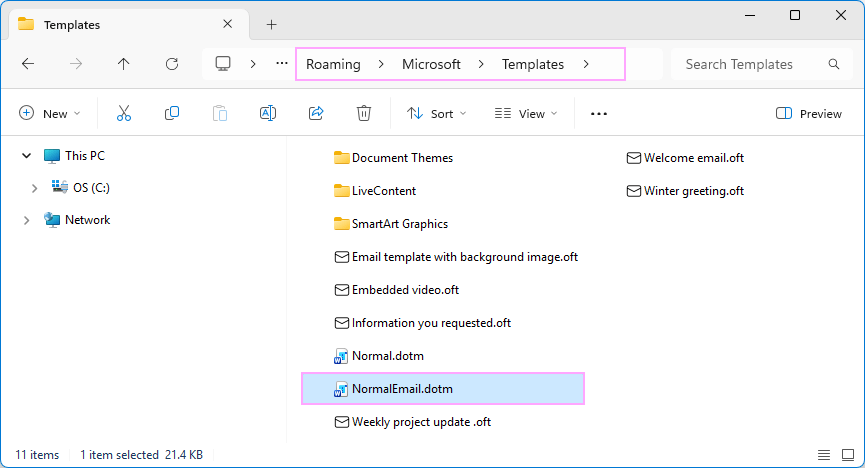
Classic Outlook stores Quick Parts locally on your computer in the NormalEmail.dotm file, which is located here:
C:\Users\{User Name}\AppData\Roaming\Microsoft\Templates\
To quickly get to the file, just enter the following path into the File Explorer address bar and press Enter:
%appdata%\Microsoft\Templates
New Outlook and web #
New Outlook and Outlook on the web store Quick Parts in the cloud, associated with your mailbox.
These different storage methods explain why Quick Parts do not sync between classic and new Outlook and cannot be imported from one app to another.
Outlook Quick Parts vs. email templates #
Outlook users often ask about the difference between Quick Parts and email templates. So, let’s take a closer look:
In older Outlook versions, the distinction was very clear and obvious:
Quick Parts are small text snippets or content blocks that you insert into your current message.
Email templates are complete formatted emails with preset fields (To, Cc, Bcc, and Subject).
Modern Outlook offers 3 types of email templates, each having its own purpose and set of features. Let’s see how each one compares with Quick Parts.
My Templates #
Like Quick Parts, My Templates stores short text pieces that you can insert into any open email, including new messages and replies. Currently, it is available in all Outlook apps: classic, new and web.
The main differences are:
Ease of access: The My Templates pane opens within the message window, letting you insert a snippet in a click. In my opinion, this is more convenient than inserting a Quick Part from the ribbon, though it’s largely a matter of personal preference.
Content and formatting: Quick Parts can include images, tables, graphics, and rich formatting. My Templates is intended for text snippets and only supports basic formatting (bold, italic, underline).
Size limit: My Templates is restricted to a tiny 34kb total file size limit, which prevents you from saving large amounts of text and images. Quick Parts has no storage limit.
Best for: Frequently used phrases, greetings, and short paragraphs.
OFT templates and Mail Templates #
OFT templates in classic Outlook and Mail Templates in new Outlook and web are designed for full messages with predefined recipients, subject line, formatted body content, images, tables, and attachments.
Unlike a Quick Part, which inserts the content into a message you are currently composing, an email template opens as a new message that you can review, edit, and send.
Best for: Whole emails with a fixed structure, complex layout, advanced formatting, and preset fields.
Shared Email Templates #
Shared Email Templates is an all-in-one solution for repetitive emails that brings together the best features of all the options above.
Like My Templates, its pane is integrated directly into the message window, letting you see all your templates at a glance and insert them into emails with a single click. The added advantage is that you can organize templates into teams (for shared templates), folders and subfolders.
Like Quick Parts in classic Outlook, it supports shortcuts. But these shortcuts can do more than just insert a template. They also let you embed a smaller template inside a larger one. This means you can reuse the same content in multiple templates, writing it just once and updating it in one place.
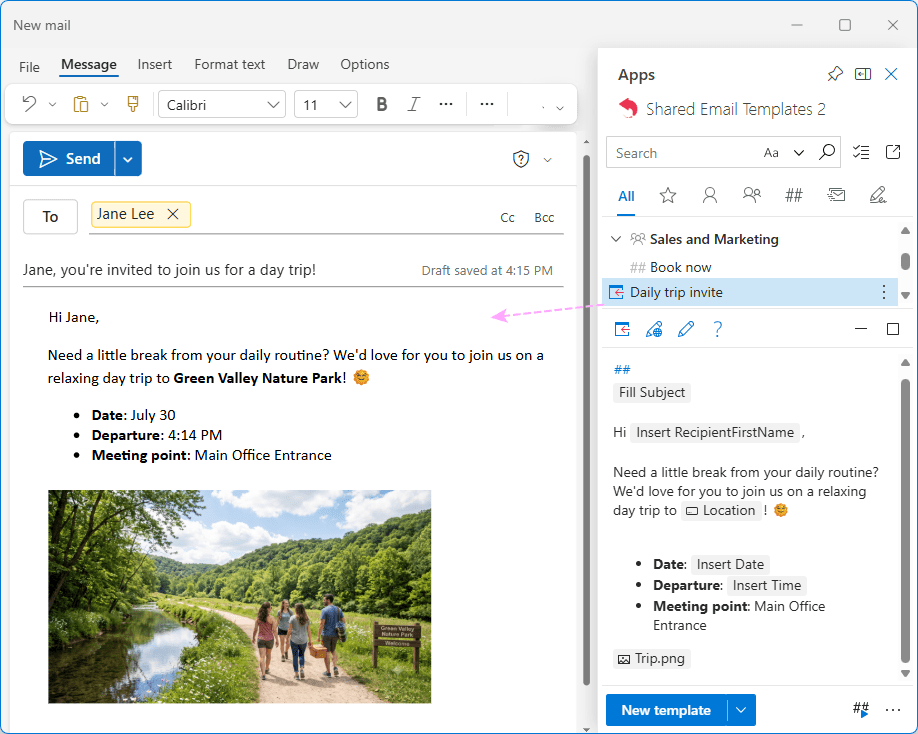
Like OFT templates and Mail Templates, it supports prefilled message fields (To, Cc, Bcc, Subject), rich formatting, tables, hyperlinks, images, attachments, and other advanced content.
Additionally, it offers a few unique features that you won’t find in any built-in Outlook tools. Here are the most useful ones: personalization, auto-fillable fields, sharing with colleagues, syncing across all Outlook versions (classic, new and web) and operating systems (Windows, macOS, iPadOS, and Android on tablets).
Best for: Individuals and teams that create complex or personalized emails, share templates with others, and need access to their templates from different platforms and devices.
The screenshot below gives you an idea of what a personalized Outlook email template can look like:
Comparison table: Quick Parts vs. Templates #
Still not sure whether to use Outlook Quick Parts or email templates? This comparison table highlights the key differences to help you choose the right option.
| Quick Parts | My Templates | OFT templates and Mail Templates | Shared Email Templates | |
|---|---|---|---|---|
| Primary use | Inserting reusable blocks into a new message or reply | Inserting text snippets into a new message or reply | Sending an entire formatted email | Anything from short text snippets to complete branded emails |
| Contents | Content for the message body (text, formatting, images) | Just text with basic formatting (bold, italic, underline) | Full emails with present fields (To, Cc, Bcc, Subject) and attachments | Personalized, sharable emails with attachments, fillable fields, date pickers, selecting from predefined lists, and other advanced options |
| Insertion | Can be inserted anywhere into a current email from the Insert tab (and via a shortcut or AutoComplete in classic Outlook) | Can be inserted anywhere into a current email from its pane | Creates a new message | Can be inserted anywhere into a current email from its pane (with templates organized into folders) |
| Availability | Outlook classic (365 – 2007), new and web | Outlook classic (365 – 2021), new and web | Classic Outlook (OFT templates) New Outlook and Outlook on the web (Mail Templates) | Outlook classic (365 – 2019), new and web Windows and Mac |
Now that you know all available options to reply with template in Outlook, the choice is yours. If you are curious to try our Shared Email Templates, you are welcome to download the free trial from Microsoft Marketplace.