
Outlook templates missing: why they disappear and how to get them back
In this article
By Svetlana Cheusheva, updated on August 11, 2026
Modern Outlook without email templates is like a smartphone without apps or a car without cruise control. When the My Templates button suddenly disappears or your familiar OFT templates seem to be gone, it can be totally frustrating.
The good news is that your email templates cannot actually vanish by themselves. In many cases, Outlook has just moved the option to another place, you are using a different mailbox, or the add-in has been disabled by your administrator. In this tutorial, we’ll look at the most common reasons why Outlook templates go missing and, more importantly, how to recover them.
Check which type of template you use #
Modern Outlook apps provide more than one template feature. They all work a little differently, and the location of each feature also varies between Outlook classic, new, and web.
There are three main template options available in Outlook. The summary table below shows the key differences between them.
| My Templates | Mail Templates | OFT templates | |
|---|---|---|---|
| Purpose | Short reusable text snippets | Full-featured templates | Complete email templates |
| Supported Outlook versions | All Outlook apps: classic, new, and web | New Outlook Outlook on the web | Classic Outlook |
| Storage location | Exchange-based online service | Cloud | Local computer storage |
| Linked to | A specific mailbox | A specific mailbox | A specific device |
| Syncing | Sync across all Outlook apps for the same account | Sync between new Outlook and Outlook on the web | Do not automatically synchronize between computers or Outlook apps Existing OFT files can be imported into new Outlook and web |
| Why may be missing | May be unavailable for IMAP, POP, on-premises Exchange, shared mailboxes, or accounts where the add-in is disabled | May appear missing when the wrong mailbox is selected | Can be lost when changing computers, Windows profiles, or Office installations |
Before you start troubleshooting, ask yourself these two questions:
Which templates tool were you using?
Which desktop Outlook app are you currently using? To find this out,just look at the New Outlook toggle in the upper-right corner:
If the toggle is turned on, you are using new Outlook.
If the toggle is off and says Try the new Outlook, you are using classic Outlook.
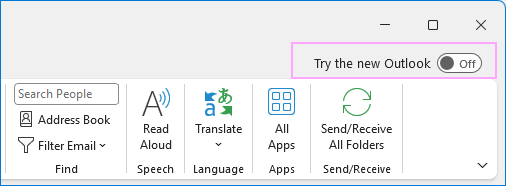
These two details will help you quickly narrow down the troubleshooting steps for your setup.
My Templates missing from Outlook #
If the My Templates tool is missing from Outlook, this often happens after an update or a minor app glitch. Before you do anything else, restart your Outlook and look for the button in the usual place. If it is not there, let’s start troubleshooting:
- Look in the right place
- Check whether the add-in is available for your account
- Correctly set up a shared mailbox
- Enable the My Templates add-in
- Check for an Outlook or Microsoft 365 service issue
- Restore missing templates for a specific account
You are looking in the wrong place #
Microsoft often changes the location of My Templates in different Outlook versions. A button that is easy to find in classic Outlook may have moved to a different place in the new Outlook or web app.
Find My Templates in Outlook #
To find My Templates in new Outlook and Outlook on the web:
Create a new message.
On the Message tab, click Apps > My Templates.
To find My Templates in classic Outlook for Windows:
Start a new email.
On the Message tab, click View Templates. Alternatively, select All Apps > My Templates.
Add My Templates to Outlook #
If My Templates is not visible in the Apps pop-up window:
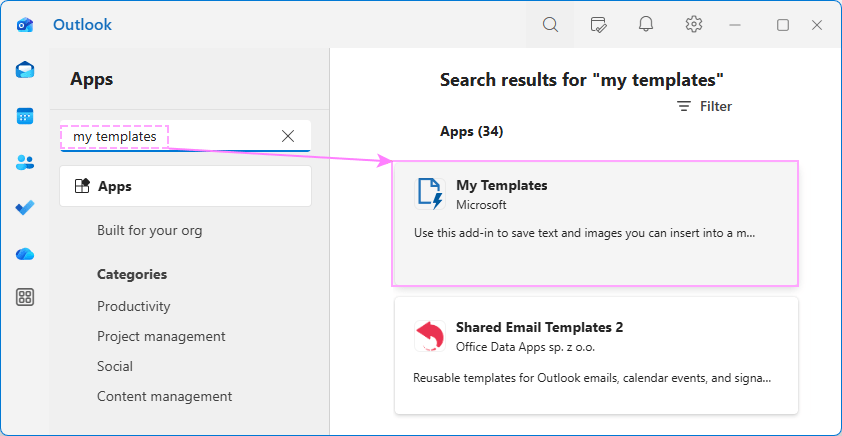
Click Apps > More apps.
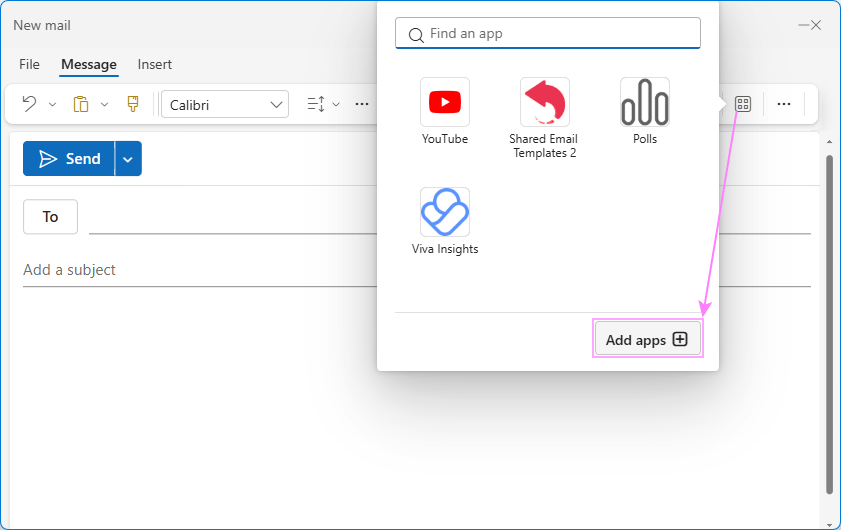
Search for My Templates and select it to add it in your Outlook.
My Templates is not available for your account #
The My Templates add-in is not available for every Outlook account. Unfortunately, Microsoft’s documentation is frustratingly vague in this regard. It states that My Templates requires a “qualifying Microsoft 365 subscription”, but it does not specify the exact plans or provide a link to a licensing table.
In practice, this “qualifying” requirement means the add-in relies on an Exchange-based service to host the feature.
Qualifying accounts #
Microsoft 365 work or school accounts: Any Microsoft 365 subscription for business, enterprise, or individuals that includes Exchange Online.
Personal Microsoft accounts: Free personal accounts including Outlook.com, Hotmail.com, or Live.com.
Non-qualifying accounts #
IMAP/POP accounts: third-party email services like Gmail, Yahoo, or iCloud connected to Outlook via the IMAP or POP protocol.
On-premises Exchange: Older corporate setups that host Exchange on their own local servers.
Keep in mind that, in classic Outlook, the My Templates add-in is only available for the main (default) account.
You are using a shared mailbox #
Shared mailboxes make My Templates behavior particularly confusing.
Classic Outlook: Canned responses you create while working in a shared mailbox are linked to your own account. Other people with access to the shared mailbox cannot view or edit them.
New Outlook: Availability depends on whether the shared mailbox has been promoted to a full account. If it has, templates created in the shared mailbox are available for anyone with access. If it hasn’t, the templates remain accessible only to the person who created them.
Outlook on the web: The behavior depends on how you open the shared mailbox. If you access it in the same window as your primary mailbox, the templates you create are available only to you. If you open the shared mailbox in a separate tab using the Open another mailbox option (found by clicking your profile picture or initials in the upper-right corner), the templates can be viewed and edited by anyone with access to the shared mailbox, as long as they open it in the same way.
So, if several team members need to use the same templates, consider one of these options:
Open the shared mailbox as a full account in new Outlook.
Open the shared mailbox through the Open another mailbox option in Outlook on the web.
The My Templates add-in is disabled #
My Templates is an Outlook add-in. Like any other add-in, it can be disabled by your organization’s policy or administrator.
In this situation, you might notice that:
The View Templates button has disappeared from the ribbon in classic Outlook.
My Templates does not appear under Apps in any Outlook version. You cannot find it through Add Apps either.
It works for a personal account but not for your Microsoft 365 work or school account.
If any of the above symptoms apply, check with your IT administrator whether the My Templates add-in is enabled for your account.
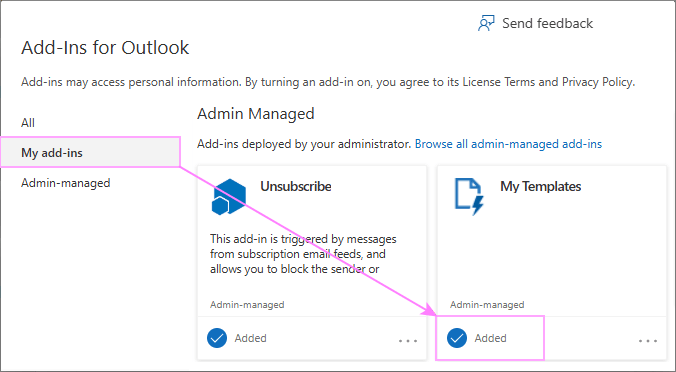
In classic Outlook, you can also check if My Templates is enabled in this way:
Go to File > Manage Add-ins.
You will be redirected to the Add-ins page in Outlook on the web (outlook.cloud.microsoft/mail/).
Switch to the My add-ins tab and scroll to the Admin Managed section.
Make sure My Templates is ticked off and labeled as Added.
Outlook or Microsoft 365 is experiencing a service issue #
Occasionally, missing email templates are caused by a Microsoft-side problem rather than anything on your computer. These service-side issues may have the following symptoms:
My Templates is not found under All Apps in any Outlook version.
The View Templates button disappears from classic Outlook.
The “Something went wrong” error occurs when trying to add the add-in.
A recent Microsoft backend server incident that caused the My Templates add-in to disappear from Outlook was fixed on April 3, 2026. According to Microsoft, it was related to an Exchange Web Services deprecation update and an Exchange Online authentication change. However, organizations that disabled Exchange Web Services (EWS) may continue to experience the problem.
If several people in your organization lose access to My templates at the same time, it makes sense for the administrator to check the Microsoft 365 service health dashboard before troubleshooting Outlook settings on individual computers.
My Templates add-in is visible, but the templates are gone #
Most likely you are using the wrong account. Canned responses you create with My Templates are tied to a certain Outlook account, namely:
In classic Outlook, they are available only for your main (default) account.
In new Outlook, they are linked to the account you were using when creating a template.
Considering the above, your templates may seem to vanish when you compose an email from another mailbox, for example after switching between your personal and work accounts.
Try creating a new message from your primary account, then check My Templates again. You can also sign in to Outlook on the web with the same account and see whether the templates are available there.
OFT templates are missing in classic Outlook #
In contrast to cloud-based My Templates, classic Outlook templates are stored on your computer’s hard drive as .oft files.
Because they are saved locally, your OFT templates may be missing if you recently:
Replaced your computer or reformatted your hard drive.
Created a new Windows user profile.
Completely uninstalled and then reinstalled Microsoft Office.
Moved your .oft files from the default location to another folder.
How to recover OFT templates #
If you have access to your old computer or your previous Windows user profile, your templates are likely still be there.
Check the default folder. Open File Explorer and navigate to the following folder:
C:\Users\{UserName}\AppData\Roaming\Microsoft\TemplatesAlternatively, paste this path in File Explorer’s address bar and press Enter:
%appdata%\Microsoft\TemplatesSearch your computer. If the templates are not in the default folder, search your computer for .oft files. In File Explorer, click on This PC, type
*.oftinto the search bar, and press Enter.
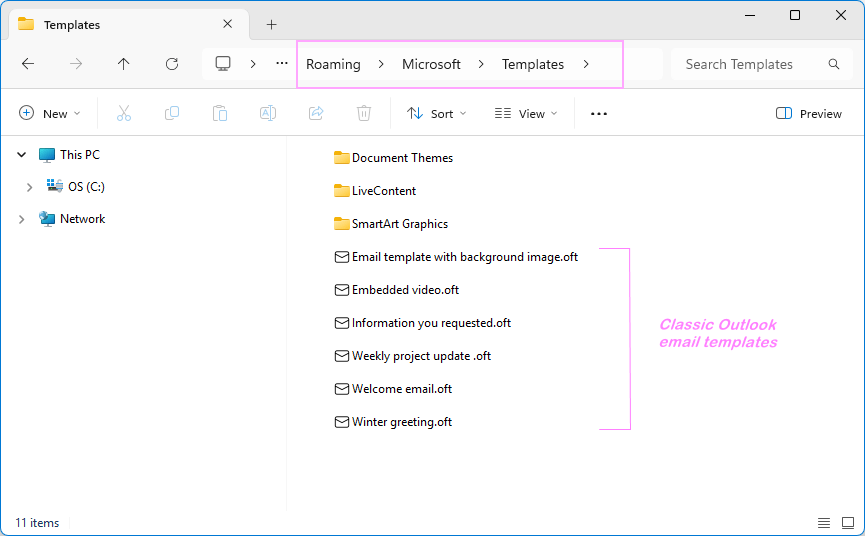
Once you find the .oft files, you can:
Copy them to the Templates folder on your new computer or Windows user profile, so you can use them again in classic Outlook.
Import OFT files into new Outlook.
Email templates disappeared from new Outlook or web #
If you’ve recently migrated from classic Outlook to the new Outlook app, your templates may seem to have disappeared, but in fact, they just work differently now.
If your email templates are missing in new Outlook, check these four things:
- Import OFT templates from classic Outlook
- Look in the right place
- Check the right account
- Wait for new Outlook to synced
Import OFT templates from classic Outlook #
New Outlook and Outlook on the web have a built-in Mail Templates feature – an alternative to the OFT templates in classic Outlook. Though these two template types have very much in common and can even be transferred between different Outlook apps, they are not the same. They have different natures and are accessible in different ways:
OFT files are stored locally and tied to a specific device.
Mail Templates are stored in the cloud and linked to a specific mailbox.
Classic Outlook’s OFT templates are not automatically available in new Outlook and Outlook on the web. To bring them in the new app and web version, you need to manually import OFT files through Settings > Mail > Templates > Add > Add OFT.
Look in the right place #
Because the interface of the new Outlook app is completely different, the menu path for finding templates is also different.
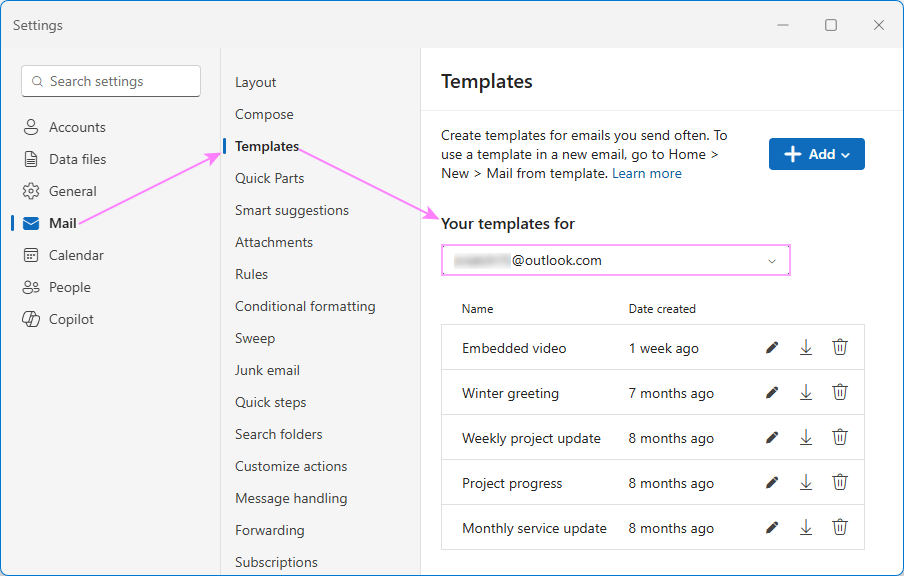
To locate your email templates in new Outlook and Outlook on the web, navigate to Settings > Mail > Templates.
Check the right account #
New Outlook’s Mail Templates are account-based. If several accounts are connected to new Outlook, check each one individually. Each account has its own list of templates, and they do not sync across different mailboxes.
In the Template Settings dialog window, open the Your templates for dropdown list and select the email address you used when creating the templates.
New Outlook has not synced correctly #
A temporary connection or synchronization issue can sometimes prevent email templates from loading. Try the following steps:
Close the new Outlook app completely.
Reopen Outlook and wait for the mailbox to finish loading.
Check if your templates are available in Outlook on the web.
If the templates are present on the web but not in the desktop application, the problem is likely limited to the local Outlook installation or caused by a temporary app error.
Outlook email templates missing: Summary table #
The table below summarizes the main reasons Outlook templates may be missing, how to identify each issue, and the recommended solution.
| Symptom | Typical cause | Applies to | How to troubleshoot |
|---|---|---|---|
| My Templates cannot be found | You are looking in the wrong place, or the command has moved to a different location. | Outlook classic, new, and web | Restart Outlook first. Create a new message and look under Apps > My Templates. |
| My Templates is not listed under Apps | The add-in has not been added to the current Outlook account. | Outlook classic, new and web | Select Apps > More apps, search for My Templates, and add it. |
| My Templates is unavailable for a particular account | The account is not Exchange-based. In classic Outlook, it is only available for the main account. | IMAP, POP, third-party accounts, and some on-premises Exchange accounts | Try a Microsoft 365 business account or a personal Outlook.com, Hotmail.com, or Live.com account. |
| My Templates cannot be found in a shared mailbox | The shared mailbox has not been set up or opened in a way that supports templates. | Shared mailboxes in new Outlook and Outlook on the web | In new Outlook, add the shared mailbox as a full account. In Outlook on the web, open it in a separate tab. |
| My Templates is missing from all menus | The add-in has been disabled by your administrator or organizational policy. | Microsoft 365 work or school accounts | Check with your Microsoft 365 administrator that My Templates is enabled for your account. |
| My Templates disappears for several users at the same time | Microsoft 365 or Exchange is experiencing a service-side issue. | Organization-wide Microsoft 365 environments | Check the Microsoft 365 service health dashboard. |
| My Templates or Mail Templates appears in one mailbox but not another | Templates are tied to a specific mailbox and do not synchronize across different accounts. | Multiple-account Outlook profiles | Compose the message from the account where you originally created the template. |
| OFT templates are missing in classic Outlook | Email templates disappear after replacing a computer, reinstalling Office, or creating a new Windows profile | Classic Outlook for Windows | Check the folder where your .oft files are stored or search the computer for *.oft.Copy recovered files into the Templates folder on the new computer or profile. |
| Classic Outlook templates are not available in new Outlook or web | OFT files are not transferred automatically from classic Outlook. | New Outlook Outlook on the web | Import OFT files manually. |
| Templates appear on the web but not in the new Outlook desktop app | The desktop app has not synchronized correctly or is experiencing a temporary local error. | New Outlook | Close Outlook completely, reopen it, and wait for the mailbox to finish loading. Update new Outlook to the latest version. |
What’s next? #
Hopefully, by this point, you’ve pinpointed the root cause of your Outlook template issue, or better yet, already fixed it. If so, congratulations! :) Unfortunately, there is no guarantee that this or another issue won’t occur again after next week’s Outlook update. The reality is that the more tools you rely on, the higher the chance something will eventually go wrong. Considering Outlook offers three different template options, each with its own setup and quirks, troubleshooting can get really complicated.
Consistent and reliable email templates for all Outlook apps #
Ever wished for a universal and robust template tool that works consistently across every Outlook app and device? That isn’t just a wish list. It’s a time-tested solution that thousands of users already know and trust. Meet Shared Email Templates for Outlook.
What you get:
Advanced email templates with a clear, user-friendly interface.
Work in Outlook classic, new and web, on both Windows and Mac.
Can be used personally or shared with teams.
Can adapt dynamically for each recipient (greet them by name, pull user-specific details from predefined lists or Excel files, and more).
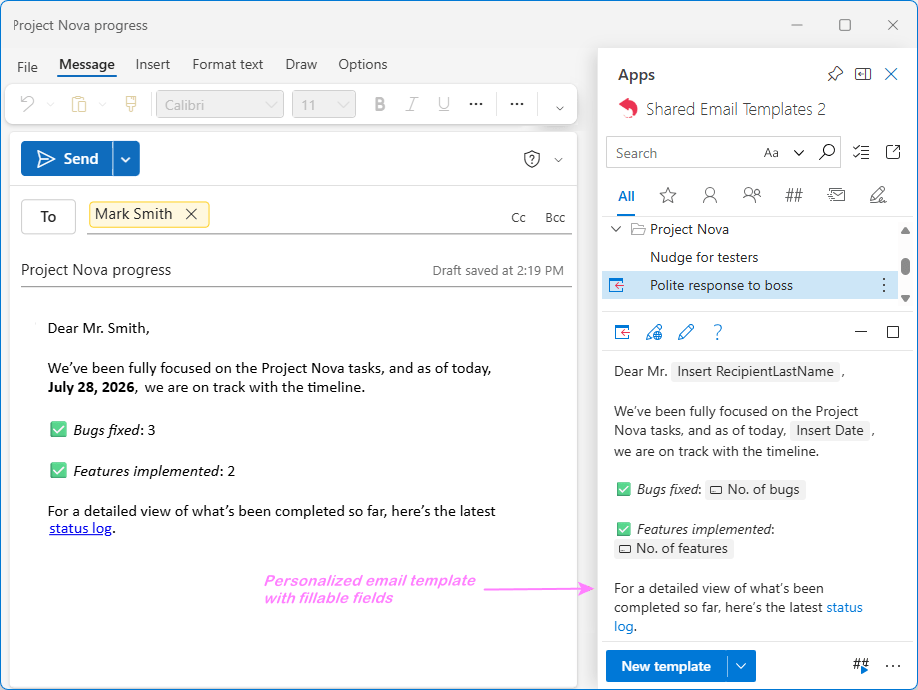
Most importantly, the Shared Emails Templates add-in works consistently in every Outlook version. When switching from Outlook classic to the new app, you will never have to play hide-and-seek with your templates again 😊
Want to see it in action? Download a free version from Microsoft Marketplace and try it hands-on.